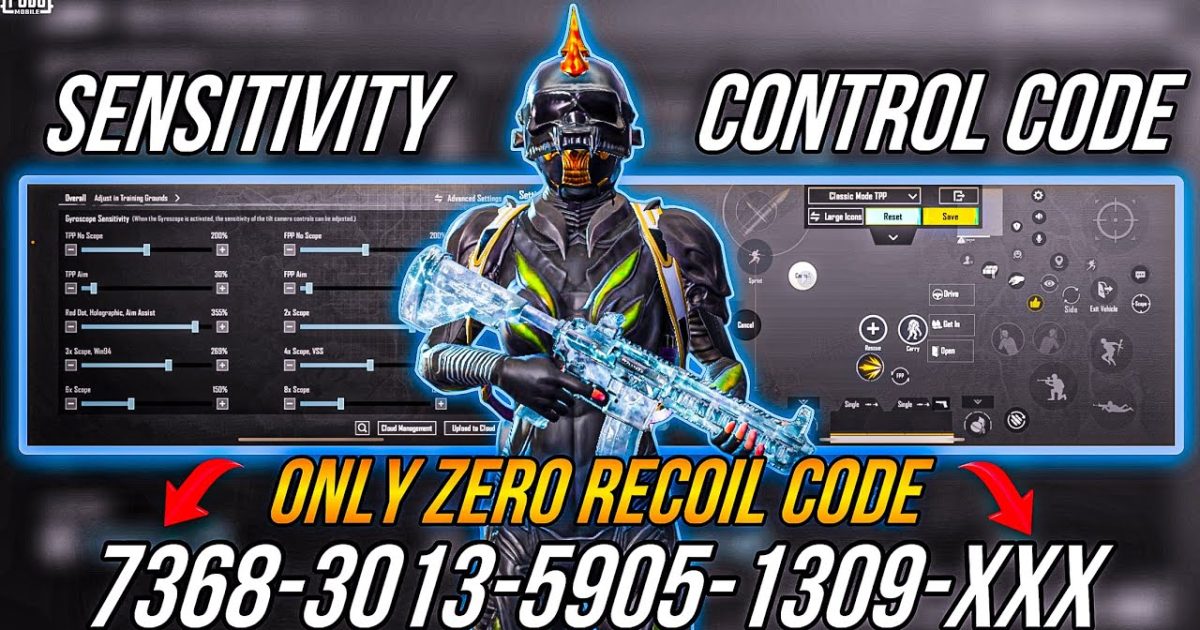
So you found a sick control code online—maybe from a pro streamer or that viral TikTok—but when you try to apply it, nothing happens. The code refuses to apply, and you’re left staring at the same old settings. Frustrating, right? Don’t worry, you’re not alone. I’ve dug into the most common reasons why PUBG Mobile control codes fail to apply and compiled the seven fixes that actually work. Whether you’re on Android, iOS, or emulator, these steps will get your custom layouts working again.
Invalid Code Format – The #1 Culprit
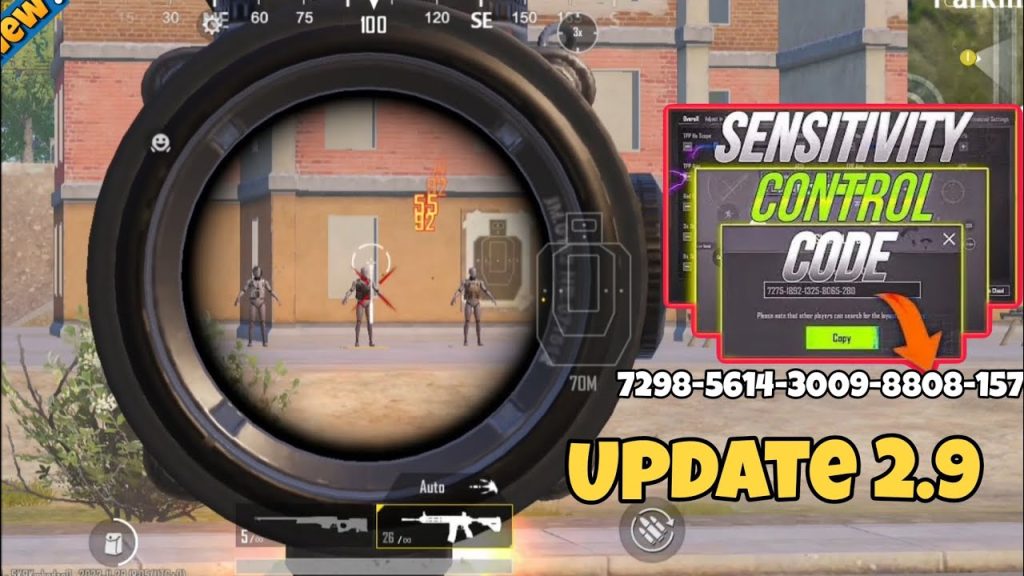
The most common reason control codes fail is simple: you copied the code incorrectly. PUBG Mobile codes are case-sensitive and include special characters. A missing dash or an extra space breaks the whole thing. Always double-check that you’ve copied the exact string, including hyphens and letters. If you’re on mobile, it’s easy to miss a character. Try copying the code to a notes app first, then paste it into the game. Also, avoid codes from shady sources—they might be intentionally corrupted. For verified working codes, check our control codes review for tested options.
Region Lock – Not All Codes Work Everywhere
Many control codes are region-specific. A code generated on the Europe server won’t work on Asia or North America. If you’re using a code from a global source, ensure it’s labeled as universal. Some creators share separate codes for different servers. If your code won’t apply, check the server tag. You can switch your server temporarily to apply the code, then switch back—but that can be a hassle. Better to find codes specific to your region, like our pubg control codes for europe server.
Device Compatibility Issues
Not every control code works on every device. Codes designed for high-end phones may include controls that low-end phones can’t handle, leading to rejection. Also, emulator codes differ from mobile codes. If you’re playing on BlueStacks or Gameloop, you need emulator-specific codes. Always check the device compatibility of a code before trying. Our guide on device compatibility can help you find codes that match your setup.
Game Version Mismatch
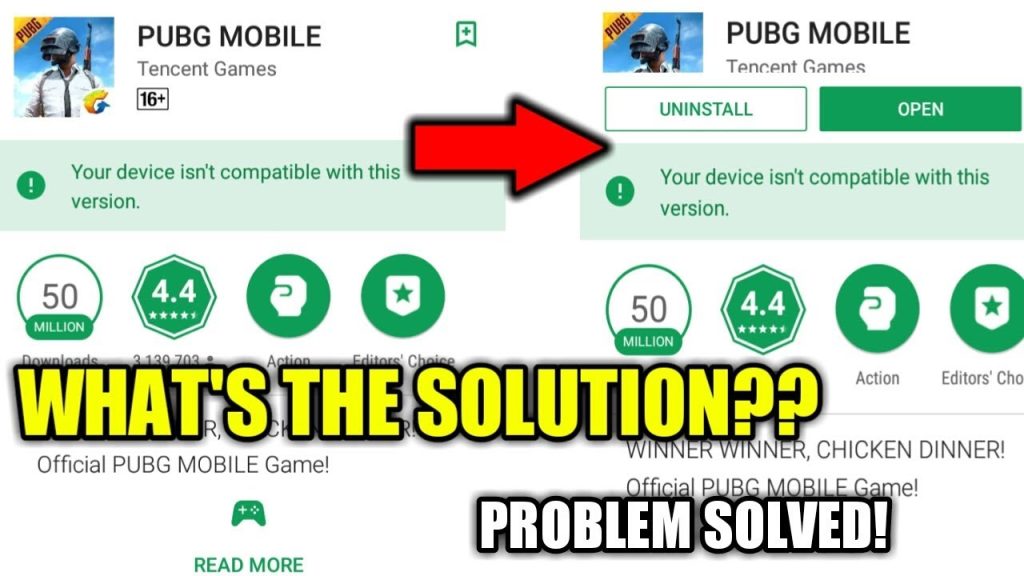
PUBG Mobile updates frequently, and control codes are version-specific. A code from an older patch may not apply after an update. If your game is outdated, update it first. Conversely, if you have the latest version but the code is from an older one, it won’t work. Always look for recent codes (2025 or later) and check the date. Our best pubg control codes 2026 list keeps you ahead of the curve.
Server or Account Issues
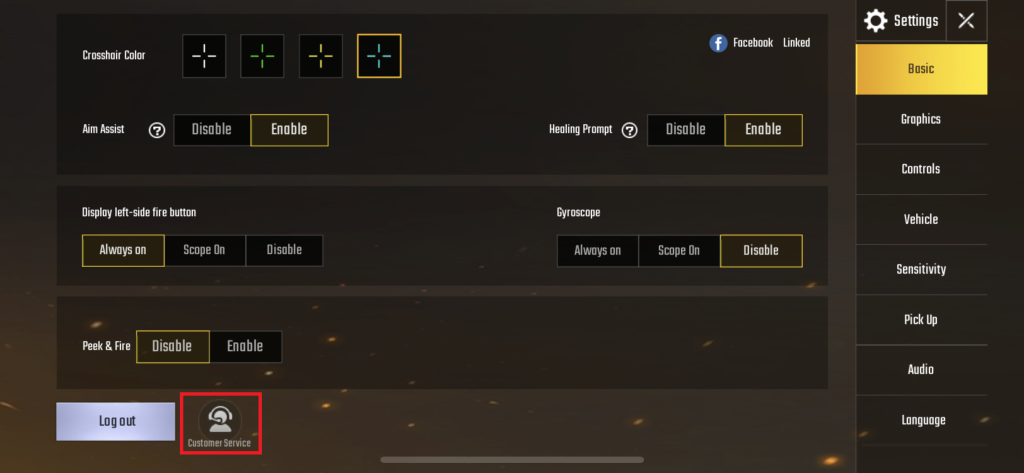
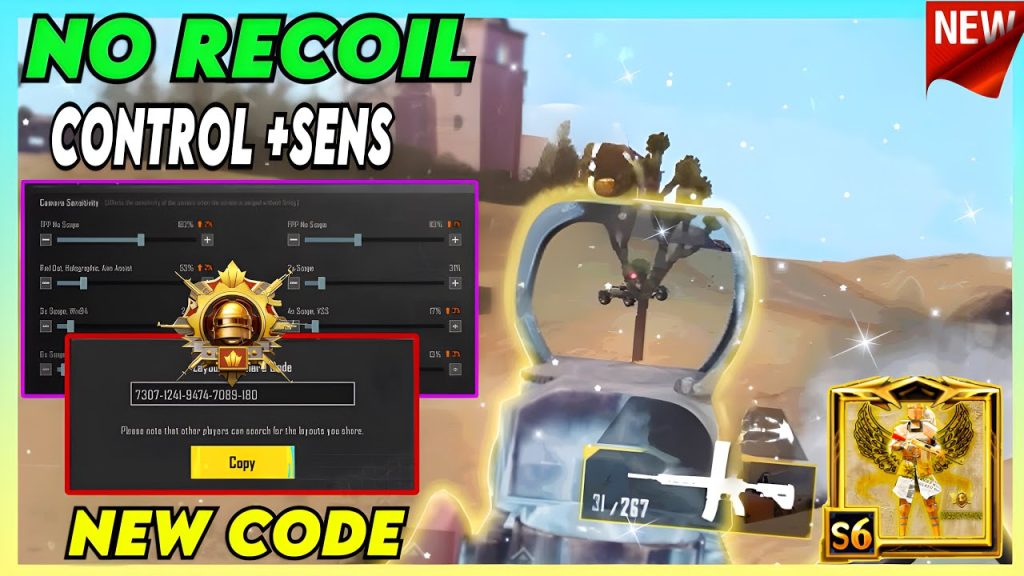
Sometimes the problem isn’t the code—it’s your account or the server. Temporary server outages can prevent code application. Also, if your account has been flagged for suspicious activity, you might be restricted from importing codes. Try restarting the game, logging out and back in, or even reinstalling. If you’ve recently reset your settings, you might need to reset your control codes properly first.
Copy-Paste Glitches on Mobile
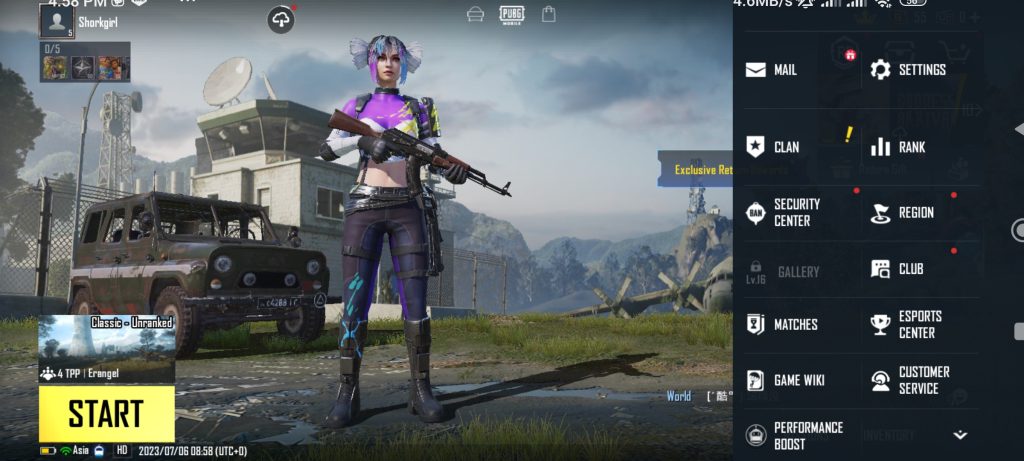
PUBG Mobile’s in-game text field can be buggy, especially on iOS. Sometimes pasting a code adds invisible characters or truncates the string. To fix, manually type the code character by character. Annoying, but it works. Alternatively, use a QR code sharing method if the game supports it. Many players swear by TikHub or other sharing tools. For more tips, see our TikTok PUBG control codes collection—some of those creators share QR-friendly codes.
The Code Has Expired
Yes, control codes can expire. Developers sometimes set time limits on shared codes, especially from events or limited-time partnerships. If the code is from months ago, it’s likely dead. Stick to freshly shared codes from active communities. Our PUBG control codes for beginners guide updates regularly, so bookmark it.
So there you have it—seven reasons why your PUBG Mobile control codes won’t apply and the fixes to get you back in action. Most of the time it’s a simple formatting or region issue. Try these steps one by one, and you’ll be dropping into matches with your perfect layout in no time. Got a fix we missed? Share it in the comments!



