So you’ve found a sick PUBG control code, but you’re stuck on how to actually get it into your game? Don’t worry—it’s easier than you think. Whether you’re looking to copy a pro’s layout or tweak your own, importing control codes is a game-changer. I’ve put together this list of 10 essential steps to make the process smooth and error-free. Each step is chosen based on common pitfalls and pro tips from the community.
1. Copy the Code Correctly
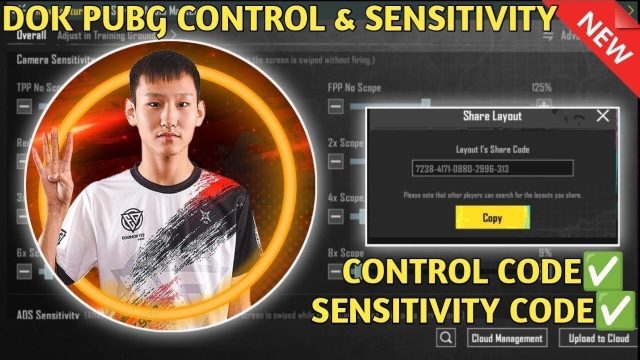
Before you even open PUBG Mobile, make sure you have the code copied accurately. Highlight the entire code string—it’s usually a long mix of numbers and letters—and tap Copy. Avoid tapping on extra spaces or line breaks. If you copy from a website, double-check that you didn’t grab any surrounding text. A single misplaced character can make the code invalid.
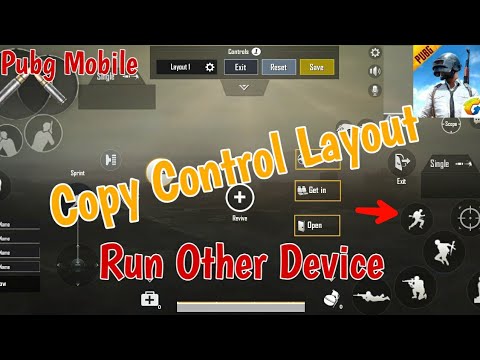
2. Open Settings and Navigate to Controls
Launch PUBG Mobile and head to the Settings menu (the gear icon on the main screen). Then tap on “Controls.” This is where all your button layouts live. If you’ve ever switched between claw and gyro setups, you’re already familiar with this screen. Now look for the button that says “Import Layout” or “Import Code”—it’s usually near the bottom or in the layout selection menu.

3. Use the Import/Export Feature
PUBG Mobile has a built-in import/export system for control layouts. Tap “Import Layout,” and a text box will appear. You’ll paste your code here. Some old versions of the game hide this behind a “+” or “Add Layout” button, but it’s always there. If you can’t find it, try tapping on your current layout name—it might show options.
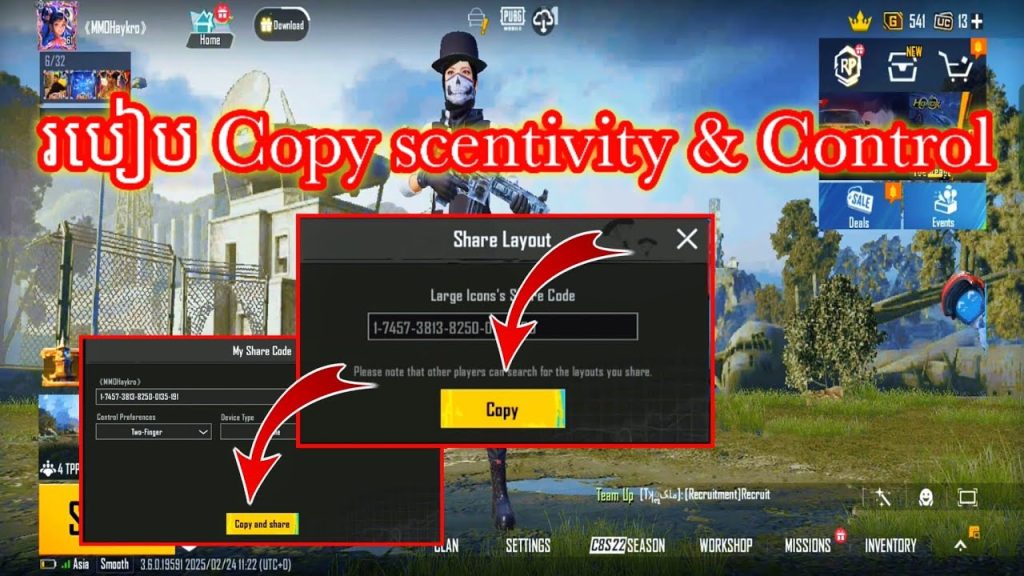
4. Paste the Code from Clipboard
Long-press in the text box until you see the “Paste” option. Tap it, and your code should appear. If nothing happens, you might not have copied it correctly—go back to step 1. Also, ensure you’re pasting the entire code without truncation. Some codes are long (especially for 4 or 5 finger layouts), so double-check the end.

5. Confirm the Layout Preview
After pasting, the game will usually show you a preview of the layout—buttons, joysticks, and all. Look it over. Does it match what you expected? For example, if you copied a 4-finger claw layout, do you see four main buttons in the corners? If the preview looks glitched or empty, the code might be corrupted or for a different device. You can also compare it to screenshots of the original layout online.

6. Save and Test in Training Ground
Once you’re happy with the preview, tap “Save” or “Apply”. Name your layout something memorable, like “Pro Claw 2025.” Then jump into the Training Ground. Practice moving, aiming, and shooting. Does it feel natural? If not, you might need to adjust the sensitivity or even try a different code. Test both stationary and moving targets to see if the layout works under pressure.
7. Adjust Sensitivity After Import
Importing a control code doesn’t automatically import sensitivity settings. You’ll need to match your sensitivity to the layout—especially if you’re using a different number of fingers. Check the code author’s recommended sensitivity or use a reference like our pubg control codes for pro players. For gyro users, you might want a pubg mobile no gyro control code if you don’t use gyro, or vice versa.
8. Troubleshoot Invalid Code Errors
If you see an “Invalid Code” message, don’t panic. Common fixes include: removing extra spaces, making sure the code isn’t expired, and checking for game updates. Some codes from older patches no longer work. Check our guide on pubg mobile control codes invalid code for detailed fixes. Also, try copying the code from a different source—sometimes the original website has a formatting issue.
9. Import from Trusted Sources
Only download codes from reputable sources. The best ones are from pro players, the official PUBG Mobile forums, or trusted community sites. Avoid random streamers or shady websites—they might include malware or keyloggers. Stick with known names like our pubg 4 finger control codes or trending pubg control codes. A bad code can mess up your settings or worse.
10. Share Your Own Layouts
Once you’ve fine-tuned your layout, why not share it? Go back to the Controls menu and tap “Export Layout” to generate a code. Copy it and send to friends or post on social media. You might even see your layout on our pubg control codes list. Sharing helps the community grow and discover new playstyles.
And that’s it! Importing PUBG control codes is straightforward once you know the steps. From copying the code to testing and sharing, each stage helps you get the perfect layout for your playstyle. Remember to always test in Training Ground before jumping into ranked matches, and don’t be afraid to tweak settings. Happy gaming!