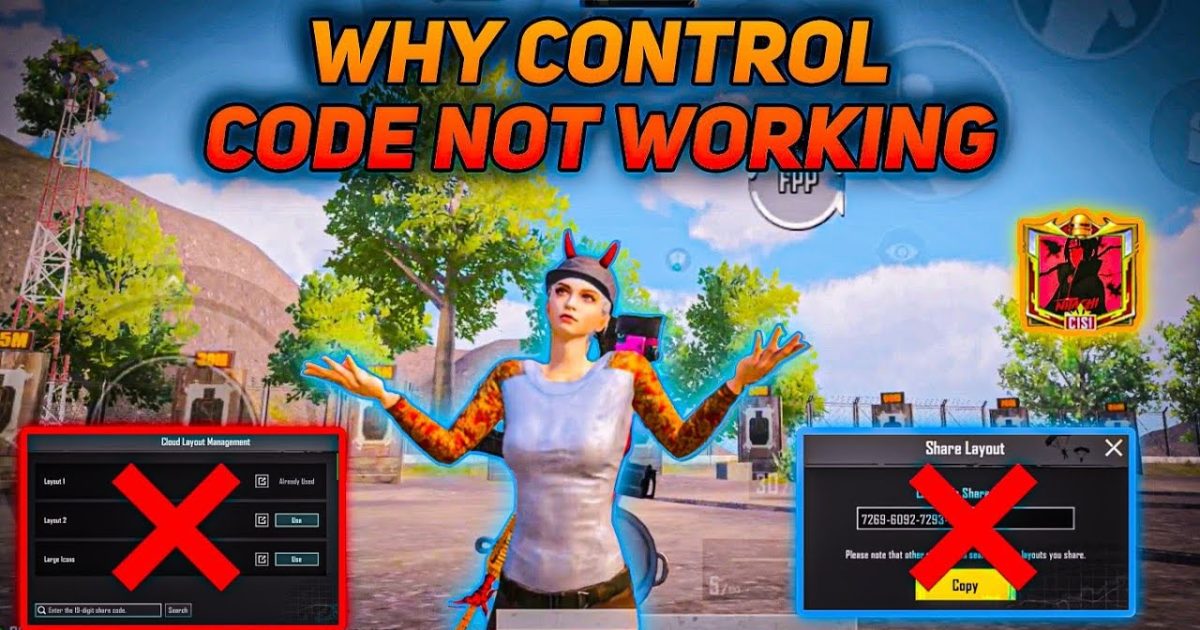
If you’ve been struggling to get your PUBG control codes to sync across devices, you’re not alone. Whether you’re using pubg 4 finger control codes on your phone and they don’t show up on your tablet, or your latest layout disappears after an update, sync issues are frustrating. We’ve gathered 10 common problems and solutions to help you get back in the game.
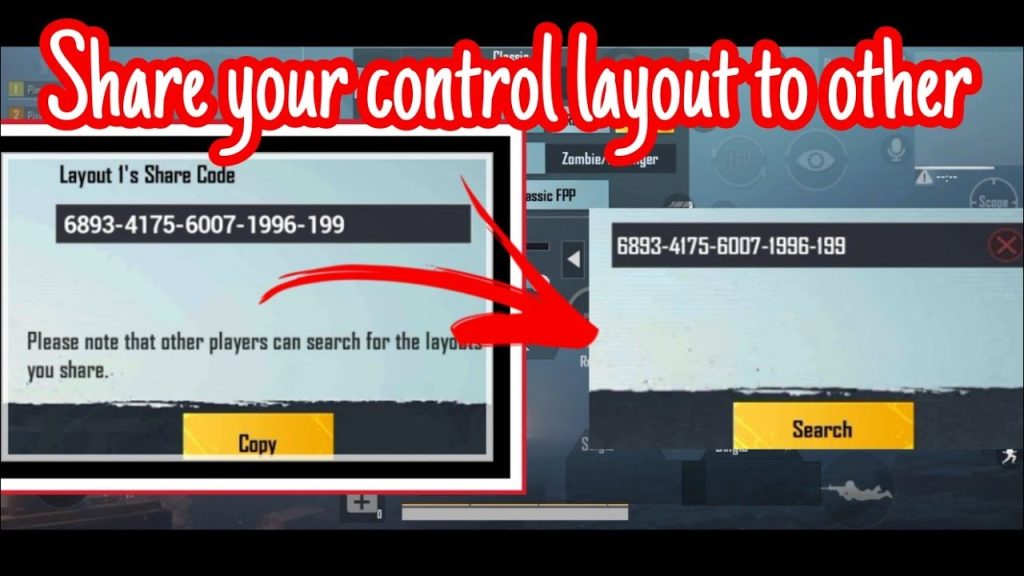
1. Not Logged Into the Same Account
This is the most common culprit. PUBG Mobile stores your control codes under your account, so if you’re using different accounts on different devices, your layouts won’t sync. Make sure you log in with the same account (Google, Facebook, Twitter, or Guest) every time. Double-check in Settings > Account to see which account is active.
2. Cloud Save Not Enabled
Even if you’re on the same account, cloud save must be turned on for your control codes to sync. Go to Settings > Graphics > Cloud Save and toggle it on. Without it, your layouts stay local. Also ensure your device has a stable internet connection when you save or load codes.
3. Server Region Mismatch
PUBG Mobile separates data by server region (e.g., Asia, Europe, America). If you play on a different server on each device, your saved layouts won’t appear. Always select the same server region before importing codes. For India players, check out our pubg mobile control codes india guide for region-specific tips.
4. Outdated Game Version
An outdated game version can prevent new layouts from loading. Always ensure you’re running the latest patch from your app store. After updating, some older codes may need re-importing. See our pubg control codes updated list for the newest layouts compatible with the latest patch.
5. Import Failed Due to Code Format
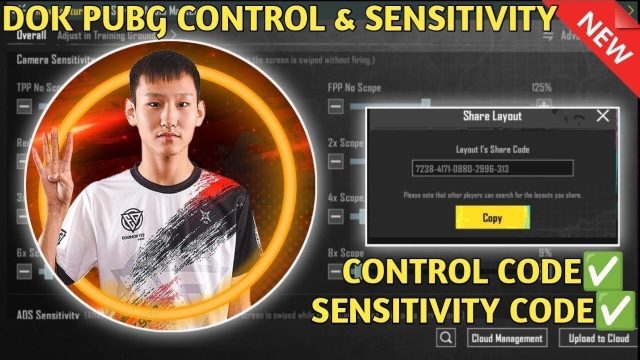
When importing a control code, one small typo can cause the entire layout to fail. Copy the code exactly, including hyphens and dashes. Avoid extra spaces. If the code still won’t import, try re-copying from a trusted source. For a complete walkthrough on importing codes, check out our control codes full guide.
6. Account Binding Issues
If your account isn’t properly bound, you risk losing all your saved codes if you clear data or switch devices. Bind your account to at least one platform (Google, Facebook, or Twitter) in Settings > Account. Unbound guest accounts cannot sync codes across devices at all.
7. Device Compatibility
Some advanced control codes (like 6-finger layouts) may not work on devices with small screens or lower screen refresh rates. If you import a code and it looks scrambled, it might be incompatible. Try a simpler layout first or adjust the code manually after import.
8. Cache and Data Conflicts
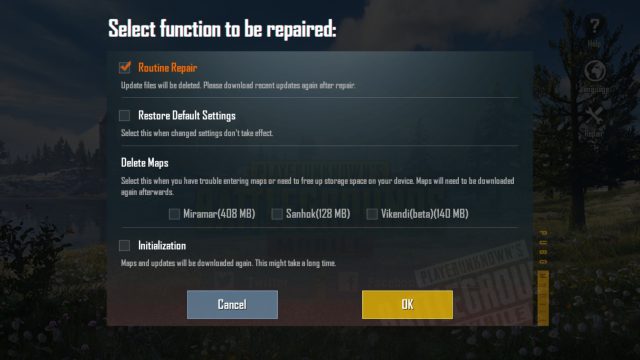
Corrupted cache or leftover data from old versions can interfere with sync. Go to your device’s App Info for PUBG Mobile and clear the cache (not data, to avoid losing account info). Then restart the game. This often resolves codes not appearing after an update.
9. Network Connectivity Problems
A weak or intermittent internet connection can prevent the game from downloading your saved layouts from the cloud. Ensure you’re on a stable Wi-Fi or strong mobile data before importing or attempting to sync. Try switching networks if the issue persists.
10. Server-Side Sync Delays
Sometimes the servers themselves lag, especially during peak hours or after big updates. Your layout might be saved locally but not yet reflected on the cloud. Wait a few minutes, then restart the game. If you’re looking for the hottest layouts right now, our trending pubg control codes article has you covered.
Closing Thoughts
With these fixes, you should be able to sync your layouts seamlessly across all your devices. Remember to always check your account binding and cloud save settings first. For a complete collection of codes to try out, browse our pubg control codes list.