If you’re serious about climbing the ranks in PUBG Mobile, you know that default controls just don’t cut it. That’s where PUBG control codes come in — they let you import pro-level HUD layouts with a single tap. I’ve tested dozens of codes from top players and curated the ones that actually deliver. Whether you’re a claw player, a gyro enthusiast, or gaming on an iPad, this guide has you covered.
What Are PUBG Control Codes?
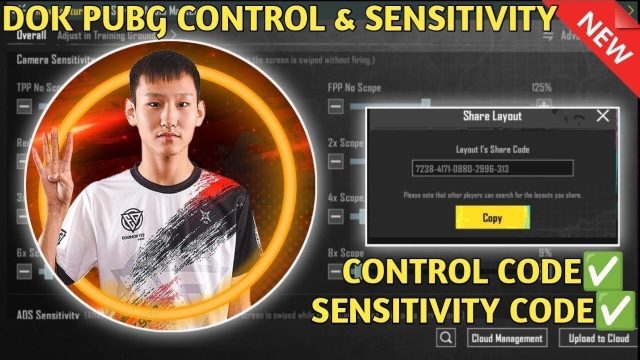
PUBG control codes are strings of numbers and letters that encode a complete HUD layout — button positions, sizes, opacity, and gyro settings. You copy a code, paste it into the game’s import feature, and instantly get a setup used by pros. No more manually dragging buttons for hours. These codes are shared by the community and update with each season, so you always have access to the latest optimizations.
The 4-Finger Claw Setup
The 4-finger claw is the most popular control scheme for serious players. It uses two thumbs and two index fingers, allowing you to aim, shoot, scope, and crouch simultaneously. I recommend starting with a proven 4 finger layout that places fire and scope on the top-left, aim and lean on top-right, while thumbs handle movement and camera. This setup dramatically reduces reaction time and is the foundation for most pro play.
Mastering 6-Finger Layouts
If you want the highest possible APM (actions per minute), the 6-finger claw is your answer. By adding your middle fingers, you gain dedicated buttons for prone, jump, crouch, and equipment. The best 6 finger control codes map all combat actions to the top half of the screen, leaving your thumbs free for movement. This layout is demanding but rewards you with godlike control over every engagement.
Gyroscope Control Codes for Precision
Gyro aiming gives you mouse-like precision by tilting your device. The right gyro control codes include not just button placements but also sensitivity profiles for hip-fire, scope, and ADS. Many pros use gyro for fine adjustments while tapping the screen for large swipes. When you import a gyro layout, you also get the exact sensitivity values that pros swear by — no more guessing.
Device-Specific Control Codes
Not all layouts work on every device. An iPad needs wider spacing; a Poco phone might require smaller buttons; BlueStacks emulates PC controls. That’s why you’ll find dedicated codes for each platform. For example, iPad control codes often shift buttons inward to account for the larger screen, while Poco codes maximize visibility on a 6.67-inch display. Always use a code designed for your device size and aspect ratio.
How to Import Control Codes
Importing a control code is simple. Open PUBG Mobile, go to Settings → Controls → Custom Layout → Import Layout. Copy the code from a trusted source, paste it, and confirm. The layout will overwrite your current setup, so save your old one first. If you run into trouble, check your internet connection and ensure the code is for your current game version. For step-by-step help, see the guide on fixing import failed errors.
Fixing Import Failures
Seeing “import failed”? Don’t panic. Common causes include an incorrect code format, a mismatch with the game version, or corrupted clipboard data. First, try copying the code manually — sometimes automatic copy adds extra characters. If that doesn’t work, update PUBG Mobile to the latest version and try again. Persistent issues can be resolved by clearing the game cache. Many players report that restarting the device fixes the problem instantly.
Control Codes for Faster Reaction
Speed is everything in close-quarter fights. Control codes optimized for faster reaction shrink button sizes, move fire and scope closer to your natural finger positions, and disable unnecessary UI elements. Some even adjust the trigger delay by mapping actions to the edges of the screen where your fingers rest. Adopting these layouts can shave milliseconds off your response time, which often decides who wins a 1v1.
Esports-Proven Layouts
The layouts used by PMPL and PMCO champions are publicly available as control codes. These esports-level setups prioritize consistency and comfort over flashy gimmicks. They typically feature a 4- or 5-finger claw with gyro assist, minimal button overlap, and dedicated keys for quick scoping and jiggle peeking. Importing these codes gives you the exact same HUD as your favorite pros, so you can practice with their muscle memory.
Choosing the Right Layout for You
There is no single best control code — it depends on your fingers, device, and playstyle. Start with a well-rated 4-finger claw and adjust button sizes until they feel natural. If you have a large tablet, try dedicated iPad control codes. For ranked matches, use ranked game control codes that maximize situational awareness. Experiment with gyro on or off, and don’t be afraid to switch after a losing streak. The right layout will click after a few days of practice.
This guide covered the essential PUBG control codes, from 4-finger and 6-finger setups to gyro and device-specific imports. Start with a layout that matches your hardware and skill level, then tweak as you improve. Remember, the best code is one you’re comfortable with — but giving a pro code a try might surprise you. Import one today and feel the difference in your next match.