
So you’ve heard about PUBG Mobile control codes and how they can transform your gameplay. Maybe you’ve seen top players using crazy 4-finger layouts or pinpoint gyro setups and wondered how they set them up. The truth is, applying control codes is a breeze once you know the steps. But a single misstep—like copying an extra space or skipping the training mode—can leave you frustrated. That’s why we put together this list: to walk you through every step, from finding a reliable code to troubleshooting those pesky invalid code errors. We’ve tested these steps ourselves, so you can skip the trial and error.
1. Find a Reliable Source for Control Codes

Before you can apply anything, you need a code that actually works. Not all codes are created equal—some are outdated, some were designed for different devices, and some are just plain fake. Stick to trusted sources like the ones we’ve shared here. Check out our list of control codes used by pros if you want layouts that have been battle-tested. Also, keep an eye on the latest updates; codes that worked last season might not work after a patch. We’ve got you covered with new meta layouts that survive game updates.
2. Copy the Code Correctly (Avoid Extra Spaces)
This is where most people mess up. When you copy a control code, make sure you grab the entire string without any extra spaces, line breaks, or missing characters. A single typo will give you an “invalid code” error. Use the copy button if the site has one, or manually select the whole code (tap and drag to highlight). If you’re on mobile, be careful not to accidentally include the surrounding text. Once copied, paste it into a notes app to double-check it looks right—no spaces at the start or end.
3. Open PUBG Mobile and Navigate to Settings
Launch PUBG Mobile and head to the main lobby. Look for the gear icon (Settings) in the top-right corner. Tap it, and you’ll see several tabs: Graphics, Audio, Controls, and so on. We’re interested in the Controls tab—that’s where the layout magic happens. Make sure you’re connected to the internet; importing codes requires a server connection.
4. Go to the Controls Layout Section

Inside the Controls tab, you’ll see an option for “Layout” or “Customize Controls.” Tap that. You’ll be taken to the layout editor where you can see your current button placement. At the bottom of the screen, there are a few buttons like “Reset,” “Save,” and “Import.” You’re looking for the Import button—it’s usually in the middle or on the right. If you can’t find it, double-check that you’re in the right submenu; some older versions had it under a different name. For a visual guide, check out our detailed step-by-step on how to import PUBG control codes.
5. Tap on the Import Button
Once you find the Import button, tap it. A dialog box will appear asking you to paste the control code. This box might look like a text field with a blinking cursor. Don’t be intimidated—it’s just a simple input. If nothing happens when you tap Import, make sure you haven’t accidentally opened the Export option instead. They’re often right next to each other.
6. Paste the Code into the Dialog Box
Now, hold down on the text field and select “Paste.” The code should appear instantly. Check that the full code is visible—if it’s cut off, you might have copied it wrong. Once pasted, tap “OK” or “Import” to apply. The game will process the code and apply the new layout immediately. You’ll see your controls rearrange themselves. If you get an invalid code message, don’t panic. It’s a common issue. Read our guide on invalid code issues to fix it fast.
7. Confirm and Apply the Layout
After importing, the layout is automatically applied, but you might need to confirm by tapping “Apply” or “Save” if prompted. Some layouts require you to exit the settings for changes to take effect. A good practice is to exit completely and re-enter the settings to ensure the new layout is saved. Don’t forget to save your layout as a backup at this point—trust us, you’ll thank yourself later if you accidentally reset it.
8. Test the Layout in Training Mode
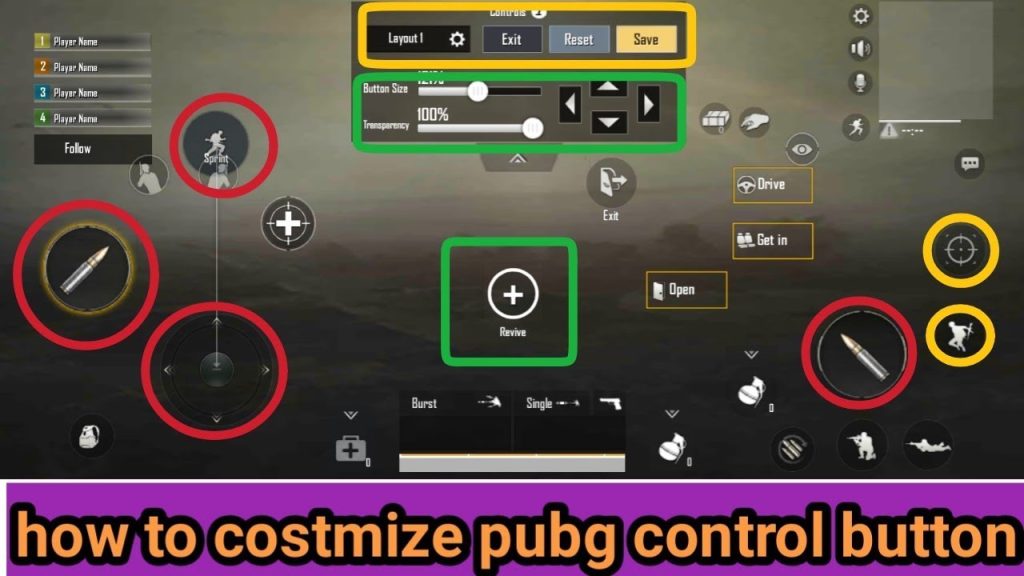
Never jump into a ranked match with a new layout right away. Head to Training Mode first. Here, you can shoot, move, and adjust to the new button placements without any pressure. Spend at least 5-10 minutes getting a feel for it. Try basic movements, aiming, and switching weapons. If something feels off, you can tweak individual buttons or go back to the previous layout. Most pros spend hours in training before using a layout in real games.
9. Fine-Tune Sensitivity Settings
Control codes often come with recommended sensitivity values, but they’re not one-size-fits-all. After you’re comfortable with the layout, adjust your camera and ADS sensitivity to match your playstyle. Some codes are optimized for specific devices—like for 4GB RAM phones or 144Hz displays. If you’re on a different device, you might need to tweak. Our top winning layouts include sensitivity presets, but don’t be afraid to experiment.
10. Save Your Layout as a Backup
Once you’ve dialed in your layout and sensitivities, save them! PUBG Mobile allows you to export your layout code or save it to the cloud. Go to the Controls settings, find the Export option, and generate a code. Store that code in a safe place—a notes app, email, or even a screenshot. That way, if you ever need to reinstall the game or switch devices, you can restore your setup instantly. Check out our guide on how to save your layout for detailed instructions.
Bonus: Troubleshooting Invalid Codes
Even after following all steps, you might still encounter an invalid code error. This could be because the code is from a different server (e.g., Asia vs. Global), or it’s corrupted. Sometimes, an update makes old codes obsolete. Our article on invalid code issues covers the most common reasons and fixes. Alternatively, try copying the code again from a trusted source—maybe the one you picked isn’t meant for your device. And remember, codes shared on social media platforms often have formatting problems. Stick to curated lists like our control codes used by pros.
That’s it! Applying PUBG Mobile control codes is really that simple once you know the drill. Start with a reliable code, copy it cleanly, import it, test in training, tweak to perfection, and always back it up. Whether you’re rocking a thumb-only setup or a complex 5-finger claw, these steps will get you there. Happy gaming!



