So you’ve spent hours tweaking your PUBG Mobile control layout—adjusting button sizes, perfecting your claw grip, fine-tuning that gyro sensitivity. The last thing you want is to lose it all after an update, a device switch, or an accidental reset. That’s why knowing how to export PUBG control codes is just as important as having a great layout. In this guide, we’ve rounded up 10 reliable methods to export and backup your control codes, from the simplest in-game options to manual file tricks. Whether you’re on Android, iOS, or playing on an emulator like BlueStacks, there’s a method here for you. Each technique is battle-tested and easy to follow, so you can safeguard your setup and even share it with friends.
1. Use the In-Game Layout Save Feature
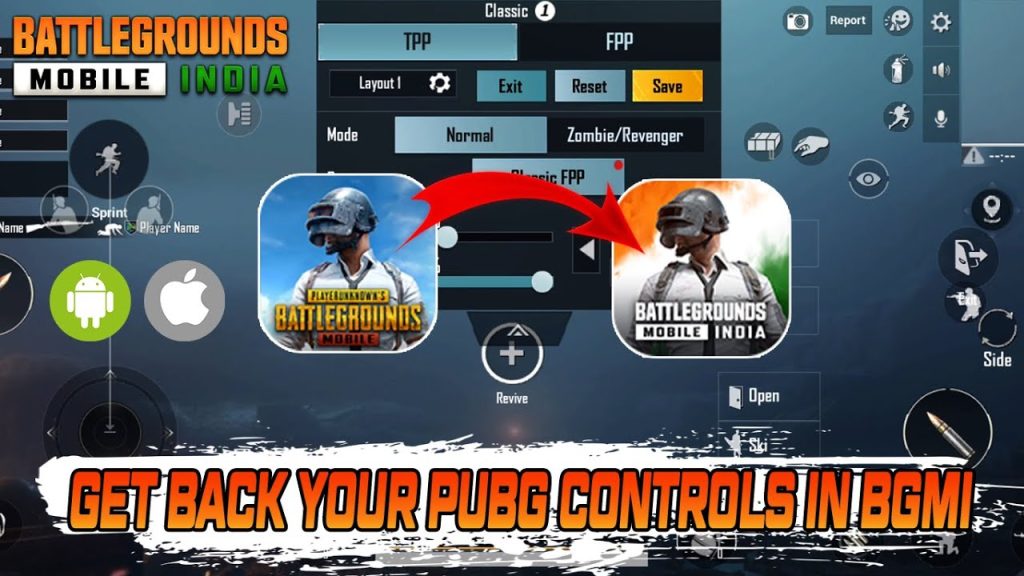
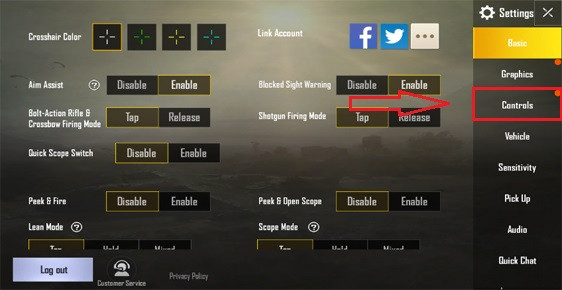
PUBG Mobile includes a built-in layout save tool that lets you export your control codes directly. Head to Settings → Controls → Layout, then tap the “Save” button. This creates a local backup on your device. You can also share it to the cloud if you’ve linked your account. This is the easiest method and works across most versions. If you’re new to saving, our guide on how to save pubg control codes walks you through every step.
2. Copy to Clipboard and Share as Text
Another quick method is to use the “Copy to Clipboard” option. After you’ve saved your layout, open the saved layout list, tap on your layout, and choose “Copy Code”. This copies the entire control code string to your clipboard. You can then paste it into a notes app, send it via messaging, or email it to yourself. This is perfect for quickly transferring layouts between devices or sharing with teammates. For detailed steps, check out how to copy pubg control codes.
3. Share via Social Media or Messaging
PUBG Mobile allows you to share your control codes directly to social platforms or messaging apps. After copying the code, you’ll see share buttons for WhatsApp, Telegram, Facebook, and more. This method is ideal for collaborating with your squad or getting feedback on your layout. Just be cautious about sharing your code publicly—anyone can import it, and it might reveal your button placements.
4. Cloud Backup via Game Center / Google Play / Apple ID
If you link your PUBG Mobile account to Game Center (iOS), Google Play (Android), or Apple ID, your control layouts are automatically backed up to the cloud. When you log into a new device with the same account, your layouts sync—as long as you’re on the same game version. This is the most hassle-free method, but it only works if you’re using the same platform (e.g., Android to Android). For cross-platform transfers, you’ll need another method.
5. Manual File Backup on Android
For Android users, you can locate the control code file in the game’s internal storage. Use a file manager to navigate to `Android/data/com.tencent.ig/files/UE4Game/ShadowTrackerExtra/ShadowTrackerExtra/Saved/Config/Android/`. Look for a file named `UserSettings.ini` or similar. Copy this file to a safe location (like your Downloads folder or a cloud drive). This method gives you full control, but be aware that after major updates, the file format may change. It’s a reliable backup if you’re comfortable with file exploration. Pair it with pubg control codes for android phone for device-specific tips.
6. Manual File Backup on iOS (No Jailbreak Required)
On iOS, direct file access is limited, but you can still export your control codes using third-party file managers like iMazing or iExplorer. Connect your iPhone to a computer, open the file manager, and browse to the PUBG Mobile app’s Documents folder. Look for files with `.xml` or `.ini` extensions related to controls. Copy them to your computer. This method is a bit technical but ensures a full backup. Always update to the pubg mobile control codes latest version after restoring.
7. Export via BlueStacks (Emulator Users)
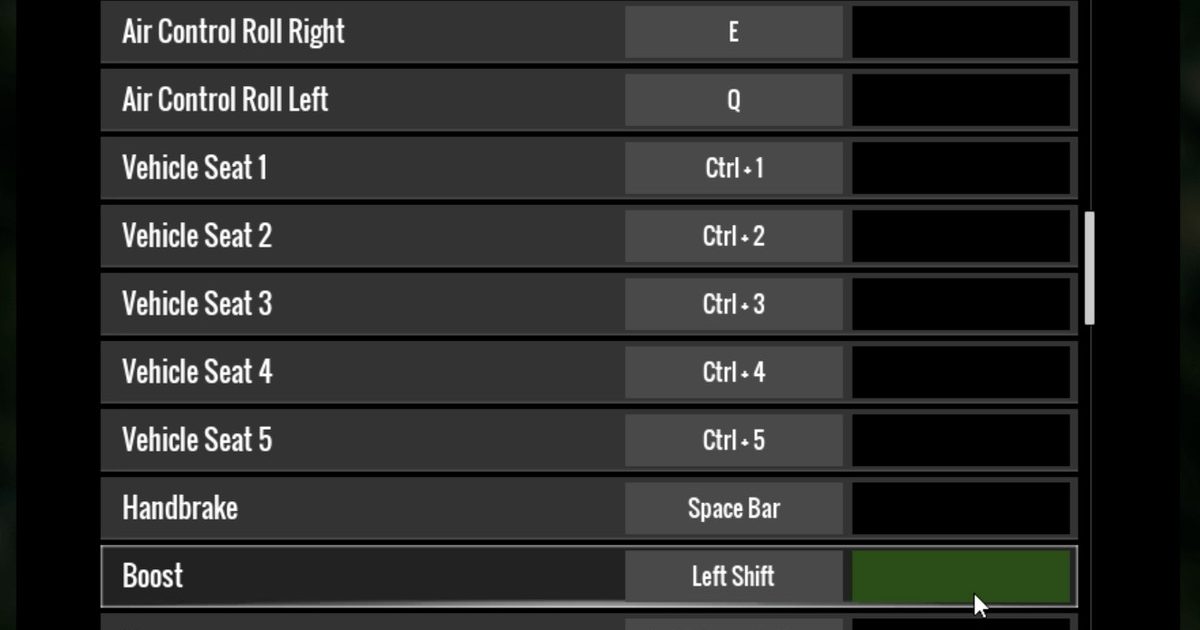
If you play PUBG Mobile on BlueStacks, exporting control codes is straightforward. Open the BlueStacks settings, go to “Game Controls” or “Keyboard Controls”, and find the layout you’ve created. BlueStacks allows you to export the layout as a `.bkc` file. Save it to your PC and share or import it later. This method is great for emulator players who want to move layouts between PCs. For more on emulator layouts, see our pubg control codes and layout guide.
8. Use Third-Party Apps for Export
Several third-party apps (like PUBG Control Code Exporter or Layout Manager) offer dedicated export functions. These apps typically require you to copy the code from the game and then paste it into the app for conversion or sharing. While convenient, be cautious about app permissions and data safety—only use well-reviewed apps from trusted sources. Always verify the app’s privacy policy.
9. Share via QR Code (If Supported)
Some versions of PUBG Mobile allow you to generate a QR code for your control layout. After saving your layout, look for a “Share via QR” option. Others can scan the QR code with the game to import the layout. This is a super fast way to share with friends in person. However, it’s not always available in every region or version, so check your game’s sharing options.
10. Email Yourself the Control Code
The old-school method: copy the control code string (as in method #2), open your email app, paste the code into a new draft, and send it to yourself. This works across platforms and requires no extra tools. Just make sure you label the email so you can find it later. It’s especially helpful if you’re switching between Android and iOS and need to manually import the code on the new device.
There you have it—10 ways to export your PUBG control codes. Whether you prefer the simplicity of cloud sync, the control of manual file backups, or the speed of sharing via clipboard, you’ve got options. Pick the method that fits your workflow and never stress about losing your hard-earned layout again. And if you’re looking for ready-made layouts to try, don’t miss our collection of pubg mobile claw layout code and other pro setups.



