Playing PUBG Mobile on an iPad gives you a huge visual advantage, but only if your control layout is optimized for the larger screen. A mediocre setup can waste your screen real estate, making you slow and clunky. I’ve tested dozens of control codes from top iPad players and the community, and curated 10 that actually work in 2025. Whether you’re a claw player, a gyro junkie, or a classic thumbs user, there’s a code here for you. Each layout is battle-tested for stability, speed, and precision. Let’s dive in.
1. The Go-To 4-Finger Claw Layout for iPad
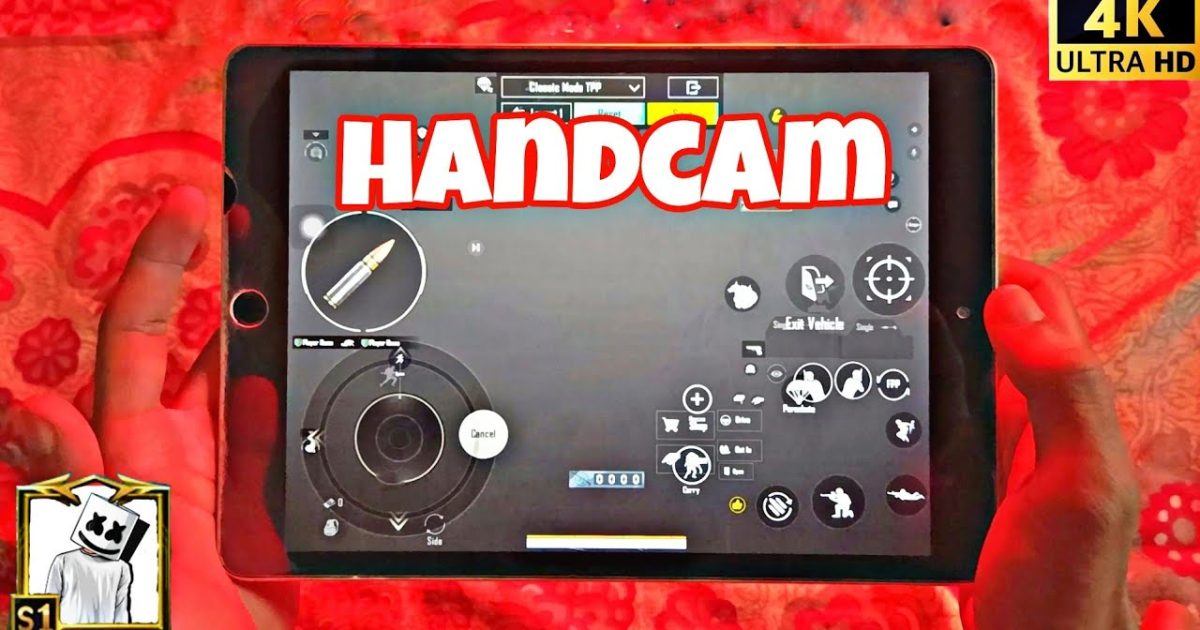
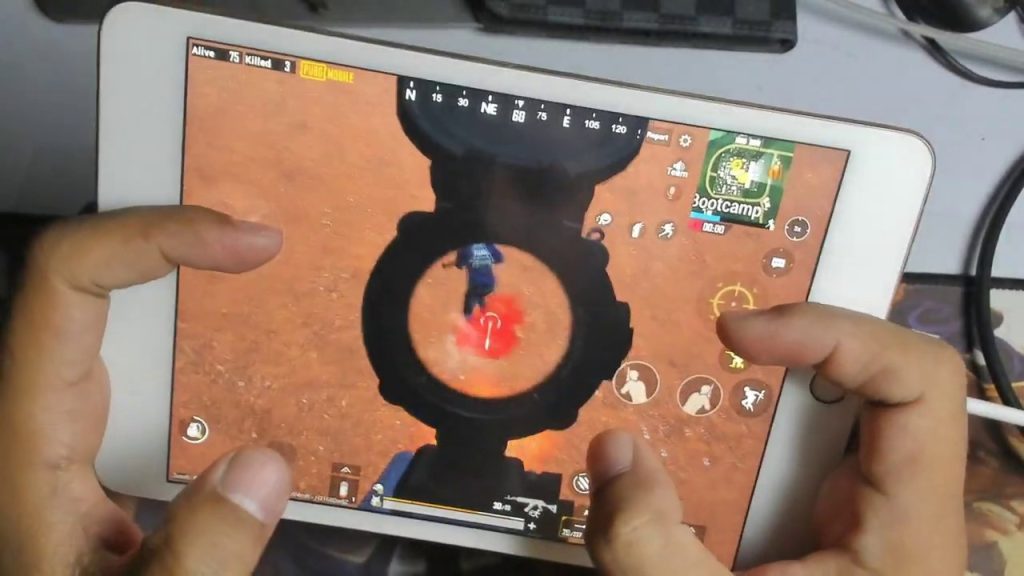
The 4-finger claw is the most popular grip among iPad players because it lets you aim, shoot, scope, and jump simultaneously without lifting your thumbs. This control code places the scope button on the top-left corner, the fire button on the top-right, and the crouch/jump on the lower edges. The buttons are slightly oversized to prevent mis-taps on the large screen. I recommend this as your starting point if you’re new to iPad gaming. It’s also compatible with most sensitivity settings, but pairs best with a medium ADS speed. For a deeper dive, check out the iPad-specific control codes from top streamers.
2. Gyro-Only Layout for Precision Aiming
If you rely on gyroscope for fine-tuning your aim, this layout is pure gold. The fire and scope buttons are positioned on the right edge so you can tilt the iPad with both hands without accidental touches. The gyro sensitivity is set to 300% for ADS and 150% for hip-fire, which feels snappy yet stable on a 120Hz iPad Pro. This code also includes a small peek button on the left side for quick lean shots. Remember to disable auto-rotate in iOS settings before using any gyro layout. For players who prefer no gyro, there are alternatives in the no-gyro control codes library.
3. Five-Finger Claw for Aggressive Push Players
Five fingers might sound overkill, but on an iPad’s large surface it’s surprisingly comfortable. This layout maps fire to your right index finger (top-right), scope to your right middle finger (right edge), jump to your left index (top-left), crouch to your left middle (left edge), and prone to a dedicated button near the thumbs. The extra finger gives you instant access to prone while shooting—game-changing in close-quarters. I’ve seen this code used by top-tier TDM players. If you want more options, the BGMI 5-finger codes for 2025 offer similar arrangements adapted for the BGMI client.
4. Thumb-Only Layout with Peek and Scope on Same Side
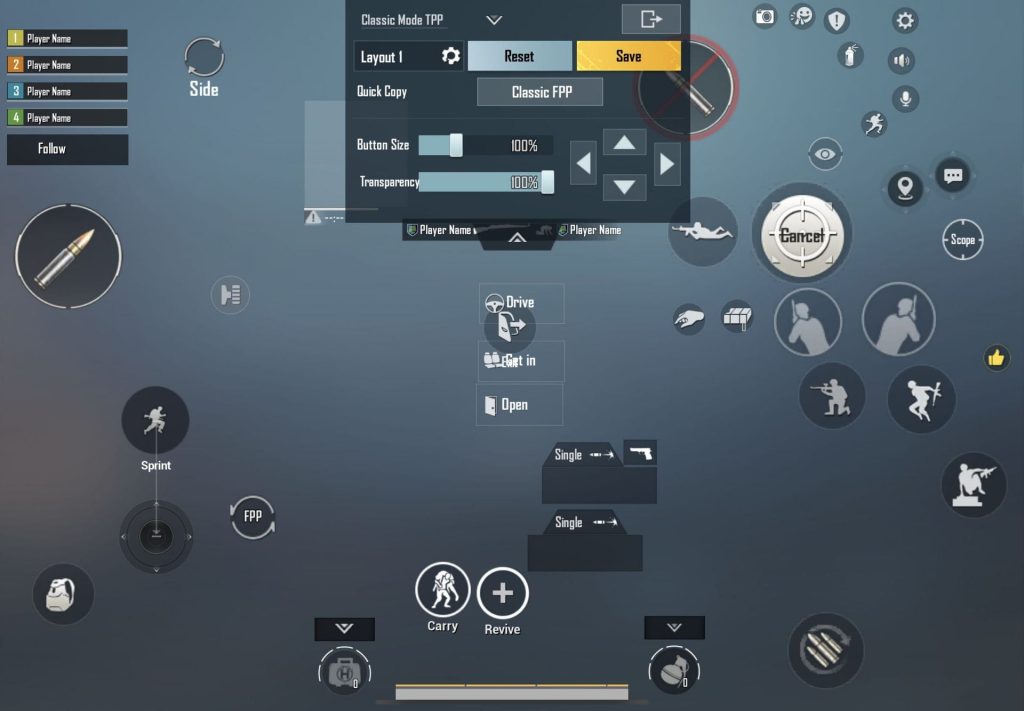
Not everyone wants to learn claw. This thumb-only code is designed for players who use two thumbs but still want quick peek and scope. The left thumb handles movement and peek (left side), while the right thumb handles aim, fire, scope, and jump via a radial menu. The buttons are spaced wide apart to avoid overlap, and the fire button has a slight offset to make tapping easier. It’s a great bridge between casual and competitive play. For stable aim, pair this with the stable aim control codes that minimize jitter.
5. Crouch-and-Prone Macro for Slide Cancelling
Slide cancelling is a must-have skill in close combat, and this control code makes it one-tap easy. The macro combines crouch and a brief forward movement, then cancels automatically. On the iPad, I’ve mapped this to a single button on the lower-left corner, just above the movement stick. Combine it with a prone button on the right side for quick drop-shots. This layout is particularly effective on 120fps devices—check the 120fps device control codes for optimised settings. The macro itself is legal as long as you assign it to a single control action.
6. Minimalist Layout for Maximum Visibility
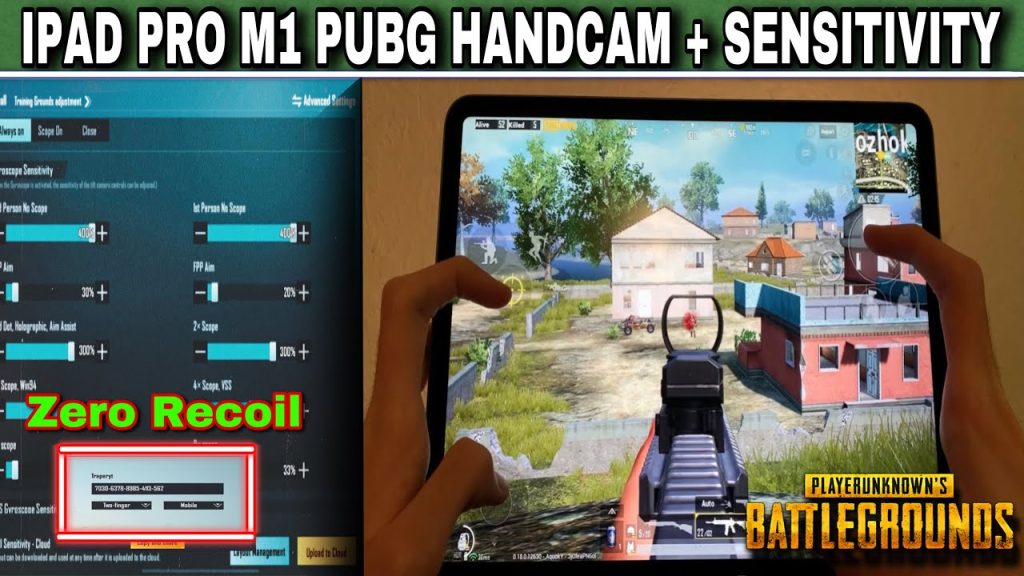
Less is more when you’re trying to see enemies in the distance. This code removes all unnecessary buttons: no emote, no inventory shortcut, no vehicle buttons (those pop up contextually). The only visible controls are fire, scope, ADS, jump, crouch, and a tiny map. Buttons are shrunk to 70% of default size and moved to the very edges. This frees up the center of your screen for pure vision. It’s ideal for snipers who need every pixel. For an even cleaner look, hide the button backgrounds in settings.
7. Hybrid Gyro + Claw for Pro-Level Control
This advanced layout combines a 4-finger claw with gyroscope fine-tuning. The claw handles all manual inputs (fire, scope, jump, crouch), while gyro is active for mid-range recoil control and micro-adjustments. The gyro sensitivity is set to 200% for 3x and up, 100% for lower scopes. The trick is to keep the iPad flat on a table or use a stand to avoid fatigue. This code is used by many pro iPad players in tournaments. If you’re new to gyro, start with the tablet control codes designed for larger screens.
8. Custom Buttons for Nade and Healing Quick Access
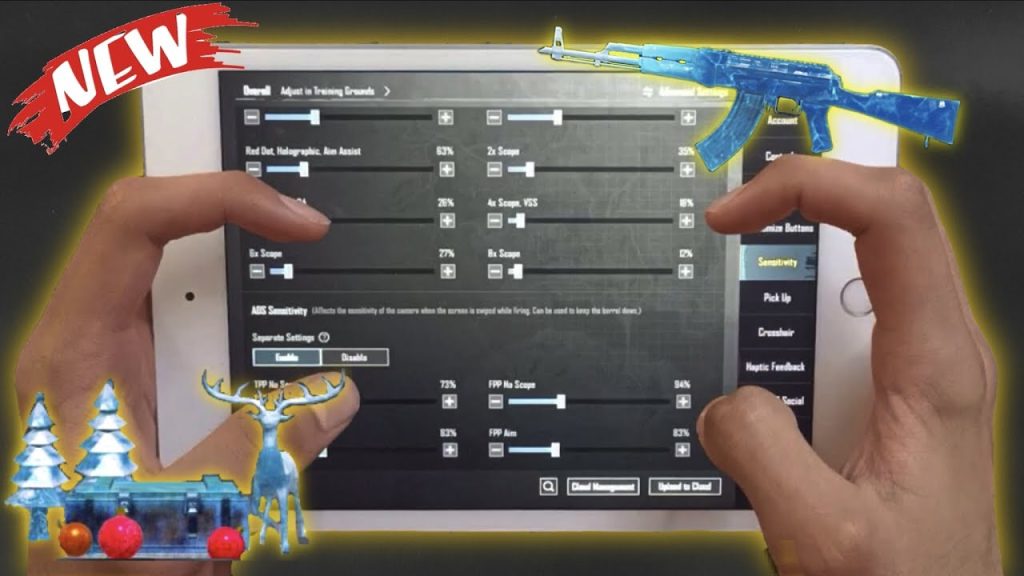
Grenade and healing wheels can be slow on iPad if placed poorly. This code dedicates a separate button for each throwable and each med (first aid, bandage, energy drink). They are arranged in a vertical strip on the left side, just below the movement stick. This lets you instantly switch to a frag or a bandage without opening the wheel. The buttons are small but far apart to avoid mis-taps. Perfect for players who love tactical nade plays. For more custom button ideas, browse the custom button control codes library.
9. Voice Chat and Map Overlay Layout
Communication is key in squad play, but the default voice chat button is often tiny and hard to hit mid-fight. This code enlarges the voice chat button to 120% and places it near your right thumb, while the map is moved to the top-center with a transparency slider. The minimap is also made slightly larger. It’s a subtle tweak that reduces the cognitive load of checking the map or toggling mic during a firefight. For team play, also consider the community-shared codes in the PUBG control codes sharing guide.
10. Sensitivity-Optimized Layout for Each Scope
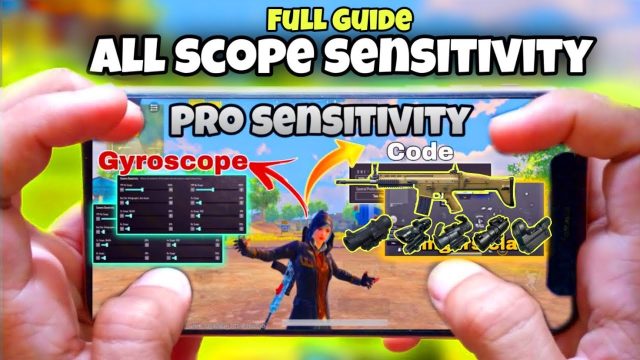
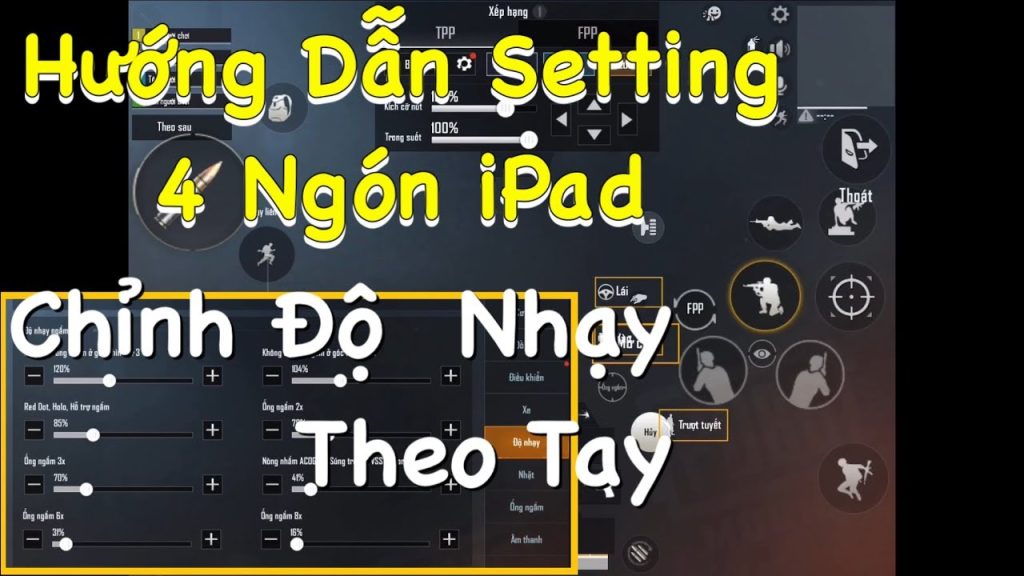
Even the best layout is useless if your sensitivity is off. This code comes with a full sensitivity preset tailored for iPad: 400% camera, 80% ADS for red dot, 65% for 2x, 40% for 3x, 30% for 4x, 20% for 6x, and 10% for 8x. Gyro sensitivity is separate (200% ADS). The layout itself is standard 4-finger claw, but the real magic is in the numbers. You can import this control code and immediately feel the smoothness. For players on 120fps, adjust the sensitivity slightly lower—the high frame rate amplifies any jitter.
There you have it—10 PUBG control codes for iPad setup that cover every playstyle. Whether you go full claw, gyro, or a hybrid, remember to test each layout in the training ground before hopping into a match. Your perfect setup is a combination of these codes and your personal comfort. Don’t be afraid to tweak button sizes and transparency. The iPad is a beast—unlock its full potential with the right control code.