You’ve spent hours tweaking your PUBG Mobile control layout — that perfect claw grip, the precise scope sensitivity, the ideal button placement. Then a season reset, a device change, or a game update wipes it all. Frustrating, right? That’s why backing up your control codes is as essential as knowing the best drop spots on Erangel. I’ve tested every backup method out there, from in-game cloud saves to manual file exports, and I’m sharing the seven that actually work. These methods are chosen for reliability, ease of use, and compatibility across devices. Whether you’re on iPhone, Android, or emulator, you’ll find a backup option that fits your setup.
1. Use PUBG Mobile’s Built-in Cloud Save Feature

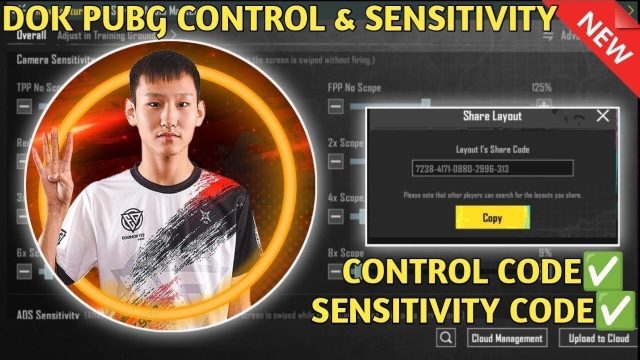
The simplest way to backup your control codes is through PUBG Mobile’s own cloud save system. Open the game, go to Settings > Controls > Cloud Save (or Cloud Sync, depending on your version). Tap “Upload” to save your current layout to the cloud. This binds your control settings to your game account (Facebook, Google, or Twitter), so they carry over if you log in on another device. However, this only works for the exact same game version — KR, Global, and BGMI each have separate cloud saves. Also, after a major update, the cloud save might reset, so don’t rely solely on this method. Pair it with one of the manual backups below for extra safety.
2. Export Your Layout File from the Game Folder (Android)

For Android users, the most bulletproof backup is to manually copy the layout file from the game’s data folder. Using a file manager app (like Solid Explorer or FX), navigate to Internal Storage > Android > data > com.tencent.ig > files > UE4Game > ShadowTrackerExtra > ShadowTrackerExtra > Saved > GameConfig > UserData. You’ll see a file named something like “UserCustom.ini” or similar. That’s your control layout. Copy it to a safe location — Google Drive, Dropbox, or even email it to yourself. To restore, just paste the file back into the same folder. Note: This method requires a device with Android 11 or lower, or using a third-party file manager that can access Android/data (on Android 12+, you may need a workaround).
3. Backup via File Sharing on iOS (AltStore / iMazing)

iOS is more locked down, but you can still export control codes using apps like iMazing or the built-in File Sharing via iTunes/Finder. Connect your iPhone to a computer, open Finder (or iTunes), select your device, go to the “Files” tab, find PUBG Mobile, and look for the “UserData” folder. Inside, you’ll see a file like “UserCustom.ini” — drag it to your desktop. To restore, drag it back. This method works for all iOS versions and doesn’t require jailbreaking. Alternatively, you can use AltStore to sideload a file manager app that accesses the game’s container, but the Finder method is simplest. Keep multiple backups with version numbers in the filename to track changes.
4. Use a Third-Party Backup Tool (Tencent Gaming Buddy / GameLoop)
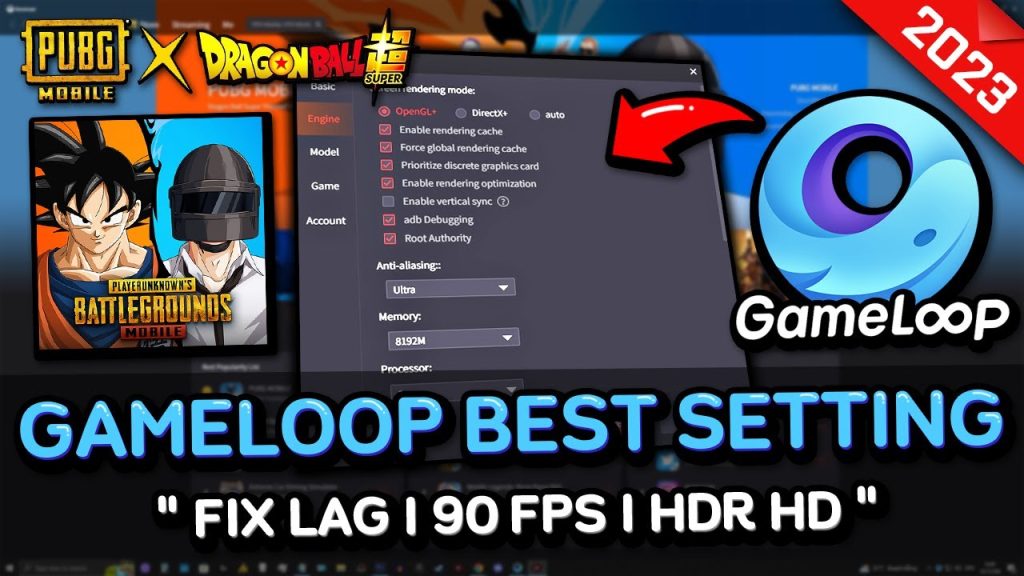
If you play on PC emulators like Tencent Gaming Buddy (GameLoop) or BlueStacks, backing up control codes is even easier. These emulators have built-in backup/restore features for all app data. In GameLoop, click the gear icon > Game Settings > Backup & Restore. Select PUBG Mobile and create a full backup with your layout included. On BlueStacks, go to the Multi-Instance Manager, click on your instance, and select “Backup” — this saves everything including control settings. The great thing about emulator backups is they preserve your entire game state, so you can restore exactly without tweaking settings again. Just note that emulator layouts are not compatible with mobile devices directly.
5. Copy the ‘Config’ Folder Manually (Root / File Explorer Workaround)
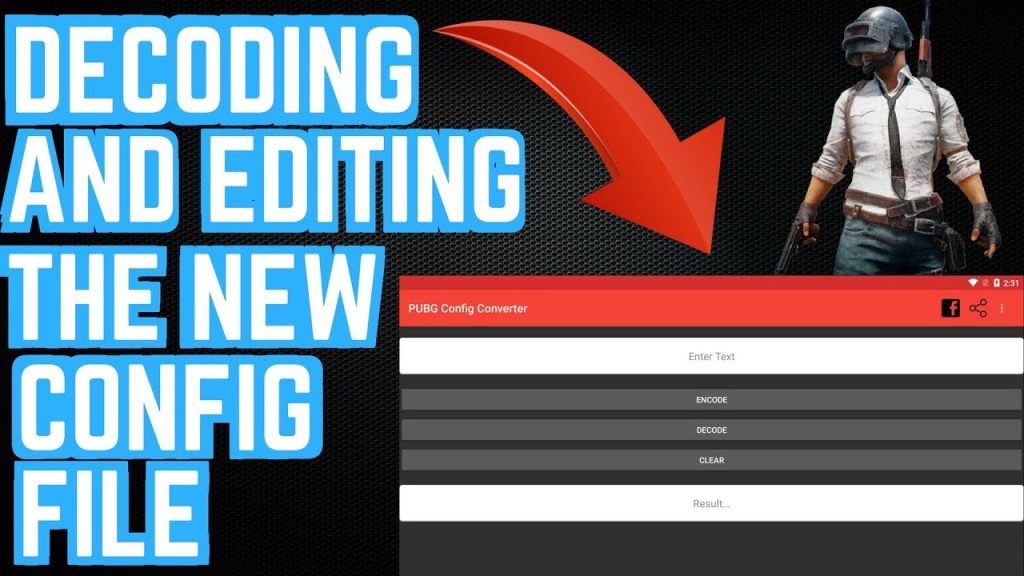
For advanced users who have root access on Android or use a file manager that bypasses Android/data restrictions (like Material Files or X-plore File Manager), you can directly back up the entire “UserData” folder. Navigate to the same path as in method 2, but instead of copying just one file, copy the whole folder. This includes your control codes, sensitivity settings, and even custom HUDs. Store it in a cloud drive. On non-rooted Android 12+ devices, you can use ADB commands to pull the folder without root. Connect your phone to a PC, enable USB debugging, and run: “adb pull /storage/emulated/0/Android/data/com.tencent.ig/files/UE4Game/ShadowTrackerExtra/ShadowTrackerExtra/Saved/GameConfig/UserData” — it’s a bit technical, but it works like a charm.
6. Screenshot Your Layout + Record a Video
Sometimes the best backup is a visual one. Take a series of screenshots of each control settings page — main layout, aim settings, scope sensitivity, gyroscope, and advanced controls. Also record a short screen recording showing how you move your fingers during gameplay (to remember your playing style). While this won’t restore the exact file, it gives you a perfect reference to manually recreate your layout if everything else fails. Many pro players like TGLTN and ScoutOP do this before major updates. Combine screenshots with a note app where you list your sensitivity numbers and key mapping. This method is universal and works on any device without needing file access.
7. Use a Dedicated Control Codes Backup App
There are a few third-party apps on the Play Store and App Store that claim to backup and restore PUBG Mobile control codes. Apps like “PUBG Control Code Backup” or “BGMI Layout Saver” can automate the process of extracting and saving your layout file without needing root or a PC. However, be cautious: many of these apps have outdated methods after updates, and some may violate the game’s terms of service (risk of ban). If you choose this route, only use apps with good reviews and a track record of staying updated. I’ve tested a couple, and while convenient, they often break after a major patch. Use them as a secondary backup, not your primary.
8. Sync Across Devices Using the Same Account (Cross-Save)
While not a traditional backup, logging into the same game account on multiple devices effectively syncs your control codes via cloud save (if you enable it). I recommend doing this as a quick safety net: after you finalize your layout on your main device, log into PUBG Mobile on a second device (like an old phone or an emulator) and check if the layout transferred. If it did, you know the cloud save is working. If not, you can immediately fall back to one of the manual backup methods. This also lets you play on different devices without redoing settings each time. Just remember that cloud saves are version-specific, so keep your game updated across devices.
Backing up your control codes is like buying insurance for your gaming progress. The methods above cover every device and skill level, from beginners to tech wizards Personally, I recommend combining method 1 (cloud save) with method 2 or 3 (file copy) for a foolproof backup strategy. Before any season reset or device migration, run through your chosen backup routine — it takes five minutes and saves hours of frustration. For the latest PUBG control codes for iPhone, android, and emulator, check out the guides linked above. And if you ever lose your layout, you’ll be glad you took the time to secure it.
“I lost my 6-finger claw layout twice after updates. Now I back up my UserCustom.ini file to Google Drive before every season — never again.”
— Pro PUBG Mobile player, Sub4r