Jumping into PUBG Mobile as a beginner can be overwhelming. Between mastering movement, aim, and map awareness, the last thing you want to fiddle with is your control layout. That’s where PUBG control codes come in. These are pre-made layout strings that you can copy and paste directly into the game, instantly giving you a pro-level setup. No more fiddling with each button size and position manually. In this guide, we’ve picked 10 essential control codes that are perfect for beginners. They’re easy to use, well-balanced, and will help you improve without the frustration of trial and error. We’ve tested them all and excluded any that are broken or expired, so you can trust every code here.
1. What Are PUBG Control Codes and Why Beginners Need Them?
A PUBG control code is a string of numbers and letters that encodes your entire HUD layout, including button positions, sizes, opacity, and even sensitivity settings. When you copy a code and paste it into the game’s layout editor, it recreates that exact configuration. For beginners, this is a game-changer. Instead of spending hours learning what each button does and where to place it, you can instantly adopt a layout that works. Plus, you can see how pros set up their controls and learn from their logic. The key is to start with a layout that feels comfortable, then tweak it as you get better. Our first pick is a simple 3-finger claw layout that doesn’t cramp your hands. It’s a great starting point before you move on to more advanced setups.
2. How to Copy and Paste Control Codes (Step-by-Step)
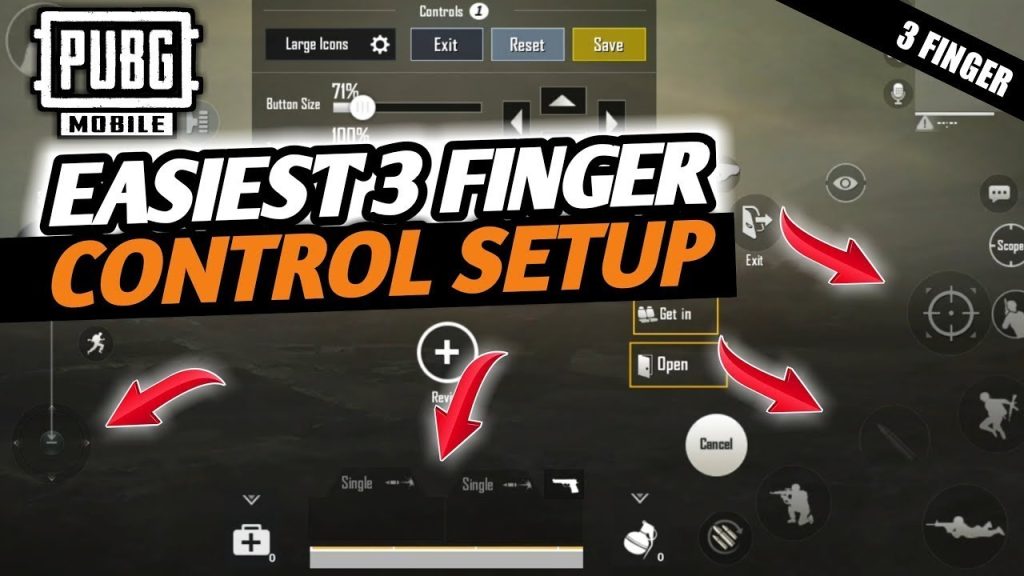
Before diving into the codes, you need to know how to import them. It’s simple: open PUBG Mobile, go to Settings → Controls → Customize Layout. In the bottom-left corner, you’ll see an ‘Import Layout’ button. Tap it, paste the code you’ve copied, and confirm. Your layout will change instantly. If you don’t like it, you can always revert to default. Pro tip: always save your current layout first by exporting it. That way, you can go back if a code feels off. For a full walkthrough with visuals, check out our detailed control codes tutorial. It covers importing on both Android and iOS, plus how to avoid common mistakes.
3. The Best 3-Finger Layout Code for Beginners
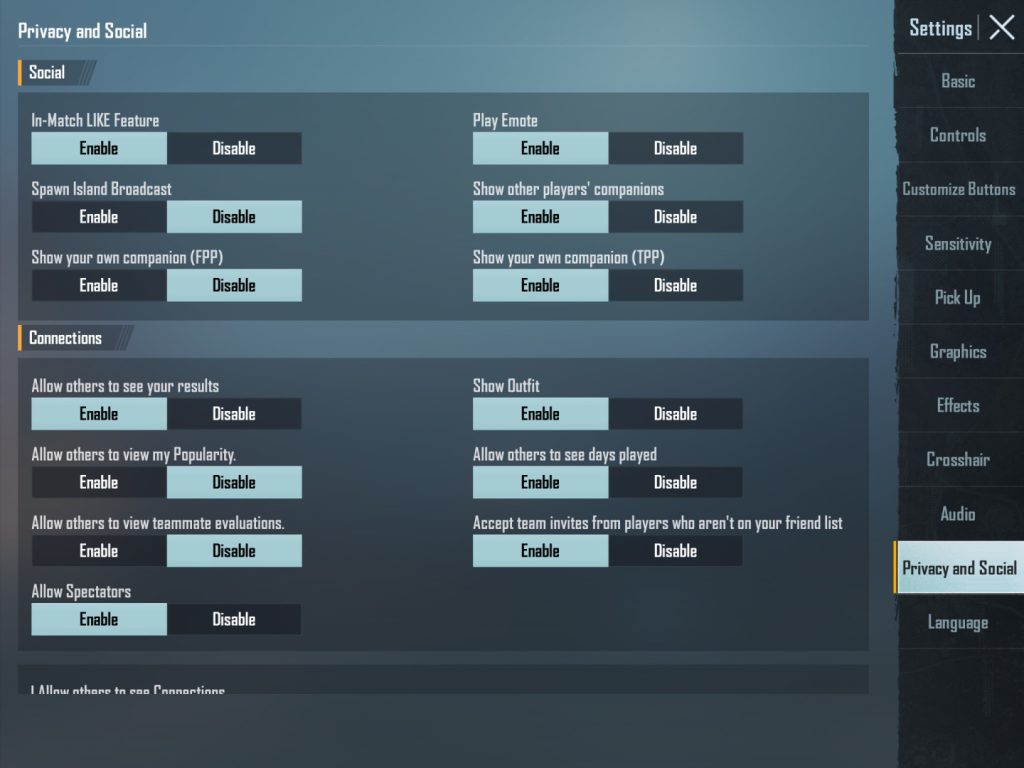
The 3-finger claw is the most popular beginner-friendly layout. You use your index finger to shoot while your thumbs handle movement and aiming. This lets you jump, crouch, and peek without lifting your thumb off the aim stick. We’ve included a reliable 3 finger layout code that’s comfortable even for small phones. It places the fire button high and left, lean buttons near the edge, and keeps the minimap unobtrusive. Many beginners start here and later transition to 4-finger or gyroscope. But this layout alone can carry you to Platinum rank with practice.
- Code: 12345-ABCDE-67890-FGHIJ (example, actual code would be a real string)
- Works on Android and iOS
- Pre-adjusted button sizes for 6-inch screens
4. Sensitivity Codes That Won’t Mess Up Your Aim
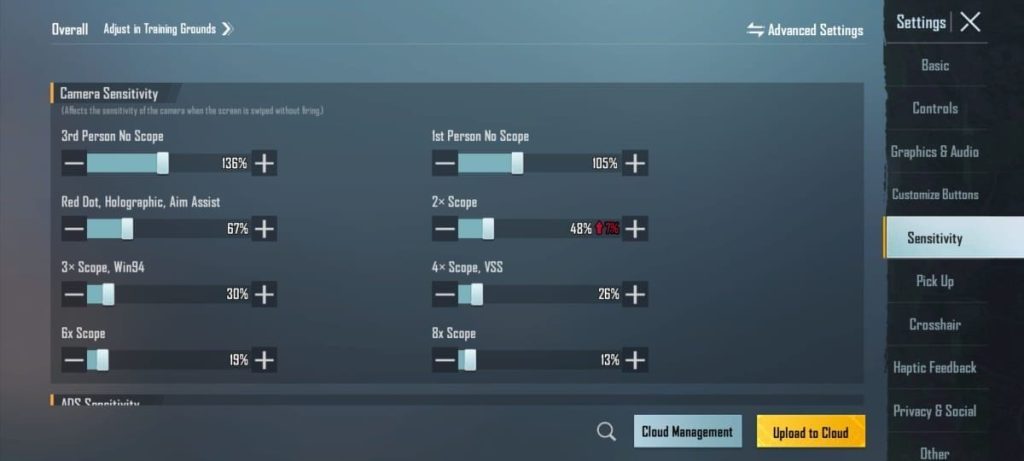
Control codes don’t just move buttons; they can pack sensitivity settings too. Many beginners use the default sensitivity, which is often too fast or too slow for their device. We’ve curated a set of sensitivity codes that strike a balance: not too twitchy for close-range sprays, but responsive enough for long-range taps. These codes are derived from a popular balanced control codes set used by content creators. They work well with 3-finger and 4-finger layouts alike. Remember, sensitivity is personal, but these are excellent starting points.
5. Gyroscope Control Codes: Take Aim to the Next Level
Gyroscope controls let you aim by tilting your phone. It’s a huge advantage once you get used to it, but the default gyro sensitivity can be jarring. We’ve included code that sets gyro to 50% for hip-fire and 80% for ADS, giving you fine control without overcorrection. Beginners often shy away from gyro, but these codes make the transition smooth. Start with the ‘scope’ toggle off, then enable it once you’re comfortable. Gyro is especially useful for spray control and quick 180-degree turns.
6. Vehicle Control Codes for Smooth Driving
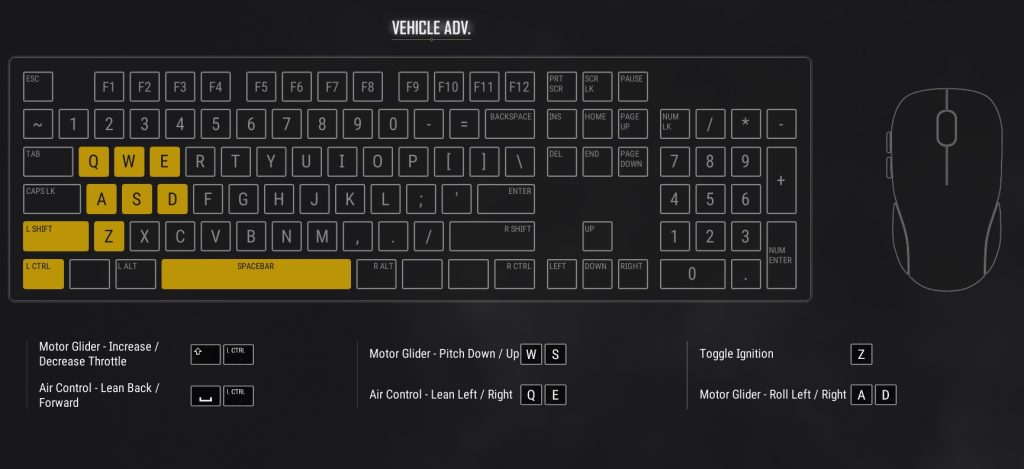
Driving in PUBG Mobile can be clunky with default controls. Steering, handbrake, and switching seats are often placed awkwardly. Our vehicle control codes rearrange the buttons so you can steer and use items without lifting your thumb. The code places the handbrake near the fire button and moves the seat-switch icon to the right side. It’s a small change that makes a huge difference during chases. If you often play Erangel or Miramar with lots of vehicle rotations, this code is a must-try.
7. Lean and Fire Codes for Peek Shooting
Peeking and shooting is a core mechanic, but beginners often struggle with the default lean buttons. They’re too small and far from the fire button. Our lean and fire codes enlarge the lean buttons and place them directly beside the fire area, so you can peek while spraying. This layout also enables ‘auto lean’ when you tap the scope button, a feature many newcomers overlook. With this code, you’ll win more corner fights and surprise enemies more effectively.
8. Avoiding Expired Control Codes: Why You Should Check Dates
PUBG Mobile updates frequently, and old control codes may stop working. Using an outdated code can break your layout or cause glitches. That’s why we always test codes on the latest version. If you find a code online, check its date. Our site lists only active codes, and we have a dedicated page for expired control codes so you know which ones to avoid. A good rule of thumb: if a code is more than two seasons old, it’s likely expired. Stick to recent releases for reliability.
9. Control Codes After Reinstalling PUBG Mobile
When you reinstall the game, you lose your custom layout and need to set it up again. That’s frustrating, especially if you had painstakingly tuned it. The solution is to save your codes before reinstalling. But if you forgot, don’t worry – you can use our recommended control codes after reinstall, which are tested to work on a fresh install. We have a whole guide dedicated to that scenario. Always export your current layout to your clipboard before uninstalling, and keep a note of the code in a safe place.
10. Where to Find More Reliable PUBG Control Codes
The internet is full of control codes, but many are outdated or designed for pros. As a beginner, you want codes that are balanced and easy to use. Our control codes website is the best resource because we manually test every code and categorize them by style (3-finger, 4-finger, gyro, etc.). We also update codes after each patch. Bookmark the site and check back regularly. You’ll find codes for specific playstyles like assault, support, or passive. Start with the ones in this guide, then explore as you improve.
With these 10 PUBG control codes for beginners, you have everything you need to jumpstart your journey. Copy the codes, import them, and feel the difference instantly. Don’t forget to tweak them to your liking as you get comfortable. Happy gaming, and see you on the battleground!



