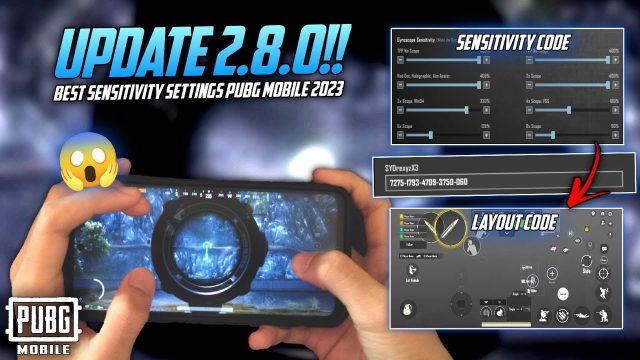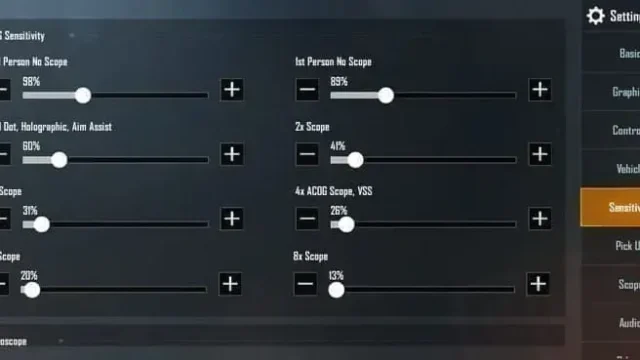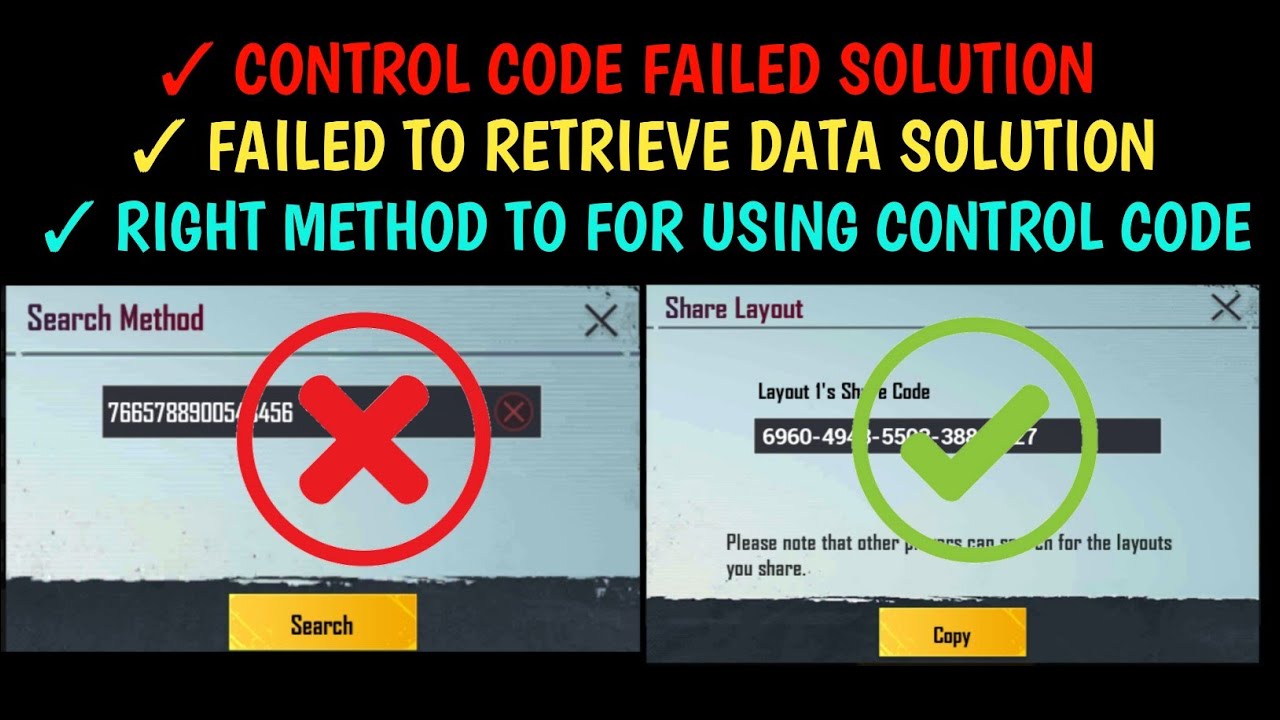
You just found the perfect sensitivity code from a pro player, copied it eagerly, and hit import—only to be greeted by a generic ‘Import Failed’ error. It’s annoying, but don’t throw your phone or keyboard just yet. After digging through forums, patch notes, and personal trial-and-error, I’ve rounded up the 10 most common reasons this happens and, more importantly, how to fix each one. Whether you’re on Mobile or PC, these tips should have you back in the action with your dream controls.
1. The Code Format Is Wrong (Check Those Characters)
One of the simplest but most frequent issues is a formatting error. PUBG control codes are case-sensitive and must be exactly as generated—no extra spaces, line breaks, or missing characters. If you copied the code from a social media post or a message, it might have picked up hidden formatting like a trailing newline or a zero that looks like an ‘O’. Double-check by pasting the code into a plain text editor first. Also, ensure you’re not mixing up uppercase ‘I’ and lowercase ‘l’ or the digit ‘1’.
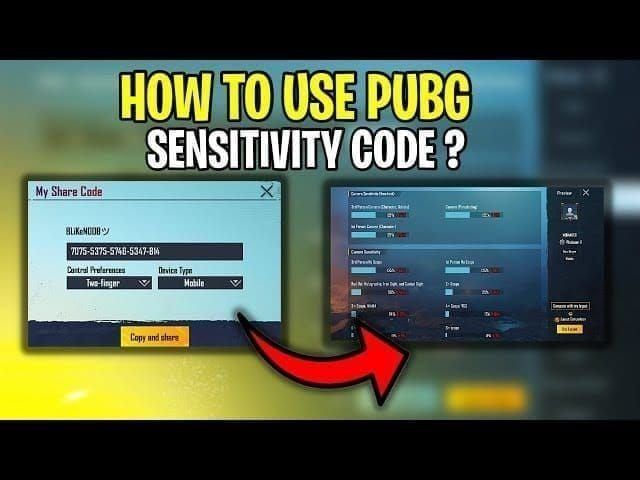
2. The Code Was Generated for a Different Platform
A code from PUBG Mobile won’t work on PUBG PC, and vice versa. Even within Mobile, codes from the global version might fail on the Korean or Chinese versions (like Krafton’s separate release). Always confirm the source platform before importing. The easiest way is to look at the beginning of the code—Mobile codes often start with a specific prefix like ‘PUBGM’ or a hashed string, while PC codes are usually shorter. If you’re on Steam, codes from the console or mobile are incompatible.
3. Your Game Version Is Outdated
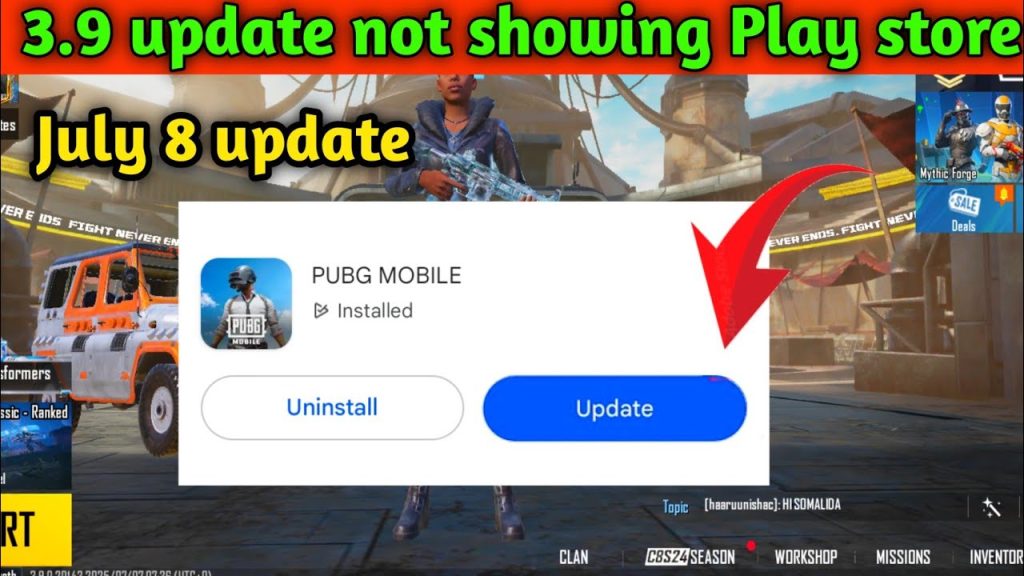
PUBG receives frequent updates, and control codes are sometimes invalidated after major patches—especially when the game adds new weapon slots or changes the HUD layout. If you haven’t updated your client in a while, the import function may reject codes that reference UI elements that no longer exist. Head to your app store or Steam library and install the latest update. After that, try importing again. Many times, a simple update is all you need.
4. The Code Contains Illegal Characters or Is Too Old
PUBG control codes have an expiration date—some are only valid for a few weeks after creation. Also, if the code includes special characters like emojis or non-ASCII symbols, the game might reject it outright. Check the code’s creation date if available (some sites show it). If it’s older than a month, it’s likely invalid. For a fresh start, generate a new code yourself and share it with friends to test the import system.
5. Server-Side Verification Failure (Try Again Later)
Sometimes the problem isn’t on your end at all—PUBG’s servers reject imports during peak hours or maintenance. The game verifies each code against its backend, and if the server is overloaded or down, you’ll get a generic failure. Wait 10–15 minutes and retry. You can check server status on official Twitter or Discord. If you’re in a region with high latency, switching to a VPN might also help (though use with caution, as it can trigger anti-cheat).
I tried importing the same code three times. On the fourth try, it worked. No changes. Just patience.
Reddit user u/ PubgSensGod
6. Your Account Is Not Properly Synced or Logged In
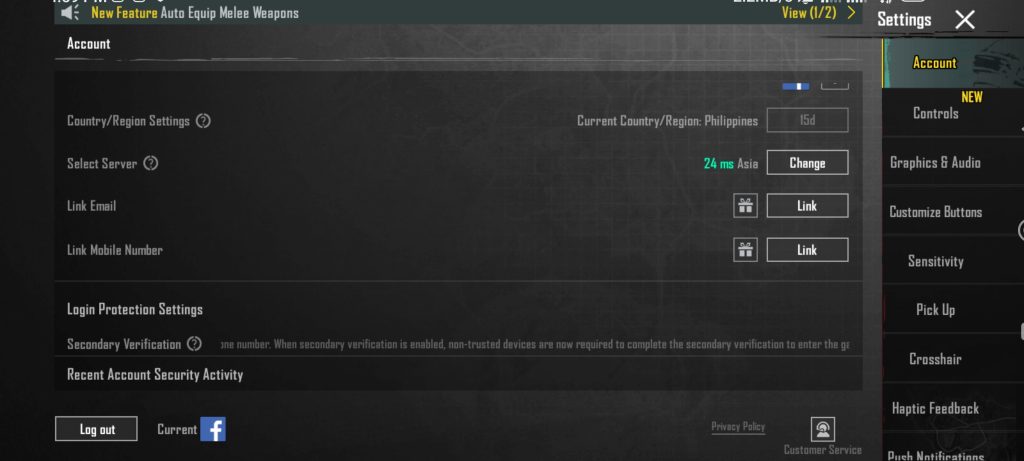
Importing control codes requires a stable connection to your account (Google, Facebook, Twitter, or PUBG ID). If you’re logged out or the session expired, the import will fail. Go to settings and check your account link. Sometimes logging out and back in refreshes the token. Also, guest accounts often have limited features—consider linking to a platform for full functionality.
7. You’re Trying to Import an Invalid or Corrupted Code
Not all codes circulating online are valid. A typos, truncated strings, or a code that was never generated properly will cause an error. The safest practice is to have the code sent directly from the creator via in-game share or a reliable site. Avoid copying from images—OCR can misread characters. If you’re still stuck, test with a code you generate yourself from your own settings to confirm the import function works.
8. Third-Party Apps (Like Claw Tools) Are Interfering
Some players use third-party apps to customize controls outside of PUBG—like gamepad mappers or overlay tools. These apps can modify the game’s input system and prevent the import feature from applying changes correctly. Disable any such apps temporarily, then try the import again. If it succeeds, you’ll know the culprit. Also, make sure you’re not running multiple instances of PUBG, as that can confuse the save process.
9. Device Permissions or Storage Issues
On mobile, PUBG needs permission to read/write files to import codes. If you denied storage permission or your device is low on space, the import will fail. Go to your phone’s app settings, grant PUBG storage access, and free up at least 500MB. On PC, check that your Documents folder or the game’s config directory isn’t read-only. A full hard drive can also prevent saving changes.
10. The Code Exceeds the Maximum Layout Size
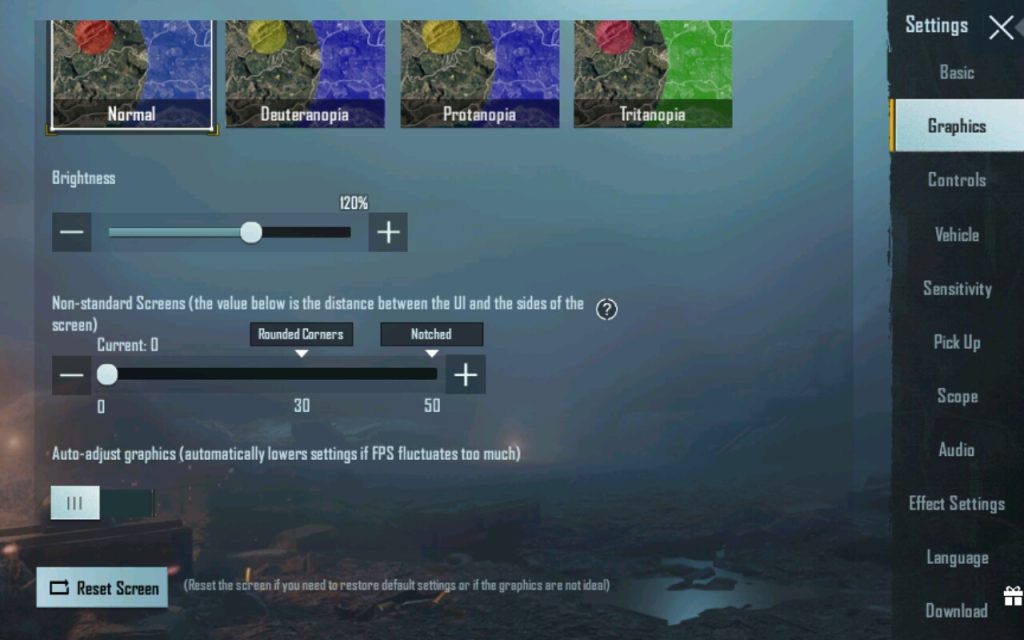
PUBG limits the complexity of custom layouts. If a code tries to place too many buttons, or buttons outside the screen bounds, the import will be rejected. This often happens with ‘pro’ codes that use every possible slot. Try trimming down the layout by removing a few less-used controls. You can also adjust the code’s coordinates manually using a text editor—but that’s advanced. Simpler: look for a code with fewer controls.
Final Tip: When All Else Fails, Reset and Start Fresh
If you’ve tried everything and the import still fails, your best bet is to reset your control layout to default, exit the game completely, restart your device, and then try the import again. Sometimes a fresh state clears a hidden bug. And if that doesn’t work, consider manually recreating the settings—it’s tedious but reliable. Remember, control codes are a convenience, not a necessity. At the end of the day, muscle memory beats any preset. Good luck, and see you on the battlegrounds!
- Always verify the code format (no extra spaces, correct case).
- Check platform compatibility (Mobile vs PC, global vs regional).
- Update your game to the latest version.
- Ensure your account is logged in and synced.
- Wait and retry if servers are busy.