So you’ve seen those awesome PUBG control codes that pros share – the ones that promise smoother movement, quicker peeks, and laser-like aim. But when you try to import them, nothing happens, or the layout looks all wrong. Don’t worry – this guide breaks down exactly how to import control codes in PUBG Mobile, from finding a reliable code to troubleshooting those annoying import errors. Whether you’re using a claw setup, gyro, or just tweaking your two-thumb layout, these steps will get you set up in minutes.
Why Import Control Codes Instead of Building from Scratch?
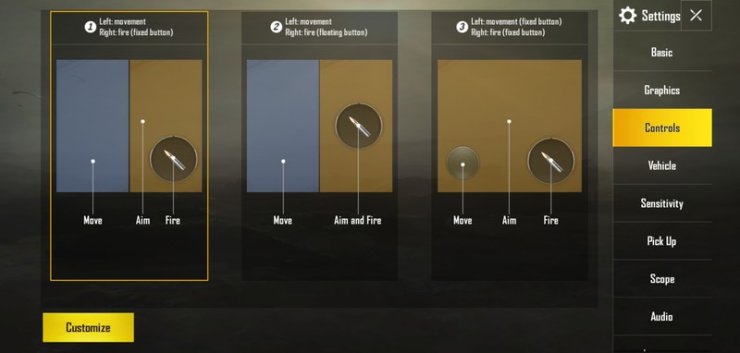
Building a control layout from zero takes hours of trial and error. Importing a code gives you a pre-tested setup optimized for specific playstyles: claw, gyro, four-finger, five-finger, or emulator. Plus, codes often come with sensitivity settings already balanced. For example, our collection of pubg control codes for 90fps devices is tuned to minimize input lag on high-refresh screens. You save time and get a proven foundation – then you can tweak the small stuff.
Step 1: Find a Trustworthy Control Code
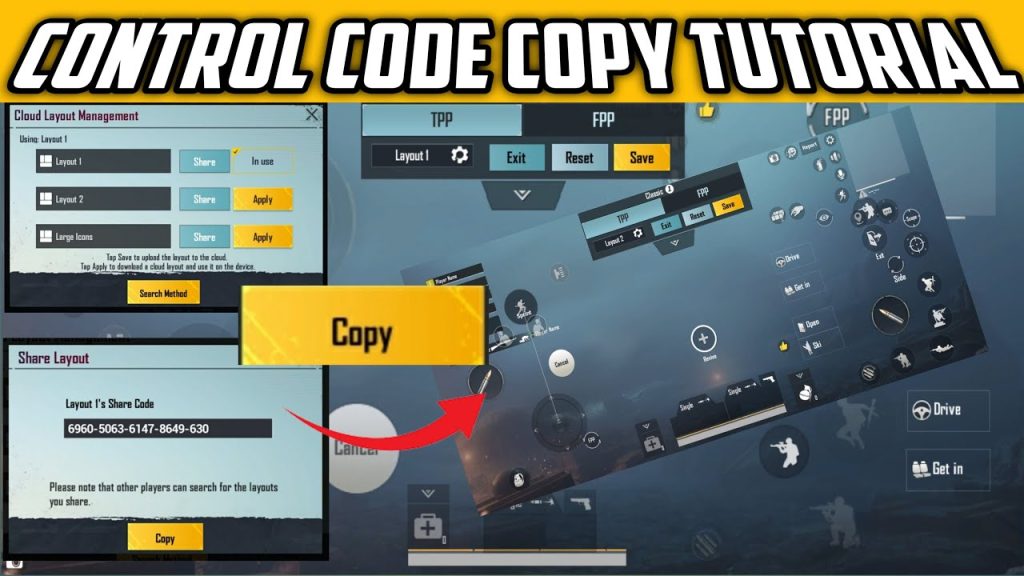
Not all codes are created equal. Reddit, Discord, and dedicated sites share codes daily, but some are outdated or even malicious (rare, but possible). Stick to sources with upvotes or positive feedback. For instance, pubg control codes from Reddit often include player reviews and gameplay clips. Also check our list of pubg mobile control codes current season to ensure compatibility with the latest update. Always copy the code exactly – a missing character breaks the import.
Step 2: Copy the Code to Your Clipboard
Once you’ve found a code you like, select the entire string. It’s usually a long alphanumeric sequence. Tap and hold to select all, then copy. If you’re on a PC, highlight and press Ctrl+C. Double-check you haven’t missed any characters – especially the start and end. Some codes include spaces or line breaks; remove extra whitespace if the import fails later. A clean copy is half the battle.
Step 3: Open PUBG Mobile and Go to Settings
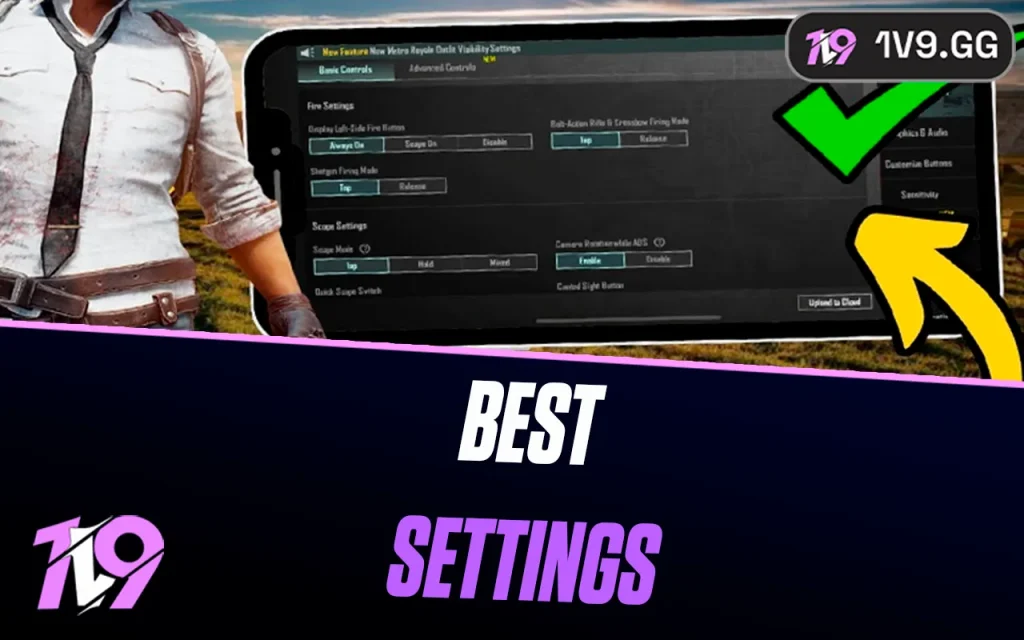
Launch PUBG Mobile and from the main lobby, tap the gear icon (Settings) at the bottom right. Then navigate to the Controls tab. You’ll see your current layout. Look for the Import button – it’s usually at the top right corner, labeled with an arrow or the word ‘Import’. If you don’t see it, you might need to update the game. The import feature has been available since version 1.0, but some older versions lack it.
Step 4: Tap the Import Button
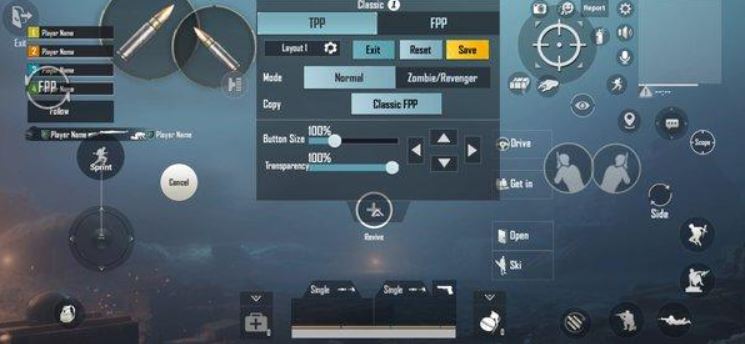
Once in the Controls settings, tap the Import button. A text box will appear – this is where you paste the copied code. Some players miss this step and wonder why the code doesn’t work. The import function doesn’t paste automatically; you must long-press the text field and select Paste. After pasting, tap ‘Confirm’ or ‘Apply’. The game will parse the code and load the layout – you’ll see a preview of all button positions.
Step 5: Confirm and Apply the New Layout
After pasting, hit the checkmark or Apply button. PUBG will immediately replace your current layout with the imported one. Don’t panic – you can always revert to your previous layout using the Reset button. The layout should now reflect the code’s design. Check if all buttons are visible and not overlapping. If you see missing buttons or weird placements, double-check the code – it might be for a different device size. For example, custom pubg control codes are often optimized for specific phone models.
Step 6: Test in Training Ground
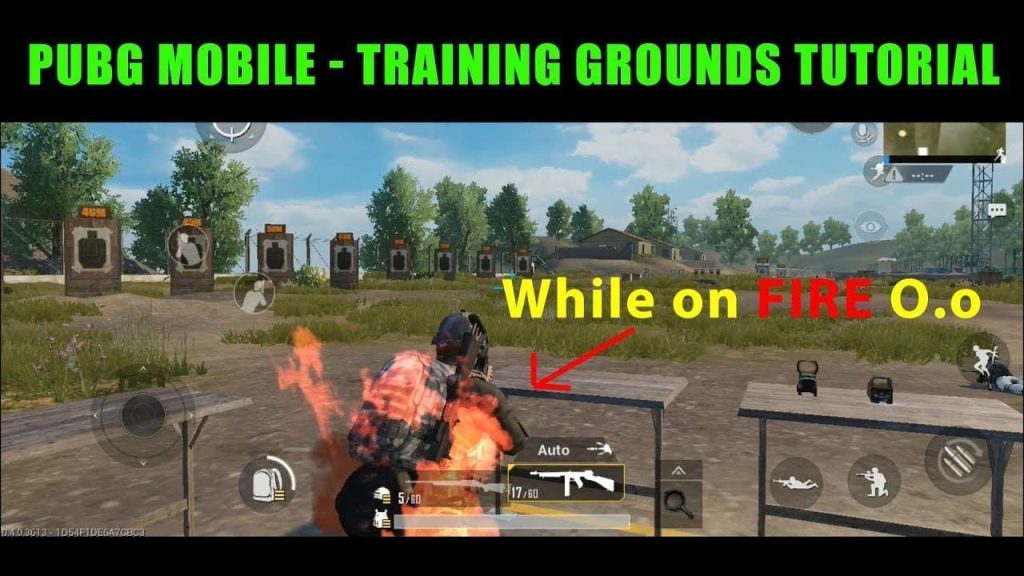
Never jump into a ranked match with a fresh import. Head to Training Ground to test the controls. Move around, aim, jump, crouch, and try peeking. Pay special attention to the button sizes: are they too big or too small? Does the scope button interfere with movement? Adjust the opacity and size in the Controls settings if needed. Many codes include sensitivity presets – if the aim feels off, check our guide on pubg mobile control codes with sensitivity to fine-tune.
Step 7: Troubleshoot Common Import Errors
The most common error is ‘Invalid Code’ – usually because you missed a character or copied an extra space. Re-copy the code from the source. Another issue: ‘Code Version Mismatch’ – the code was made for an older PUBG version. Update your game or find a code compatible with the current patch. If the layout looks scrambled, the code may be for a different aspect ratio (e.g., iPad vs. phone). For iPad users, check out our specific pubg control codes for stable aim and other iPad-friendly layouts.
Step 8: Customize the Imported Layout
Imported layouts are starting points – not final setups. Tweak button positions to fit your finger span, adjust button opacity for visibility, and resize vital buttons like fire, scope, and crouch. If you use gyro, ensure the gyro toggle is enabled. You can also combine elements from multiple codes; just remember that importing a new code overwrites the old one. Save a backup by exporting your current layout before importing another.
Step 9: Export Your Own Custom Layout
Once you’ve perfected your setup, export it as a code to share with friends or save for later. In the Controls settings, tap the Export button – it’s usually next to Import. The game generates a code. Copy it and save it in a note app. Sharing your code helps the community, and you can always re-import it if you reset your device. Many players share their exports on forums; you can contribute too.
Step 10: Keep Your Codes Updated
PUBG Mobile updates frequently change control code formats. A code that works today might break after the next patch. Always check the date of the code you’re importing. Our guides, like pubg control codes for 90fps devices and others, are regularly updated for the latest version. If you notice your imported layout behaving strangely (buttons not responding), delete and re-import a fresh code from a current source. Stay ahead of updates to avoid losing your edge.
Step 11: Share Your Experience and Learn from Others
The PUBG Mobile community thrives on shared knowledge. After you import and customize a layout, jump into forums, Discord servers, or our comment section to leave feedback. Tell others which codes worked for your device and playstyle. You’ll also discover new tips and tricks – like using a gyro-only layout for sniping or a minimalist layout for faster movement. The more you engage, the better your setups become. And if you come across a code that transformed your game, don’t keep it to yourself – export and share!
Importing control codes is the fastest way to improve your PUBG Mobile gameplay without spending hours in the settings menu. From finding reliable codes to troubleshooting errors, this guide covered everything you need. Remember: test in Training Ground, customize to your fingers, and keep an eye on code compatibility. Now go import that pro layout and dominate the battlegrounds!