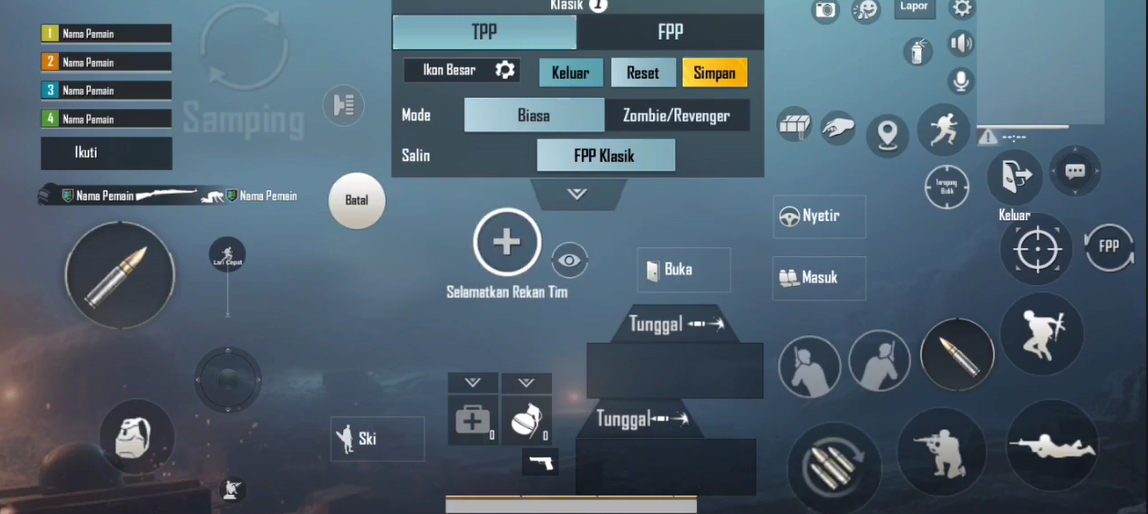
You boot up PUBG Mobile, ready to drop into Erangel, but when you open your control settings – bam – your custom layout is gone. All those painstakingly positioned buttons, the claw-friendly spacing, the perfect scope sensitivity – vanished. It’s a nightmare every player dreads. But before you rage-quit, know this: most of the time, your layout isn’t lost forever. It’s just hiding, corrupted, or blocked by a sneaky bug. In this list, we’ll walk through the top 10 reasons your PUBG control codes layout goes missing and, more importantly, how to get it back.
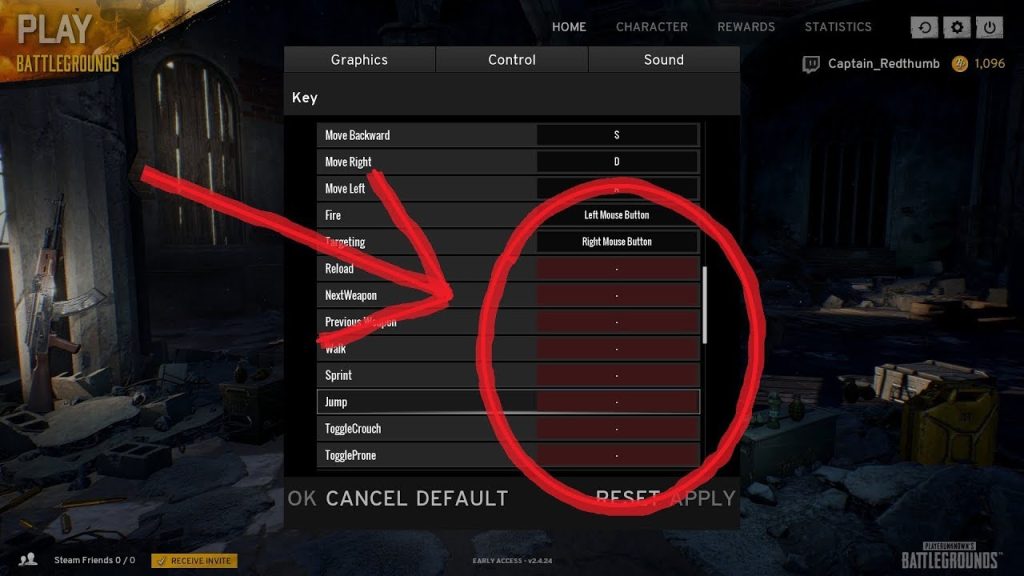
1. Accidental Reset in Settings
The most common culprit? You (or a friend) accidentally tapped the ‘Reset’ button in the control settings. It’s way too easy to hit: one mis-tap and your entire layout is wiped clean. The fix is simple – check if your layout is still saved under ‘Custom Layouts’ or ‘My Layouts’ in the control settings menu. If you synced to the cloud, you can restore it from there. If not, you’ll have to rebuild or use a saved code. That’s why it’s smart to keep a backup copy of your favorite layout.
2. Server Sync Failure
PUBG Mobile saves your control codes to their servers so you can pick up on any device. But sometimes that sync fails – maybe due to a poor connection or server hiccup. When that happens, your locally stored layout might show as missing while the server still has it. To fix, try logging out and back into your account, or use the ‘Repair’ function in the login screen. If that doesn’t work, you may need to re-import the layout from a code you saved earlier.
3. Game Update Broke Compatibility
After a major PUBG Mobile update, older control code layouts can become incompatible because button IDs change or new options are added. The game usually migrates your layout automatically, but sometimes it fails. If your layout is missing after an update, try clearing the game cache (not data) and restarting. If still missing, you’ll likely need to recreate the layout from scratch or find an updated code from the community. Always check patch notes for control changes.
4. Custom HUD File Corrupted
Your control layout is stored in a local file (CustomHUD.ini on Android, for example). If that file gets corrupted – due to a crash, low storage, or a bug – the game might not detect it. To fix, go to your file manager and locate the PUBG Mobile folder (usually Android/data/com.tencent.ig/files/UE4Game/ShadowTrackerExtra/ShadowTrackerExtra/Saved/SaveGames/). Look for files with ‘CustomHUD’ in the name. Delete them, then restart the game. It will generate a fresh file, and you can re-import your layout code.
5. App Cache or Data Cleared
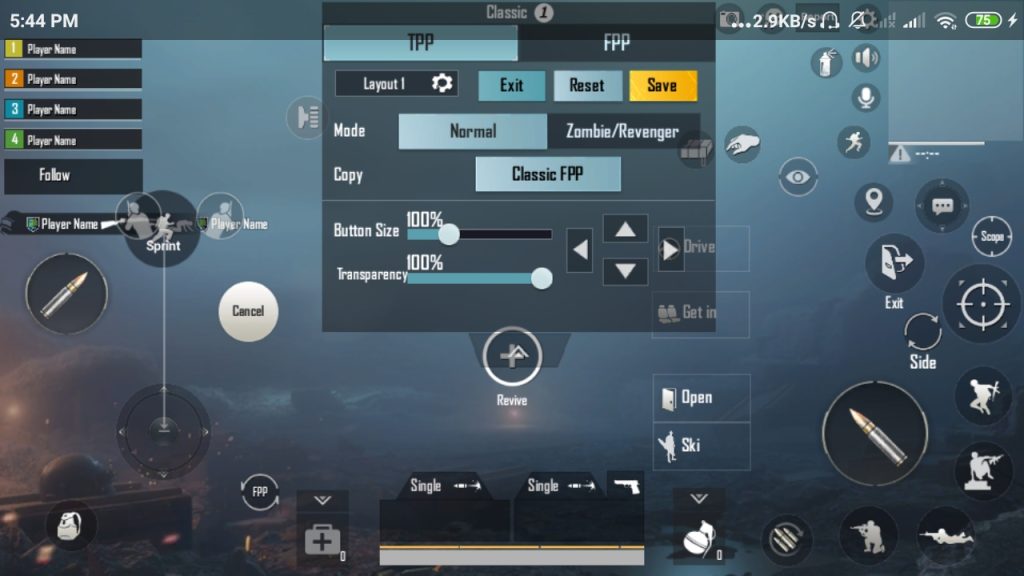
If you (or a cleaning app) cleared the game’s cache or data, your layout files are gone. Some mobile cleaners aggressively wipe app data without asking. Unfortunately, once data is cleared, there’s no recovery unless you have a backup code. This is another reason to always share or save your layout as a code string. If you have the code, you can import it fresh. If not, you’ll be building a new layout – so learn from this and back up.
6. Switching Devices Without Transferring Layout
Playing on a new phone or tablet? Your layout won’t automatically appear unless you synced it. PUBG Mobile’s cloud sync isn’t perfect – it only saves certain settings. Many players log into a new device and find their control codes missing. Before switching, generate a code from your old device and save it. On the new device, use the ‘Import’ function to paste that code. If you forgot, you might be able to retrieve the code from your old device if it still has the game installed.
7. Third-Party App Interference
Apps like game launchers, overlays, or even screen recorders can conflict with PUBG Mobile’s control file system. Some ‘optimizer’ apps delete temp files that include layout data. If your layout keeps disappearing, try disabling or uninstalling any recent apps that manage game files. Also avoid using multiple game accounts switchers – they sometimes reset settings. Stick to a clean environment and test if the layout stays.
8. Emulator vs Mobile Account Mix-Up
If you play on both emulator (LDPlayer, GameLoop) and mobile with the same account, your control codes are shared. But emulator layouts often have different button mappings and may not render properly on mobile, making your layout appear missing. The same can happen going from mobile to emulator. The fix: create separate layouts for each platform and use distinct codes. When switching, import the appropriate code for your current device.
9. Region or Server Change
Your control layout is saved per account, not per region. However, some players report that after changing their server (e.g., from Asia to Europe), their layout doesn’t load. This is usually a sync glitch. Try switching back to your original server, let the layout load, then switch again. If that fails, re-import your code. Keep a copy of your layout code handy when you travel between regions.
10. Rare Server-Side Bug (Temporary)
Sometimes it’s just a bug on PUBG’s end. If many players report missing layouts after a maintenance or event, wait a few hours and try again. Developers often push hotfixes. You can also try using the ‘Repair’ option in the login screen – it checks for missing assets. Until it’s fixed, you can use a generic layout from the ‘top PUBG control codes‘ list to keep playing. It won’t be perfect, but it’ll get you by.
Final Tips to Keep Your Layout Safe
Now you know the reasons – but prevention is better than cure. Always back up your layout by generating a control code and saving it in a notes app or cloud. Share it with friends or keep it in a dedicated folder. If you’re building a new layout, take a screenshot of it in case you need to recreate. And never play around with game files unless you know what you’re doing. With these fixes and a little caution, you’ll never lose your perfect setup again.



