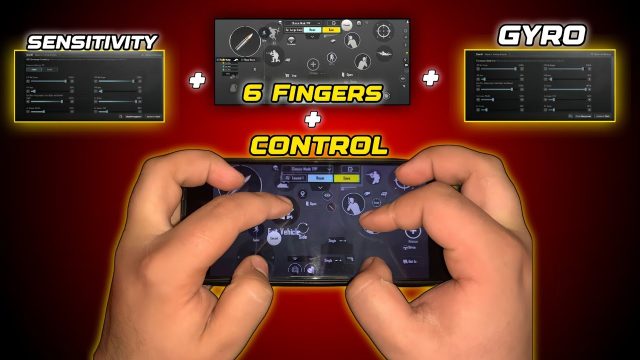
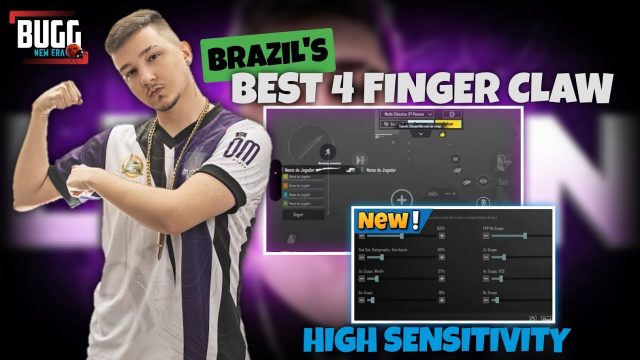
So you’ve seen those insane PUBG Mobile control codes that pro players swear by, and you’re ready to give them a shot. But importing them? That can feel like hacking into the Pentagon if you’ve never done it. Don’t worry—we’ve got you covered. We’ve broken down the whole process into ten straightforward steps, from finding a trustworthy source to fine-tuning your imported layout. Each step is handpicked to eliminate guesswork, so you can get back to dominating the battlefield without the headache. Ready to transform your game? Let’s dive in.
1. Find a Reliable Source for Control Codes
Not all control codes are created equal. Some are outdated, buggy, or just plain bad. Stick to trusted communities like our dedicated PUBG Mobile control codes website, YouTube tutorials from known creators, or verified Discord servers. Look for codes that are recently updated and have positive feedback. Avoid random forums where codes may be copy-pasted without testing. A good source saves you time and frustration later.
2. Copy the Code Exactly — No Typos Allowed
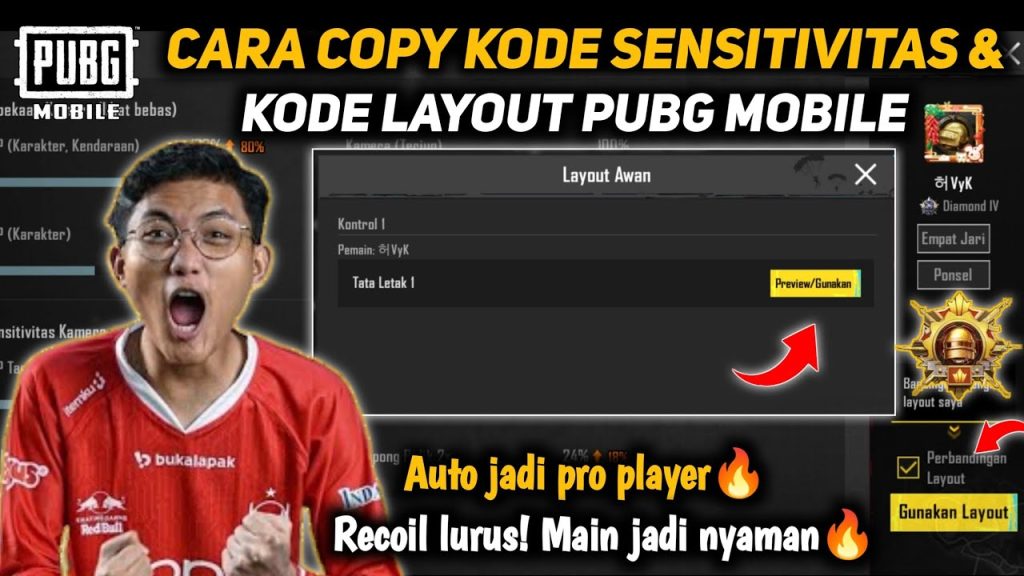
Once you find a code you like—say, one of our tested six-finger claw codes—highlight the entire string and copy it to your clipboard. PUBG Mobile control codes are case-sensitive and include special characters. A single missing bracket or extra space can break the import. So double-check that you’ve got the full code. If the code has multiple parts (like separate layout and sensitivity), copy them separately and import one at a time.
3. Open PUBG Mobile and Head to Settings
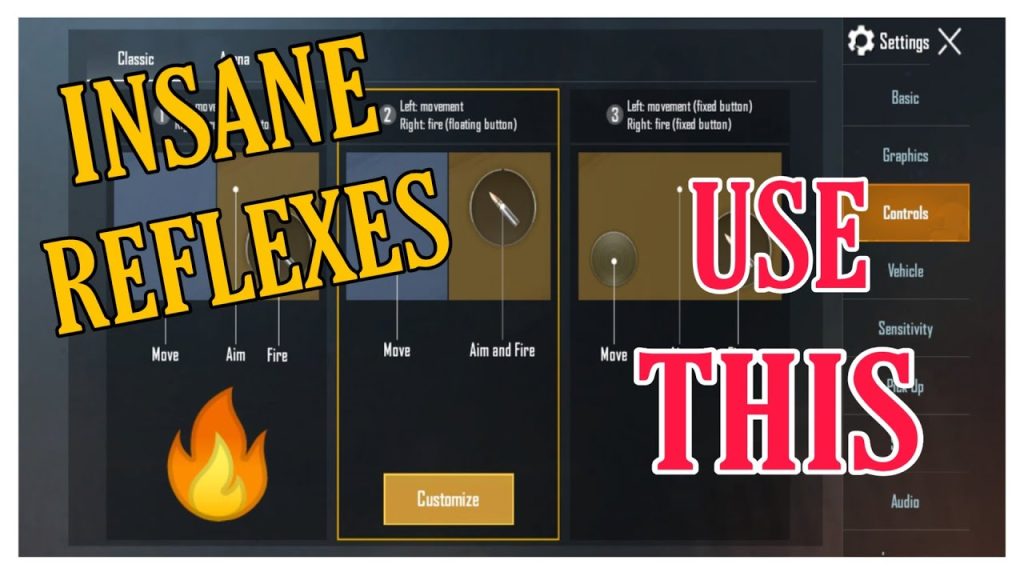
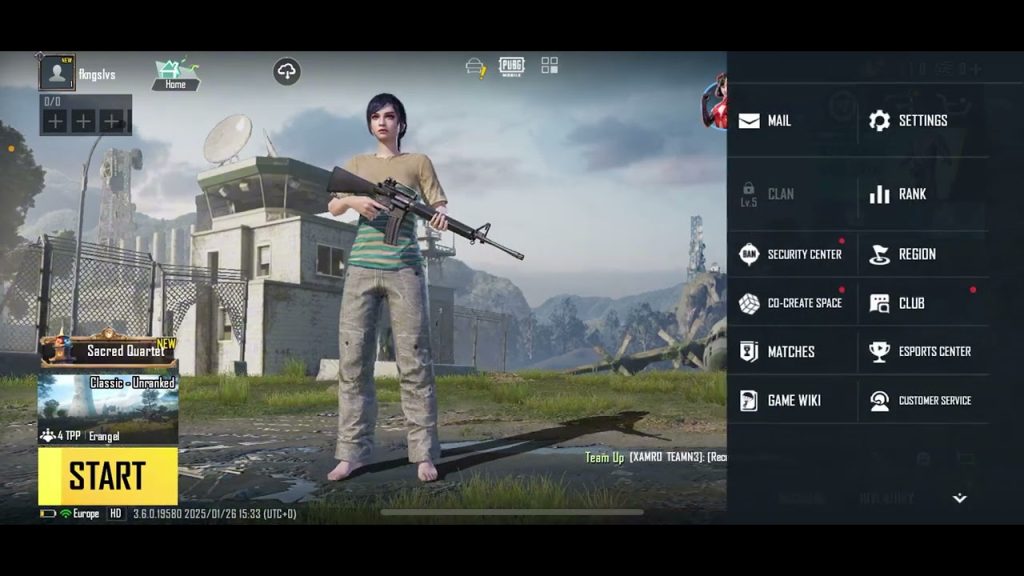
Launch the game and tap the gear icon in the bottom-right corner of the lobby to enter Settings. This is your command center for all customizations. Make sure you’re on the main lobby, not in a match — you can’t change controls mid-game. Also, ensure your game is updated to the latest version; outdated clients sometimes have import issues.
4. Navigate to the Controls Tab
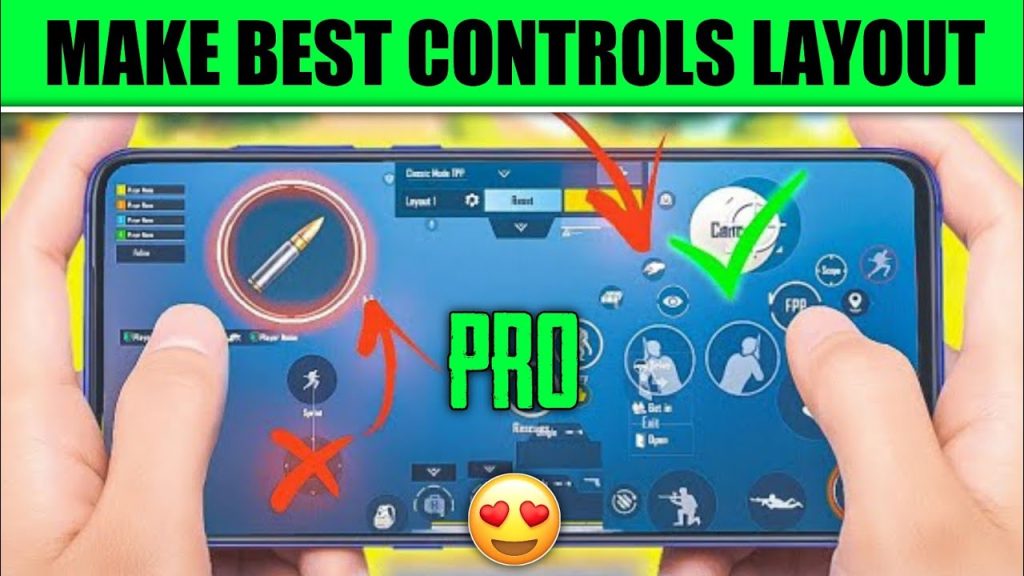
Inside Settings, scroll to the Controls tab (usually the second from the left). Here you’ll see your current layout and button arrangements. This tab contains everything related to button placement, fire mode, and aim settings. If you’ve previously imported codes, you might see multiple layout slots. Don’t worry—you can always switch back.
5. Tap the Layout Button (Usually a Pencil or Grid Icon)
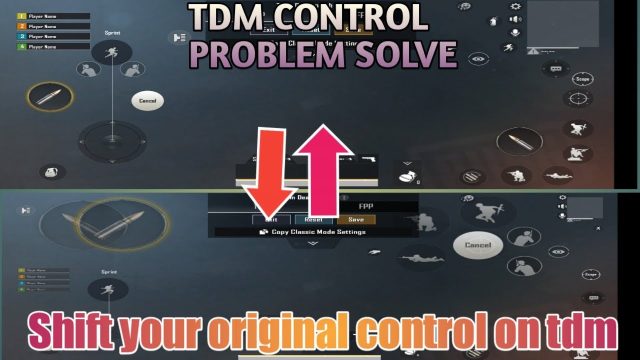
Look for the button that says ‘Layout’ or shows a small pencil/edit icon. Tapping it opens the control customizer where you can drag buttons around. More importantly, this is where the import/export feature lives. On some versions, it’s a small arrow or three-dot menu in the corner. Spend a moment familiarizing yourself with the interface—it’ll make importing a breeze.
6. Choose the Import Option
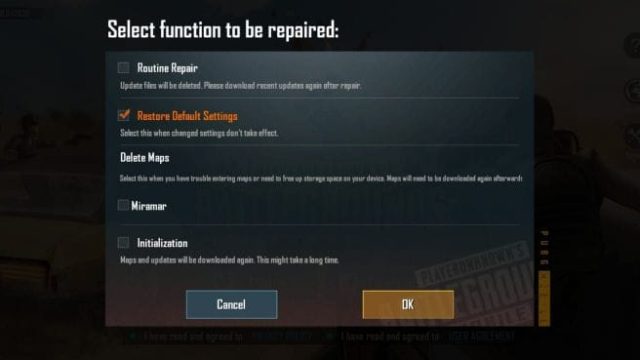
In the layout editor, look for an ‘Import’ button (or sometimes ‘Paste layout’). On most devices, it’s a clipboard icon or a button labeled ‘Import’. Tap it. A text box will appear asking for the code. If you don’t see it, check the settings menu again — some versions bury it under ‘Advanced’ or ‘Other’. If you’re having trouble, our restore guide covers common hiccups.
7. Paste the Code and Confirm
Long-press in the text box and select ‘Paste’. Double-check that the entire code appears correctly. Then tap ‘OK’ or ‘Apply’. The game will process the code and may show a preview of the new layout. If you get an error, the code might be invalid or corrupted. Copy it again from the source, ensuring no extra spaces. For a pro-level walkthrough, check our pro tutorial for control codes.
8. Apply and Save the Layout
After pasting, you’ll be taken back to the layout editor. The new buttons should appear. Don’t panic if they overlap — you can adjust them later. Hit the ‘Save’ button (usually a checkmark or floppy disk icon). The game will confirm the layout is saved. Give it a name if prompted, something like ‘Pro Claw’ so you can switch back easily.
9. Test in Training Ground
Before jumping into a live match, head to the Training Ground. This is your sandbox to test the new controls without consequences. Try moving, shooting, and using all buttons. Pay special attention to fire modes, scope, and crouch — these are often rearranged. If something feels off, go back and adjust button positions. You can also test with a few bots to get a feel for real combat rhythm.
10. Fine-Tune for Your Playstyle
Imported codes are a starting point, not a final product. Every player has different hand sizes, finger dexterity, and preferences. Adjust button sizes, opacities, and positions until they feel natural. If you’re using a gyro setup, you’ll want to blend the control code with your own gyro sensitivity codes. Similarly, if you’re focused on spray control, pair the layout with our AR spray control codes for maximum effectiveness. Take your time — muscle memory builds over a few days.
Summary: Import Like a Pro
Importing PUBG Mobile control codes doesn’t have to be a headache. Stick to trusted sources, copy accurately, and follow the in-game import flow step by step. After import, always test in Training Ground and tweak to your liking. With these ten steps, you’ll be running pro layouts in no time. And remember — the right control code is only half the battle; the other half is practice. Now go drop hot and show ’em what you’ve got!