Finding the perfect control code and HUD layout in PUBG Mobile is like finding a cheat code for your gameplay. Crouch-spamming, jiggle-peeking, and instant 180s become second nature when your buttons are positioned exactly where your thumbs want them. But with thousands of layouts floating around, how do you know which ones actually deliver? We combed through pro streams, top-ranked players, and community favourites to bring you 12 control codes and HUD layouts that have been battle-tested. Each one earned its spot by helping real players climb ranked tiers. Whether you play on a phone, iPad, or emulator, there’s a layout here that’ll upgrade your muscle memory.
1. The Classic 4-Finger Claw
The 4-finger claw is the gold standard for mobile shooters. With this layout, you use both index fingers for fire and scope while your thumbs handle movement and camera. Most pro players start here because it gives you independent aim and fire—no more fumbling to press the fire button while dragging your thumb. A solid 4-finger HUD places the fire button in the top-left corner (for left index) and the scope button top-right (for right index). Your thumbs stay on the movement joystick and camera area. If you’re new to claw, this is the first layout to import. Check out our
If you’re new to claw, this is the first layout to import. Check out our dedicated pubg mobile 4 finger control code for a ready-made setup that places everything exactly where it should be.

2. The Gyro Scope Control
Gyroscope aiming changed the game for long-range fights. By tilting your device, you can make micro-adjustments for sniping that a thumb drag can’t match. This layout pairs gyro with a 3-finger or 4-finger setup, binding scope to a shoulder button. When you scope in, gyro activates automatically (set to “scope only” in settings). The HUD itself keeps the scope button small and close to the edge, so you don’t accidentally trigger it while moving. For the exact codes, see our
For the exact codes, see our pubg gyro control codes collection—these layouts come with sensitivity presets that complement gyro perfectly.

3. The iPad Extended Layout
iPad players get more screen real estate, so their HUD can spread out for comfort. A good iPad layout moves the fire and scope buttons further apart to prevent accidental presses, while the minimap and teammate list sit in the corners. Many pros add extra buttons for lean and peek on the screen edges. The key is to avoid overlapping your thumbs’ natural reach. We’ve curated top iPad layouts in our
We’ve curated top iPad layouts in our best pubg control codes list—look for the iPad-specific codes that use the larger display to your advantage.

4. The No-Recoil Linear Setup
This layout focuses on a specific control code that reduces visual recoil by adjusting sensitivity curves. The HUD itself is often a 3-finger or 4-finger setup, but the real magic is in the “no recoil” code that tweaks the camera and ADS sensitivity to be extremely linear. It makes spray transfers feel smoother. Import the code, then do a quick test in the training ground—you’ll notice your crosshair barely bounces. For tested codes, visit
For tested codes, visit no recoil pubg control codes to get the exact values that pros use to keep their sprays tight.

5. The Three-Finger Hybrid
Not everyone wants to commit to four fingers. The three-finger hybrid uses your left index for fire, while your right thumb handles scope and camera, and left thumb stays on movement. It’s a step up from two-finger but less overwhelming than the full claw. The HUD places the fire button in the upper left corner, scope in the upper right, and all utility buttons move to the left side. This layout is super popular among mobile esports players because it keeps your right hand free for aim. Our
Our pubg control codes for faster reaction include several three-finger codes that are optimized for quick peeking.

6. The BlueStacks Desktop Gateway
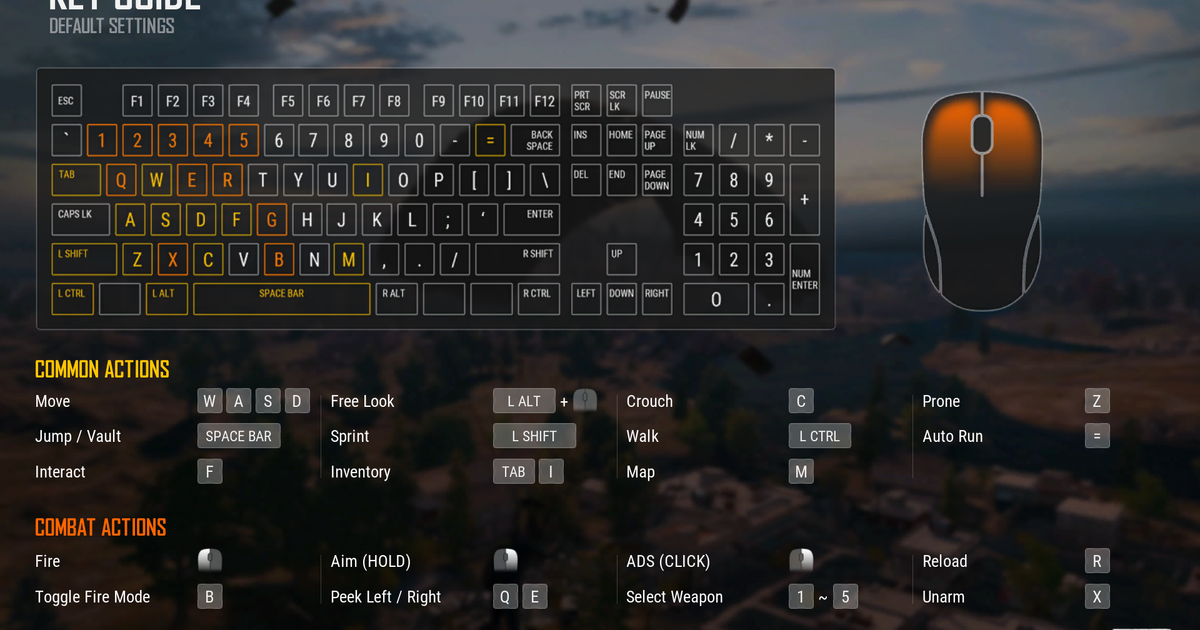
Playing PUBG Mobile on PC via BlueStacks opens up keyboard and mouse control. But you still need a good HUD overlay to map touch buttons to keys. The best BlueStacks layouts assign movement to WASD, aim to the mouse, and fire to left click. They also map lean to Q/E and grenades to G. The key is to keep the button positioning logical so your muscle memory transfers between mobile and emulator. We’ve compiled
We’ve compiled pubg control codes bluestacks that come with pre-configured keymaps for instant setup.
7. The Competitive Rank Grind Layout
When you’re pushing for Ace or Conqueror, every millisecond matters. This layout places all essential buttons within thumb reach without overlapping—crouch, prone, jump, and fire are all on the right side, while the left thumb handles movement and grenade selection. It also reduces button opacity so you can see more of the screen. The code is designed for high-level ranked play where reaction time is king. For a similar setup, look at our
For a similar setup, look at our pubg mobile control codes for ranked which focus on minimizing finger travel.
8. The Preset Peak & Lean Combo
Peeking and leaning are crucial for winning gunfights, but default controls require pulling down two separate buttons. This layout combines lean and peek into a single button that you drag to the direction you want. The HUD puts this combo button right above the fire button on the right side, so you can peek-while-firing effortlessly. It’s a game-changer for close-quarters battles. The code is widely used in esports circles—check
The code is widely used in esports circles—check esports pubg control codes for the exact button positions.
9. The Comfortable Thumb Saver
Long gaming sessions can strain your thumbs if buttons are out of reach. This layout prioritises ergonomics: all buttons are clustered in the lower half of the screen, with fire and scope on the right side, and movement on the left. It’s a two-finger or three-finger layout that reduces stretching. Perfect for casual players or anyone with smaller hands. The code is part of our
The code is part of our pubg control codes for comfortable layout collection, designed to keep you playing longer without fatigue.
10. The Poco Phone Optimization
Poco phones have a different aspect ratio and touch sampling rate, so generic layouts often feel off. This layout adjusts button sizes and positions specifically for Poco devices (X3, F1, etc.). It uses larger buttons and more spacing to match the screen’s sensitivity. It’s a three-finger claw that works great with the phone’s 120Hz display. For codes pre-tested on Poco, see
For codes pre-tested on Poco, see pubg control codes for poco phones.
11. The High-FPS Linear Response
If you play on a flagship phone with 90 or 120 FPS, you need a control code that matches the higher refresh rate. This layout uses a linear sensitivity curve that feels snappier at high frame rates. The HUD is a 4-finger claw with the fire and scope buttons moved slightly inward to account for less screen jitter. It’s a favourite among players using iPhones or Snapdragon 8 Gen 2 devices. Find more similar codes in our
Find more similar codes in our best pubg control codes for high end phones article.
12. The Quick Scope & Spray Hybrid
This layout is built for players who switch between sniping and spraying mid-game. It places a dedicated scope button on the right side that toggles between 4x and red dot, while the fire button stays independent. The HUD also includes a separate crouch button near the left thumb for quick drops. It’s a 4-finger setup that requires some practice but pays off in versatility. For a ready-made code, try our
For a ready-made code, try our pubg control code for 4 finger setup which includes this hybrid configuration.
There you go—12 layouts that cover every playstyle and device. The best control code is the one that feels natural after a few days of practice, so don’t be afraid to tweak button positions and sizes. Import a code from our collection, hit the training ground, and adjust until the buttons become an extension of your fingers. Your rank will thank you.



