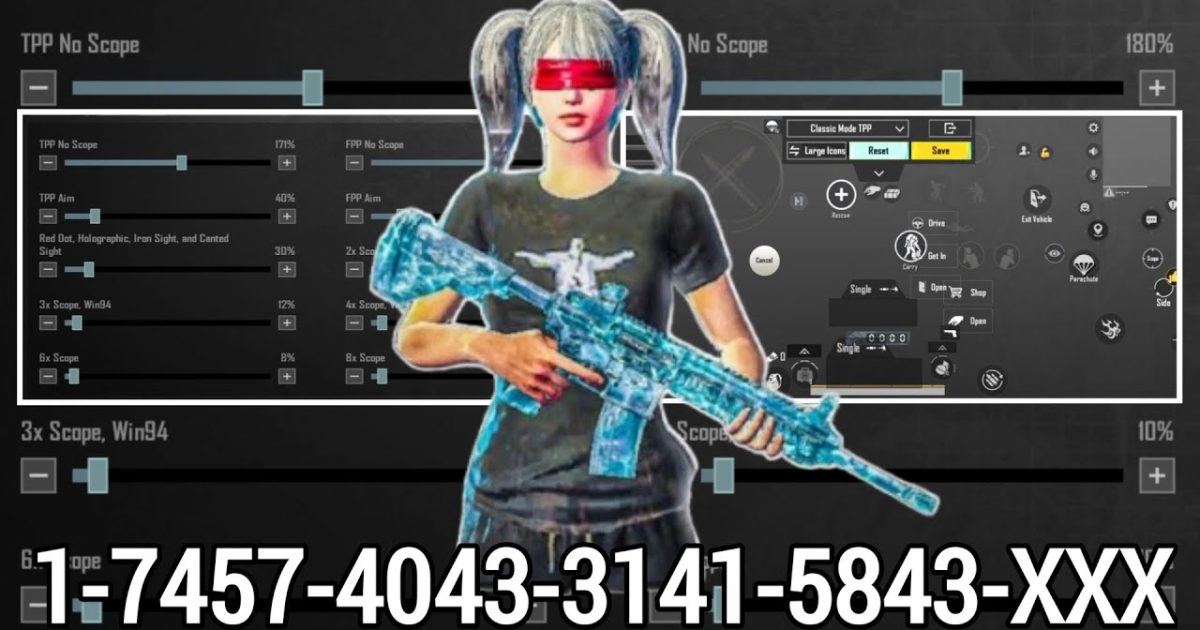
You found the perfect PUBG control code—maybe a slick four finger claw layout or an insane AKM spray setup from the control codes community. You copy it, paste it, hit apply… and nothing. Or worse, the buttons are all scrambled. Don’t throw your phone yet. Control codes not working is a super common headache, but it’s almost always fixable. I’ve compiled the top 10 reasons why your codes fail, plus exactly what to do. Let’s get your game back on track.
1. You Made a Typo or Pasted the Wrong Code
It sounds obvious, but most code failures are just a stray character. PUBG control codes are case-sensitive and include numbers, letters, and special symbols. One wrong digit and the game rejects the whole thing. Copy the code directly from a trusted source like a beginner’s guide or a community post. Avoid typing it manually unless you’re absolutely certain. Even a missing dash can break it. When in doubt, re-copy from the source and paste again.
2. The Code Is for a Different Game Version
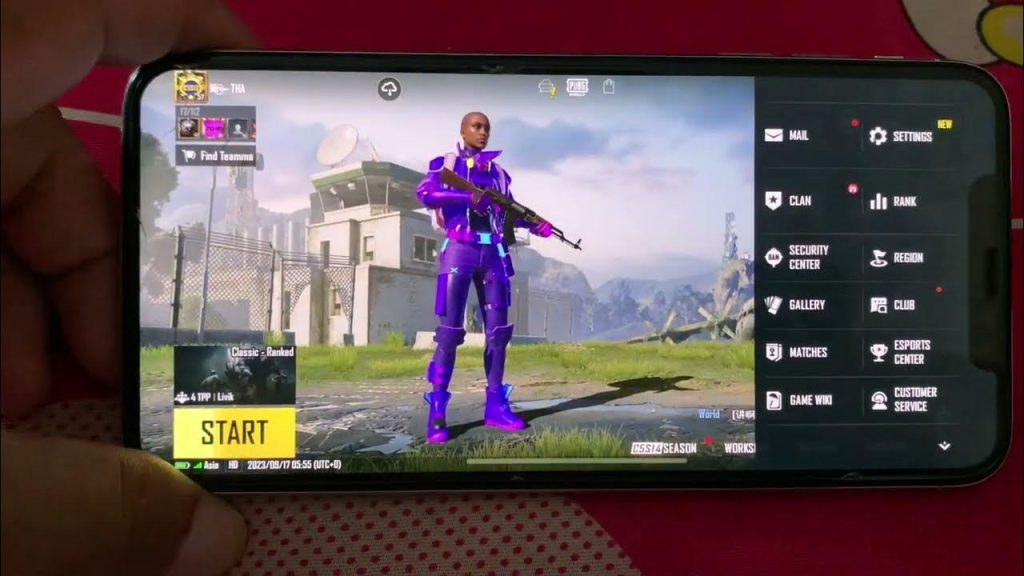
PUBG Mobile updates every few weeks, and control codes from older versions may not work after a patch. Before you panic, check if the code was posted recently. If it’s from last season, it’s likely obsolete. Always look for codes that specify the current version, like those found in our latest control codes for mobile roundup. If the code is old, you’ll need to find an updated one or manually tweak the layout.
3. Your Device Isn’t Compatible
Codes designed for high-end iPads or specific phones like Tecno phones might not map correctly on a different device. Screen size, aspect ratio, and button placement all vary. If the code you’re trying is for a specific model, it may not fit your screen. Look for device-specific codes (e.g., Tecno phone codes) or universal layouts. You can also adjust the scale after importing—more on that later.
4. Game Cache Is Causing Conflicts
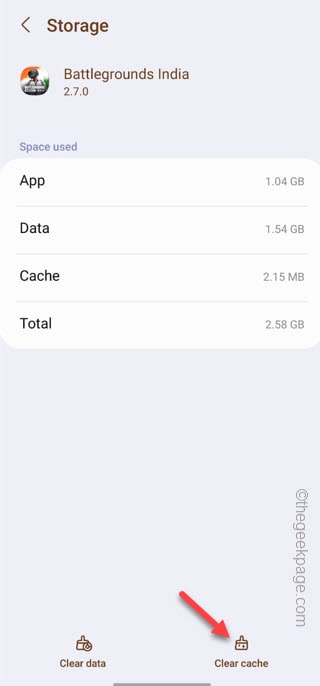
Corrupted cache files can prevent new control codes from applying correctly. Go to your phone’s settings, find PUBG Mobile, and clear the cache (not data). Then restart the game and try importing the code again. This simple step fixes a surprising number of issues. If you’re on an emulator, clear the emulator’s cache instead.
5. You Haven’t Updated PUBG Mobile
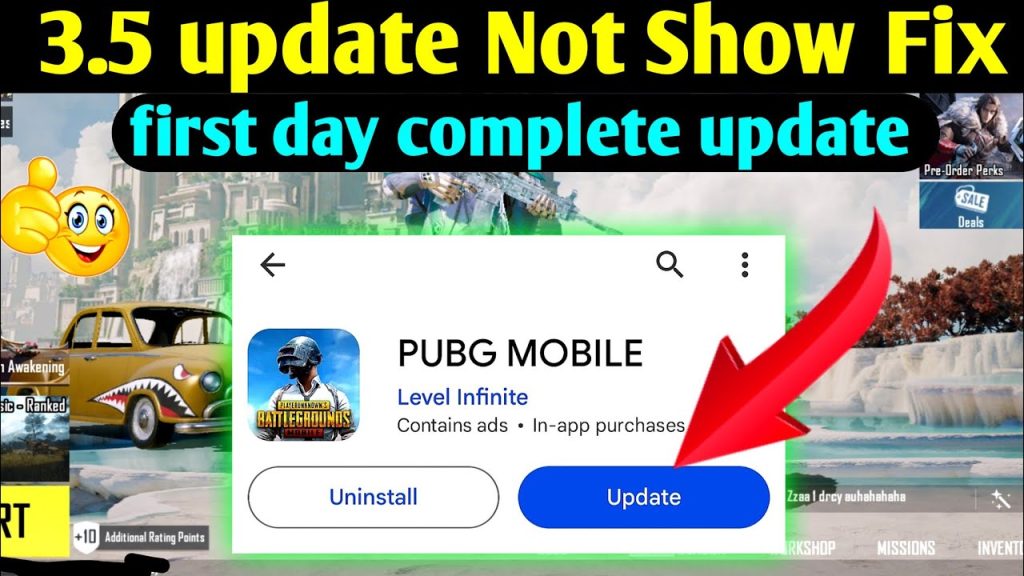
You might be running an outdated version while trying to use a code from the latest patch. Check the Play Store or App Store for updates. After updating, many codes from the control codes community will work again. Conversely, if you updated recently, some older codes may stop working—that’s normal. Keep your game up-to-date for the best compatibility.
6. The Code Was Made for a Different Layout Style
A four finger claw code won’t work if you’re trying to use it on a two-thumb setup. The game applies the code exactly as designed. If the code expects specific button positions that your current layout doesn’t support, it may cause overlapping or missing buttons. Before importing, check the description—if it’s for a four finger claw, make sure your hands are ready for that style. We have dedicated four finger claw codes if you want to make the switch.
7. Third-Party Overlays Are Interfering
Apps like Game Launchers, screen recorders, or even keyboard overlays on emulators can block control code imports. Disable any overlay apps temporarily. On emulators like BlueStacks, make sure the key mapping overlay is off while importing. Once the code is applied, you can turn overlays back on.
8. The Layout Needs a Reset First
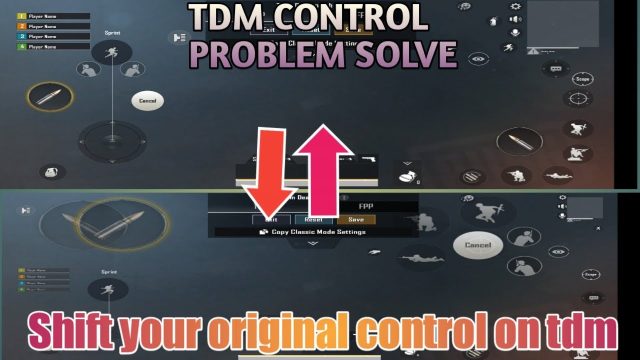
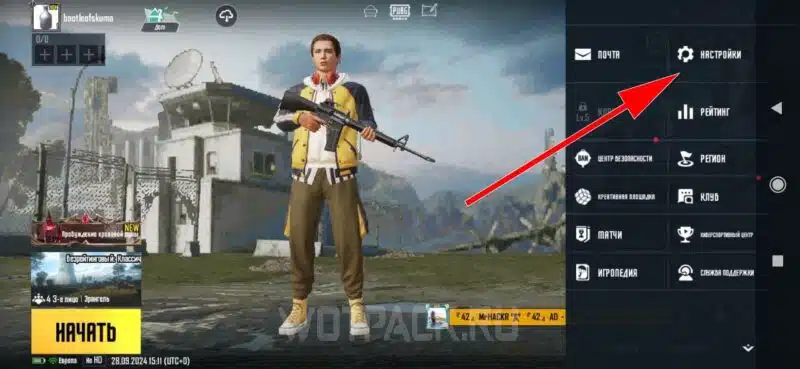
If you have a heavily customized layout, importing a new code on top can cause chaos. Before importing, reset your layout to default from the settings menu. Then apply the new code. This cleans the slate and ensures the code’s buttons map to the right spots. It’s a quick fix that many overlook.
9. The Code Has Expired or Been Revoked
Some creators share temporary codes that expire after a certain number of uses or days. If the code came from a limited-time event or a streamer’s giveaway, it might no longer be valid. Check the original post for an expiration note. If expired, look for an updated version. The control codes community often shares fresh codes regularly.
10. The Code Is Incomplete or Corrupted
Sometimes a code only contains partial data—like sensitivity settings without button positions. The import may succeed but nothing changes. Or the code got corrupted during copy-paste (especially on emulators). Try a different source, or manually compare the code string with the original. Also, some codes are region-specific; ensure it’s meant for your server (e.g., AKM spray codes from Asia might not work on NA).
Still Stuck? Ask the Community
If you’ve tried everything and the code still won’t work, it’s time to ask for help. The PUBG control codes community is active on Reddit, Discord, and forums. Post your issue with your device model and game version. Chances are someone else had the same problem and found a workaround. You might even discover a better code in the process.
Control codes are meant to simplify your life, not complicate it. By methodically checking these 10 points, you’ll either fix the issue or realize the code wasn’t right for you. Remember to always back up your current layout before experimenting. Happy gaming!