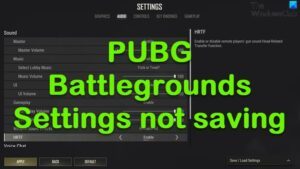
You spent hours perfecting your control layout, copied that killer PUBG control code from a streamer, and then… poof. Next time you log in, it’s gone. The settings didn’t save. Sound familiar? You’re not alone. PUBG control codes not saving is a frustrating issue that plagues many players, from casuals to hardcore grinders. In this guide, we’ve rounded up 12 of the most common reasons your settings won’t stick—plus practical fixes for each. We based these on community reports, developer updates, and good old trial and error. Let’s get your controls locked in.
1. Outdated Game Version
One of the simplest yet most overlooked reasons is that your game isn’t up to date. PUBG Mobile regularly pushes updates that tweak the settings system, and if you’re running an old version, your control codes might not save properly. Always check the App Store or Google Play for the latest version. If you’ve been ignoring that update notification, now’s the time to tap it. An outdated game can cause all sorts of sync issues, and control settings are often the first casualty.
2. Corrupted Game Cache
Over time, your cache can get bloated or corrupt, leading to all kinds of weird behavior—including settings that refuse to save. Clearing the cache is a quick fix. Go to your device settings, find PUBG Mobile, and clear the cache. Don’t worry, this won’t delete your account or progress. After clearing, restart the game and re-import your control codes. In many cases, this alone solves the problem.
3. Incorrect Permissions
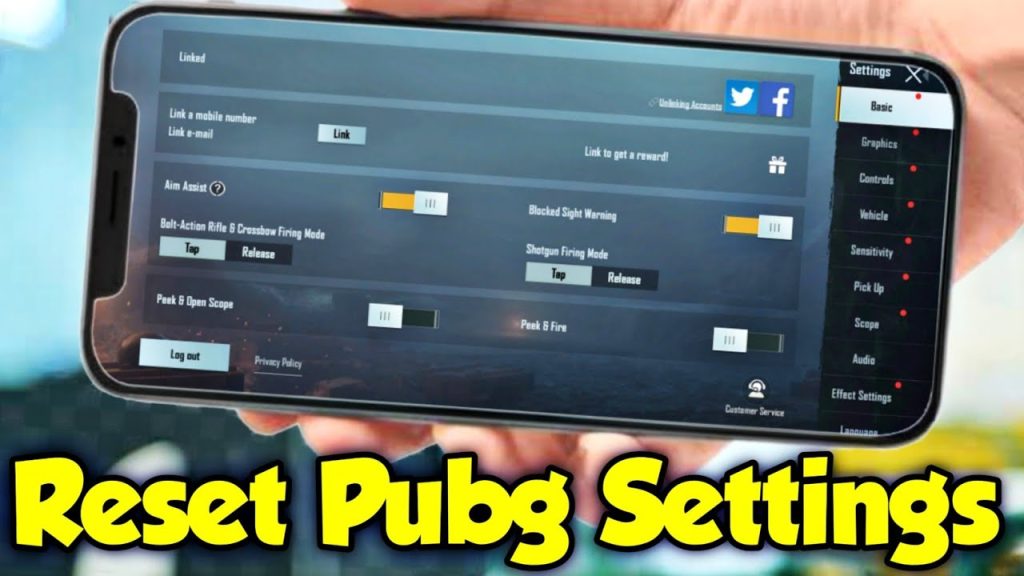
PUBG Mobile needs certain permissions to read and write data on your device. If you’ve denied storage permissions, the game can’t save your control layouts. Head to your device settings, apps, PUBG Mobile, and check permissions. Make sure ‘Storage’ (or ‘Files and media’) is allowed. After granting permission, force stop the app and relaunch it. This is a common cause especially on newer Android versions where permissions are more restricted.
4. Multiple Accounts Sync Conflict
If you juggle multiple accounts—say a guest account and a Facebook login—your settings can get confused. Each account stores its own control layout on its own server slot. If you’re importing a code while logged into the wrong account, it might save to the other one. To avoid this, always verify which account you’re on before applying codes. You can also log out completely, clear the app data, and log back in with your primary account.
5. Cloud Save Override
PUBG Mobile’s cloud save feature is supposed to help, but sometimes it backfires. If you’ve enabled cloud sync, the game might overwrite your local settings with an older cloud version every time you log in. To fix this, disable cloud save temporarily in the game’s settings, apply your control code, then re-enable cloud save. This ensures your latest layout sticks before being synced.
6. Low Device Storage
Your phone needs a bit of free space to save configuration files. If your storage is completely full (or nearly), the game can’t write new settings. Check your device’s available space. If it’s low, clear some junk—delete old photos, unused apps, or cache from other apps. After freeing up space, restart PUBG and try importing your control code again. It’s a simple fix that many players overlook.
7. App Not Updated via Official Store
Side-loading PUBG Mobile APKs from unofficial sources can cause settings to not save because the game’s signature differs. Always download updates from the Google Play Store or Apple App Store. Unofficial versions may have missing components or be tampered with, leading to save failures. If you’re using a modded APK, consider switching to the official version. Your control layouts will thank you.
8. Guest Account Limitations
Guest accounts have limited save functionality. If you’re playing without linking to Facebook, Google, or Twitter, your settings may not sync across devices or could be lost after a reinstall. Link your account to a social platform to enable persistent cloud saves. This also protects your progress. Once linked, you can safely export your control codes for backup.
9. Rooted or Jailbroken Device
Rooted Android or jailbroken iOS devices often have permission issues. PUBG Mobile’s anti-cheat can interfere with file writes, causing settings to reset. If you’re rooted and facing this issue, try using Magisk Hide to hide the root from PUBG, or unroot temporarily. Some players report that even with root, it’s possible to save settings by granting full storage permissions via a root file manager.
10. Network Connectivity Problems
PUBG control codes rely on a stable internet connection to sync with the server. If your network is flaky, the save process might fail. Make sure you’re on a strong Wi-Fi or cellular connection. You can also try switching between Wi-Fi and mobile data. If you’re on a VPN, try disabling it—some VPNs block game data syncing, preventing settings from saving.
11. Game Server Maintenance
Sometimes the problem isn’t on your end. During server maintenance or after major updates, control settings might not save because the backend is being tweaked. Check PUBG Mobile’s official social media or forums for maintenance announcements. If a patch just dropped, wait a few hours and try again. There’s not much you can do except be patient—and maybe try the latest PUBG control codes once things stabilize.
12. Third-Party Apps Interference
Apps like game boosters, performance optimizers, or even screen recorders can interfere with PUBG’s ability to save settings. Some of these apps modify system permissions or block write access. Try disabling any third-party overlays or performance apps temporarily. Also, if you’re using a keyboard or controller mapping app, it might conflict with the control code save process. Disable them, apply your layout, then re-enable if needed.
There you have it—12 reasons your PUBG control codes aren’t saving and how to fix each one. Start with the easiest fixes (cache clear, permissions, storage) and work your way up. If nothing works, you can always export your PUBG control codes as a backup before making changes, so you never lose your perfect layout again. Many of these issues are one-time hurdles—once resolved, your settings should stick around for good. And if you’re looking for new layouts to try, check out our collections of streamer-approved PUBG control codes or pro PUBG control codes to elevate your game.



