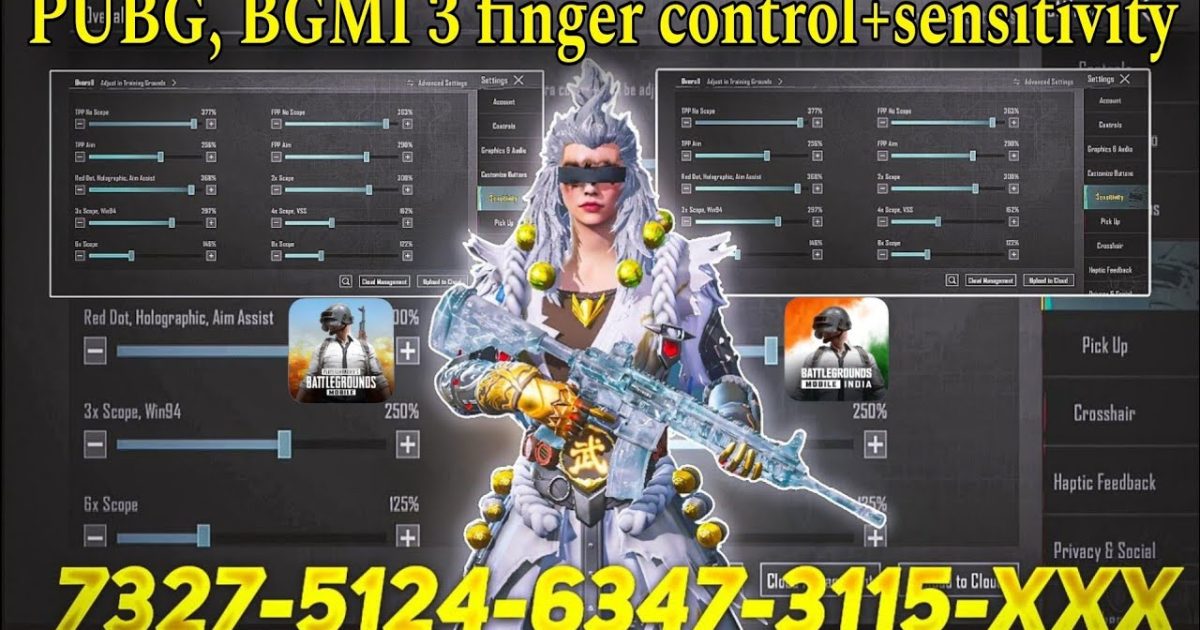
So you’ve been playing PUBG Mobile with two thumbs and you’re hitting a wall. You see streamers sliding, peeking, and spraying with crazy accuracy, and you want in. The secret? Three fingers. The three-finger claw layout frees up an extra digit for shooting while you move, giving you a massive edge over thumb-only players. But setting it up from scratch is a pain. That’s why I rounded up 10 proven 3 finger control codes that you can copy and paste right now. These layouts are used by top players and optimized for everything from close-range brawls to long-range snipes. Ready to unlock your potential? Let’s dive in.
1. The Classic 3 Finger Claw (Index + Middle + Thumb)

This is the bread and butter of 3 finger layouts. Your left index finger handles the fire button (placed top-left), your left thumb controls movement, and your right thumb aims, crouches, and jumps. It’s simple, effective, and a great starting point. The key is to position the fire button just above your left thumb’s natural resting spot so you can tap it without straining. I’ve included a control code that has the fire button at 30% opacity to avoid visual clutter. It also shifts the scope button slightly to the right so your right thumb can reach it easily. Try this layout if you’re new to claw — it’ll feel weird for a day, then like second nature.
2. The Gyro-Assisted 3 Finger Layout

Gyro is game-changing for recoil control and fine aim. In this layout, your left index still fires, but you rely on tilting your phone for the final aim correction. The right thumb handles scope and fire mode switch. I recommend setting gyro sensitivity to around 300% for ADS and 100% for free look. The control code I’m sharing has the scope button enlarged and placed near the top-right corner so your right thumb can tap it without leaving the joystick area. The result? Smooth tracking and laser beams. If you haven’t tried gyro with claw, this is the one to test.
3. The Quick Scope 3 Finger Setup

For DMR and sniper lovers, this layout prioritizes instant scope-in. Your left index fires, left thumb moves, and right thumb has scope, peek, and fire scope buttons all within a small cluster. The trick is to put the scope button directly above the fire button so you can tap both with your right thumb in one motion. The control code here also includes a separate button for scope mode toggle (hold vs tap) so you can switch between snipers and ARs on the fly. Combined with high ADS sensitivity, you’ll be hitting those quick scope flicks like a pro. Check out our top pubg control codes for more sniper-friendly layouts.
4. The Crouch-Spray 3 Finger Layout
Crouch spraying tightens your bullet spread and makes you a harder target. This layout places the crouch button right next to the fire button — your left index taps fire, and your left thumb can quickly hit crouch while spraying. The right thumb focuses on aim and crosshair placement. I’ve optimized the button sizes: fire at 80%, crouch at 60%, and scope at 70%. The code also sets crouch to (tap) toggle so you don’t have to hold it. This is a beast for close-mid range fights. Pair it with an SMG or a fully kitted M416 and watch your KD climb.
5. The Peek-and-Fire 3 Finger Setup

Peeking is essential for cover-based combat. In this layout, your left index fires, left thumb moves, and your right thumb taps the peek buttons (left and right) placed close to the scope button. The control code I’m sharing puts both peek buttons at 50% size and 20% transparency so they don’t block your view. It also sets the peek to (tap) hold for quicker peeks. You’ll be able to lean, shoot, and un-peek in one fluid motion. This layout works great on Erangel and Sanhok where cover is key. For more advanced peek layouts, see our pro pubg control codes.
6. The Minimalist 3 Finger Code (No Clutter)

Some players prefer a clean screen with only the essential buttons. This layout hides the knife, emote, and auto-pickup buttons entirely. It uses small, transparent buttons for fire, scope, and movement. Your left index fires, left thumb moves, right thumb aims and uses scope. The control code sets all button opacities to 25% and reduces button sizes to 60%. It also disables the right fire button to avoid accidental taps. The result is a distraction-free view of the battlefield. If you’re tired of fat-fingering the wrong button, give this a try.
7. The Grenade Quick-Release 3 Finger Layout
Grenades can win fights before they even start. This layout places the grenade button near your right thumb alongside scope and peek. You can quick-tap it, aim, and throw without shifting your grip. The control code assigns the grenade button to 70% size and places it to the right of the scope button. It also sets the grenade throw to (tap) release for faster cooking. Once you get used to it, you’ll be tossing frags and smokes mid-slide without breaking a sweat. This is a favorite among aggressive players who love utility.
8. The ADS-Toggle 3 Finger Setup
If you prefer tap-to-ADS instead of hold, this layout is for you. Your left index fires, left thumb moves, and your right thumb toggles ADS on/off with a tap. The control code places a large ADS toggle button just above the right joystick area. It also disables the hip-fire button to prevent confusion. The advantage is that you can stay in ADS mode while moving and shooting, which is great for spray transfer. Combined with gyro, this layout gives you pinpoint accuracy. Just remember to tap again to exit ADS. For more insight, see our how to copy pubg mobile control codes guide.
9. The High-Sensitivity 3 Finger Layout (120fps)
If you’re playing on a 120fps device, you can push your sensitivity to the max. This layout pairs the 3 finger claw with extreme ADS and gyro sensitivities (400-500%). Your left index fires, left thumb moves, and your right thumb handles scope and a dedicated fire scope button for even faster taps. The control code also reduces the dead zone to zero for instant response. This setup is twitchy but insanely rewarding once you master it. It’s perfect for device such as iPads and high-refresh phones. For more optimization tips, check our pubg control codes after layout reset if things go wrong.
10. The All-Rounder 3 Finger Code (Balanced)
Can’t decide? This is the jack-of-all-trades layout. It combines elements from all the previous ones: a medium-sized fire button, a transparent scope button, peek buttons on the right, crouch near fire, and a grenade button within thumb reach. The code is optimized for both gyro and non-gyro players, with sensitivities set to a mid-range 250%. It’s the layout I personally use when I’m playing casually but still want to compete. Copy this one if you want a solid foundation and then tweak it to your preference. Once you’re comfortable, you can level up to control codes for 5 finger or the pubg mobile 5 finger control code for even more control.
There you have it — 10 PUBG 3 finger control codes that cover different playstyles and preferences. Whether you’re a gyro addict, a sniper enthusiast, or a spray-and-pray warrior, there’s a layout here for you. The key is to pick one, stick with it for at least a week, and tweak the button positions until they feel natural. Don’t be afraid to adjust opacity and size to suit your screen size. And if you ever mess up your layout, remember you can always restore from a backup or use our pubg control codes after layout reset guide. Now go drop hot and show them what three fingers can do!



