PUBG control codes are pre-configured button layouts and sensitivity settings shared by top players. Instead of tweaking every slider manually, you copy a code and paste it into your settings. This guide walks you through everything—from finding legit codes to applying them and customizing for your style. We picked the most practical steps based on community favorites and pro setups. Whether you’re a beginner or a veteran, these tips will save you hours of trial and error. For a total newbie start, check our pubg control codes beginner tutorial.
What Are PUBG Control Codes?
Control codes are alphanumeric strings that encode your entire HUD layout, sensitivity, and button positions. When you share your code, others can import your exact setup. This is huge for consistency—pros often distribute codes so fans can copy their spray patterns and movement. Codes are specific to PUBG Mobile and work across Android and iOS. They’re not cheats; they’re just saved settings.
Where to Find Reliable Control Codes
The best sources are trusted YouTubers, official pro teams, and community forums like Reddit. Avoid random websites that promise “100% headshot codes”—those are usually scams. Look for videos showing the code in action with clear instructions. We’ve compiled a list of verified codes in our pubg control codes YouTube collection. Also, check the in-game leaderboards: many top players share their codes publicly.
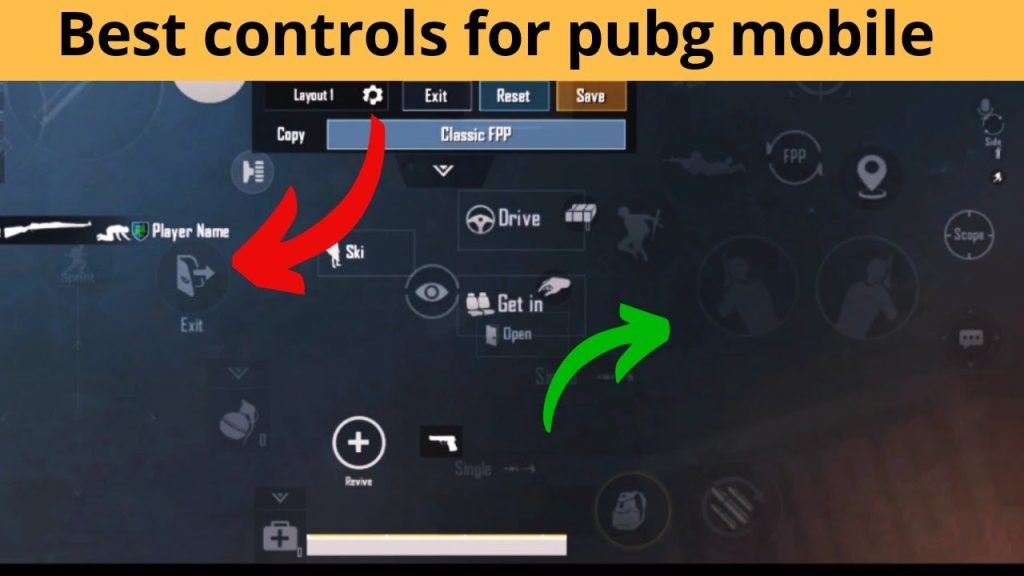
How to Copy a Control Code Correctly
When you see a code like “1234-5678-9012”, copy it exactly—spaces, hyphens, and all. Use your phone’s clipboard. If the code is posted in a video description, tap the “Copy” button. Don’t type it manually because a single typo breaks the import. Some codes are case-sensitive, so pay attention to uppercase letters. Double-check before pasting.
Applying the Code in Your Settings
Open PUBG Mobile, go to Settings > Controls > Layouts (or Sensitivity). Look for the “Import” or “Use Code” button. Paste your copied code and confirm. The game will apply the layout instantly. If nothing changes, you might have pasted an invalid code. For a full walkthrough of every menu, read our how to apply pubg control codes guide.
Fine-Tuning Sensitivity After Applying
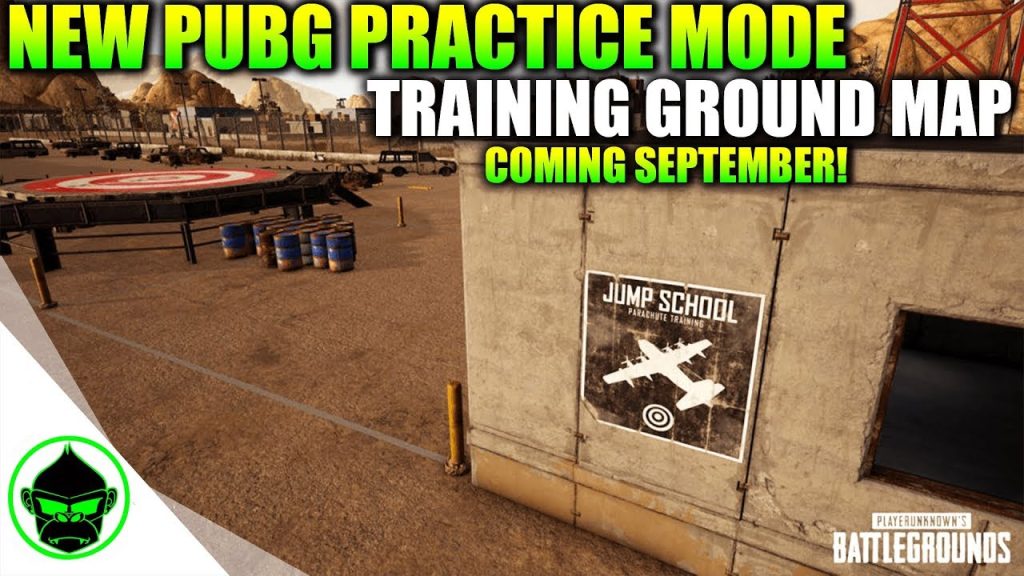
Most codes include sensitivity settings, but those might not feel right on your device. After importing, hit the training ground and test your aim. Adjust the camera sensitivity, ADS sensitivity, and gyro values incrementally. A good starting point is to set global sensitivity to medium and then tweak per scope. Check our pubg control codes sensitivity tutorial for finer adjustments.
Testing the Layout in Training Ground
Always spend at least 10 minutes in the training ground after applying a new code. Practice spraying, flicking, and movement. See if buttons are within comfortable reach. If the fire button is too small or the joystick is off-center, note it. The training ground is your safe space to experiment without risking a match.
Adjusting for Your Device Screen Size
Codes from iPad players look tiny on phones, and vice versa. After importing, manually resize buttons and adjust the HUD scale. Most codes are designed for a specific aspect ratio. If you have an Oppo, Samsung, or iPhone, you’ll likely need to tweak button positions. Check device-specific guides like pubg control codes for Oppo phones.
Using Codes with Claw or Thumb Grip
Claw players (using 3-4 fingers) need buttons spread across the screen to avoid overlap. Thumb players need compact layouts with fire and aim close together. When you import a code, check if it’s meant for your grip style. For 4-finger setups, see our pubg control codes for claw players. For 2-finger setups, browse pubg control codes for thumb players.
Combining Codes with Gyroscope Controls
Gyro adds motion aiming—tilt your phone to fine-tune recoil. Many codes come with gyro enabled, but if not, you can manually turn it on in settings. Some pros share hybrid layouts that mix tap and gyro. If you want to incorporate gyro, explore pubg mobile control codes with gyro to find the perfect balance.
Saving and Swapping Layouts Easily
You can save multiple layouts in PUBG Mobile. After importing a code, name it something memorable (e.g., “Pro Claw v2”). To switch, go back to Layouts and select the saved one. This is handy when you want to test different setups without losing your main layout. Also, consider backing up your own layout by generating a code to share or restore later.
That wraps up our guide. PUBG control codes are powerful shortcuts to pro-level settings. Start with a code from a reliable source, test it thoroughly, and customize for your device and grip. The right layout can shave seconds off your reaction time and make spraying feel effortless. Happy gaming, and see you on the battleground!



