PUBG control codes are a game-changer. Instead of painstakingly tweaking every button and sensitivity slider, you can import a pro’s entire layout in seconds. But if you’ve never done it before, the process might seem a bit tricky. Whether you’re after new season codes for the latest meta, close combat codes to win hip-fire duels, or streamer codes that the pros swear by, this guide will walk you through every step. We’ve broken it down into clear, actionable steps so you can copy any code and start dominating.
1. Find a Reliable Code Source
The first step is finding control codes that actually work. Not every code you see online is still valid – some expire or are meant for older versions. Stick to trusted sources like our site, where we regularly update codes for the latest patches. You can grab new season codes that are optimized for the current meta, or pick up close combat codes if you want to improve your CQC game. Make sure the source specifies which device and layout type (2-finger, 3-finger claw, etc.) the code is designed for.
2. Copy the Code Correctly
Once you’ve found a code you want to try, copy it exactly. Codes are long strings of numbers and letters – one wrong character and the import will fail. Use the copy button if the site provides one, or manually select the full text. Avoid copying extra spaces or line breaks. If you’re on mobile, double-tap and drag the selection handles to grab everything. A quick tip: paste the code into a notes app first to verify it’s clean before moving to the game.
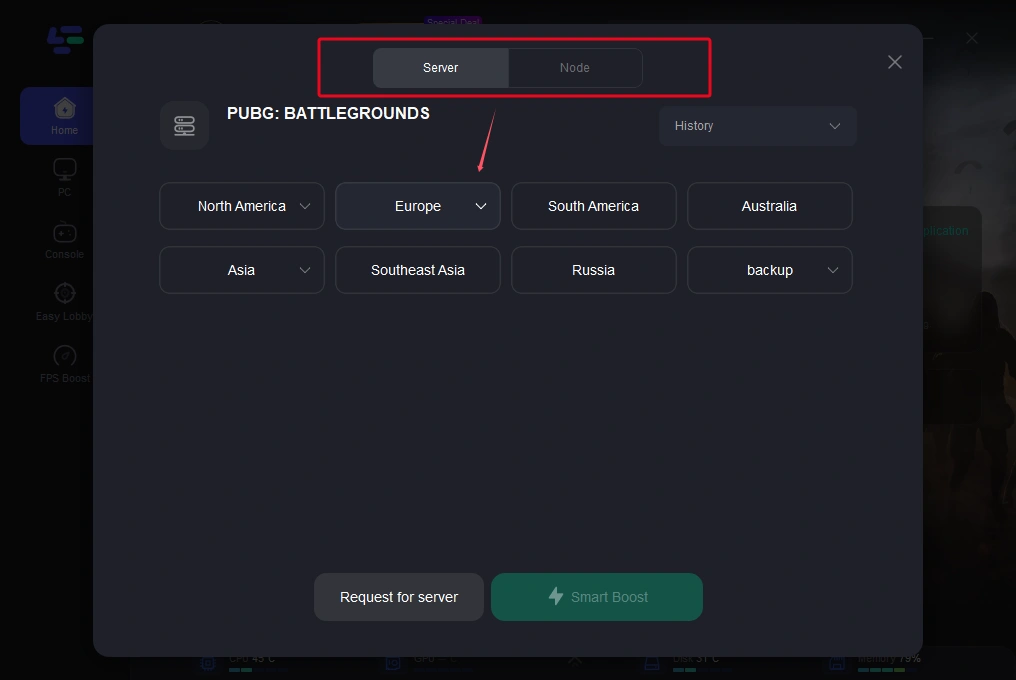
3. Open Settings and Go to the Layout Menu
Launch PUBG Mobile and head to the main lobby. Tap the gear icon to open Settings, then select the ‘Controls’ tab. You’ll see an option called ‘Layout’ – that’s where the magic happens. Depending on your version, you might see a button that says ‘Import Layout’ or an icon with an arrow pointing into a box. Tap that. If you’re using an emulator like SmartGaGa, the steps are similar but the layout menu might be in a different spot – check our smartgaga guide for specifics.
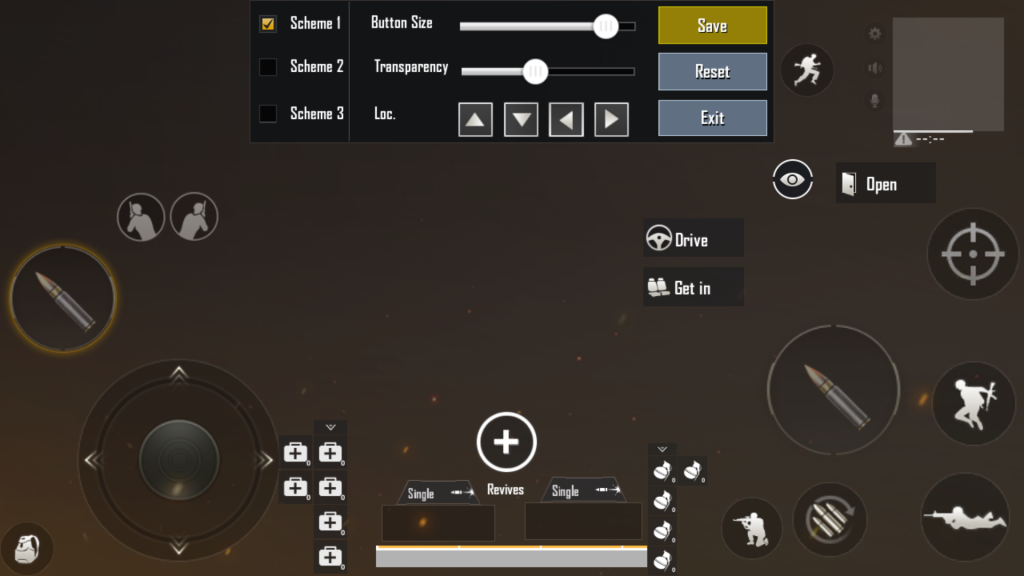
4. Paste the Code in the Import Field
After tapping the import button, a text field will appear. Tap and hold in that field, then select ‘Paste’. Your code should appear. If nothing happens, double-check that you copied the full code. Some versions require you to paste in a separate pop-up – just follow the prompts. Once the code is pasted, tap ‘Apply’ or ‘OK’. The game will process the code and load the new layout. If you get an error, make sure the code isn’t corrupted or outdated.
5. Save and Apply the Layout
After importing, you’ll see a preview of the new layout. You can move buttons around if needed, but for now, just tap ‘Save’ or ‘Confirm’. The layout will be applied immediately. You might notice buttons overlapping or being too small – that’s normal. You can always tweak later. The key is to save it first so you don’t lose the import. If you’re using a code from our sensitivity tutorial, it will also adjust your ADS and gyro settings, so check those too.
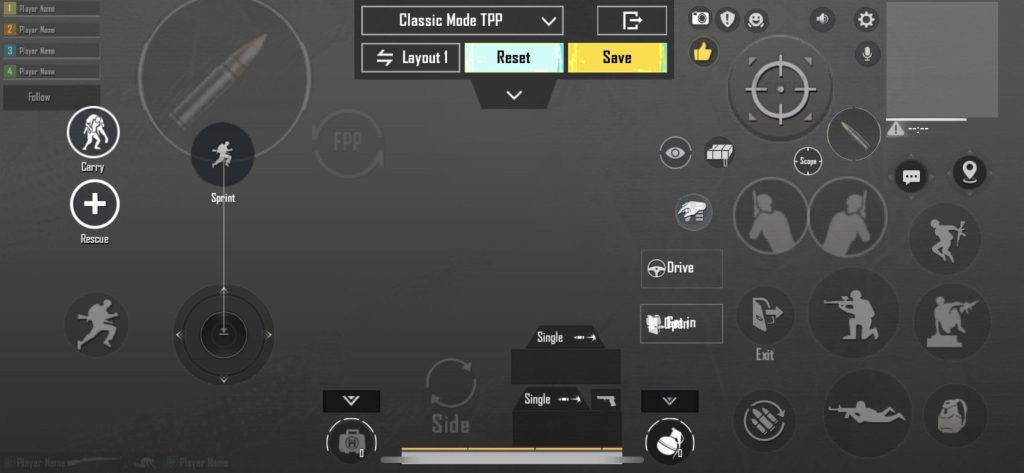
6. Test in Training Mode
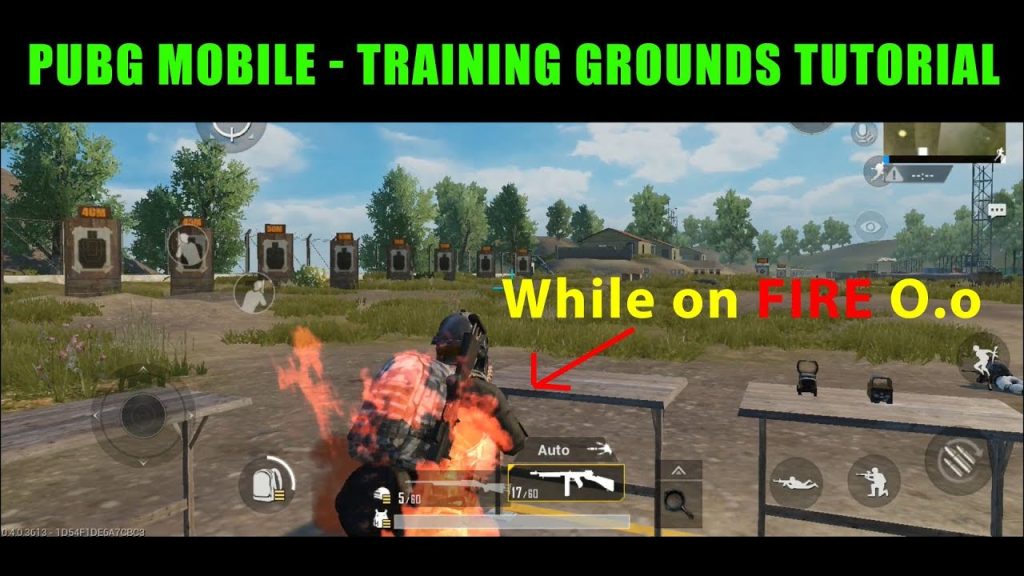
Never jump into a ranked match with a new control layout. Head to Training Mode first. Run around, fire at targets, practice peeking and movement. Get a feel for the button placements. If something feels off – like the fire button is too far from your thumb – note it. Training is also the perfect place to see if the sensitivity matches your playstyle. For example, close combat codes often have higher sensitivity for quick 360s, which might make long-range aiming twitchy. Adjust as needed.
7. Tweak to Your Preference
No imported code is perfect for everyone. After testing, go back to the layout editor and make small adjustments. Move buttons closer to your muscle memory zone, resize them if they’re too small, and adjust opacity for less clutter. If the code came with sensitivity settings, tweak those in the ‘Sensitivity’ tab. A common tweak is lowering ADS sensitivity for snipers while keeping general high for close range. Our sensitivity tutorial can help you dial in the numbers.
8. Backup Your Own Layouts
Once you’ve perfected your layout, back it up! PUBG Mobile lets you export your layout as a code. Go back to the layout menu and look for ‘Export’ or ‘Share’. You’ll get a code you can save in your notes. This is a lifesaver if you switch devices or if settings get reset after a patch. If you ever run into issues like settings not saving, having a backup code lets you restore everything in seconds. It’s also great for sharing with friends.
9. Update Codes After Patches
PUBG Mobile updates frequently, and sometimes old codes break. Always check for updated versions, especially after a new season drop. Bookmark our site for the latest layout codes. For example, after a big patch, the button IDs might change, causing imported layouts to glitch. If you notice buttons not responding, it’s time to grab a fresh code. Our new season codes are specifically tested for the current version, so you’re always ahead.
10. Share Your Own Codes
Once you’ve built a layout you love, pay it forward. Export your code and share it with the community. You can post it in forums, on social media, or even submit it to our site. Who knows, your custom layout might become the next big thing. Sharing also helps you get feedback from other players who might suggest improvements. And if you’re into streaming, you can even share streamer codes that your followers can use to play like you.
Applying a PUBG control code is as simple as copy-paste, but getting the most out of it requires testing and tweaking. Follow these steps and you’ll have a pro-level layout in no time.
PUBG Control Codes Pro
That’s it! Now you know exactly how to apply PUBG control codes like a pro. Remember, the best layout is the one that feels natural to you. Start with a code that suits your playstyle – whether it’s a rush layout for aggressive plays or a balanced one for all-round performance – then adjust until it’s yours. And if you ever get stuck, our layout codes and guides are just a click away. Happy fragging!



