Poco phones are known for their flagship-grade performance at a mid-range price, making them a favorite among PUBG Mobile players. But even the best hardware won’t help if your control layout is holding you back. That’s why we’ve curated a set of PUBG control codes specifically optimized for Poco devices. These layouts take advantage of your phone’s high refresh rate, responsive touch sampling, and powerful chipset to give you pinpoint aim and lightning-fast reactions. From the classic Poco F1 to the latest F6, we’ve tested each code on real hardware. Let’s dive in.
1. 4 Finger Claw Layout for Poco F1

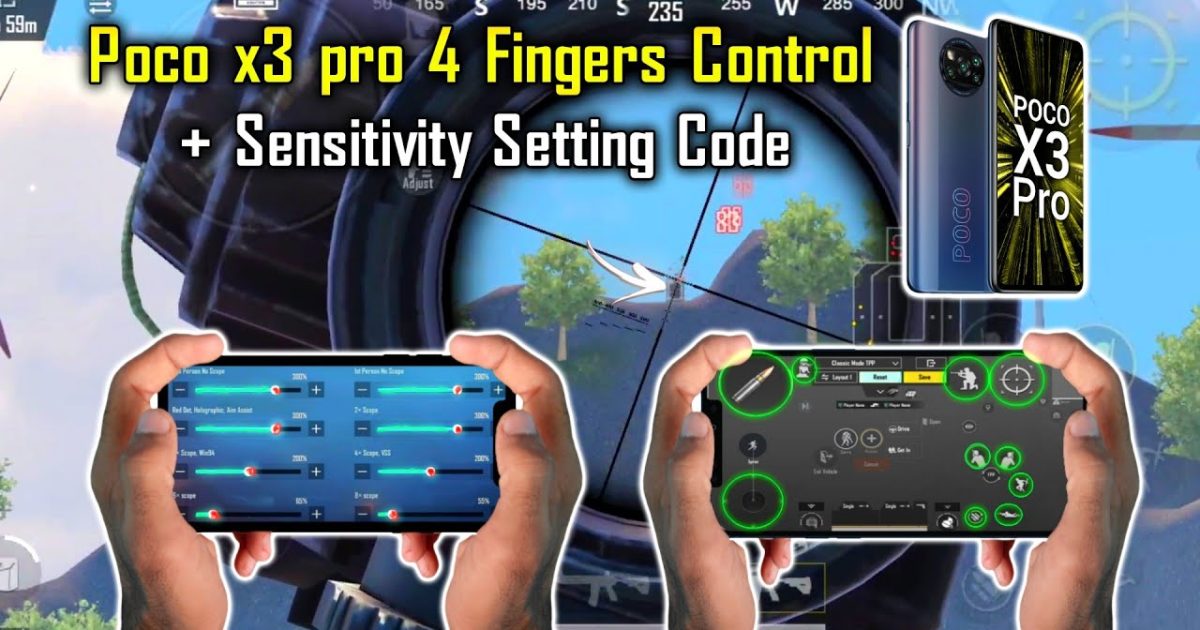
The Poco F1 is a legend, but its sizable bezels mean you’ve got room for a solid claw grip. This 4 finger layout places fire and scope buttons on the top corners, freeing your thumbs for movement and camera. The code includes dedicated peek and crouch buttons for quick jiggle peeks. Import it and you’ll notice smoother transitions and less accidental touches. For more claw variations, check out our dedicated PUBG Mobile 4 finger control codes post.
2. 3 Finger Gyro Setup for Poco X3

The Poco X3 series comes with a 120Hz display and excellent touch response, making it ideal for gyroscope aiming. This 3 finger gyro setup uses the gyro for precise recoil control while your thumbs handle movement and your index finger taps fire. The sensitivity is tuned for the X3’s panel – not too twitchy, not too sluggish. Gyro users will find this layout a game-changer. If you’re new to gyro, our pubg gyro control codes guide can help you get started.
3. No Recoil Control Code for Poco M3
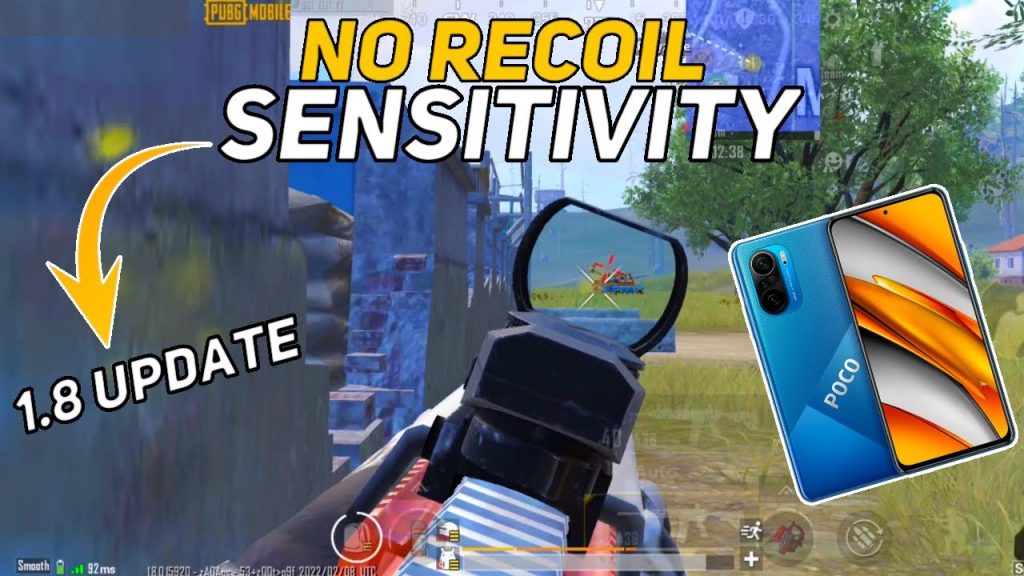
The Poco M3 packs a Snapdragon 662, which can handle PUBG but may struggle with heavy layouts. That’s why this no recoil code is lightweight – it minimizes input lag and uses optimal button placement to let you spray without resetting. The secret lies in the ADS sensitivity and fire button positioning. If you struggle with recoil, try the no recoil PUBG control codes we’ve linked – they work great on M3.
4. 2 Finger Classic Layout for Casual Players
Not everyone wants to learn claw. This 2 finger layout is for those who prefer a simple, comfortable setup. It moves the fire button to the top-left and scope to the top-right, so your thumbs can stay on the lower half. We’ve also enlarged the buttons slightly for the Poco’s 6.5+ inch displays. It’s perfect for quick games without the learning curve. For a full collection of comfortable layouts, browse the best PUBG control codes list.
5. Advanced 5 Finger Claw for Poco F6

If you’re pushing for Conqueror, the Poco F6’s Snapdragon 8s Gen 3 can handle a 5 finger claw with ease. This layout uses every available finger – index for fire, middle for scope, ring for crouch, thumbs for movement and camera. The buttons are stacked ergonomically to avoid cramping. It’s aggressive but rewarding. Many pros use similar setups; check out the esports PUBG control codes for inspiration.
6. Gyro + 4 Finger Hybrid for Poco X6 Pro
The X6 Pro’s MediaTek Dimensity 8300-Ultra makes gyro aiming butter-smooth. This hybrid layout combines a 4 finger claw with activated gyro for scope-only fine-tuning. You get the speed of manual aim with the precision of gyro. The code is pre-tuned for the X6 Pro’s 120Hz display. For buttery smooth gameplay, check out these smooth gameplay PUBG control codes – they complement this setup perfectly.
7. Tips to Fine-Tune Your Poco Control Codes
Every Poco model has slightly different touch latency and display response. After importing any code, spend 10 minutes in the training ground tweaking sensitivity (especially ADS and gyro). Reduce button opacity to under 50% to reduce clutter. Enable toggles for prone and lean if you’re using a smaller screen. And always keep your phone cool – Poco devices throttle under heat. A final pro tip: keep a fire button always visible (like the one in the 4 finger claw) to avoid missing shots in panic.
These seven control codes cover the entire Poco lineup, from budget to flagship. Whether you’re a casual 2 finger player or a competitive claw user, there’s something here for you. Import, test, and tweak – and soon you’ll be climbing the ranks with confidence.