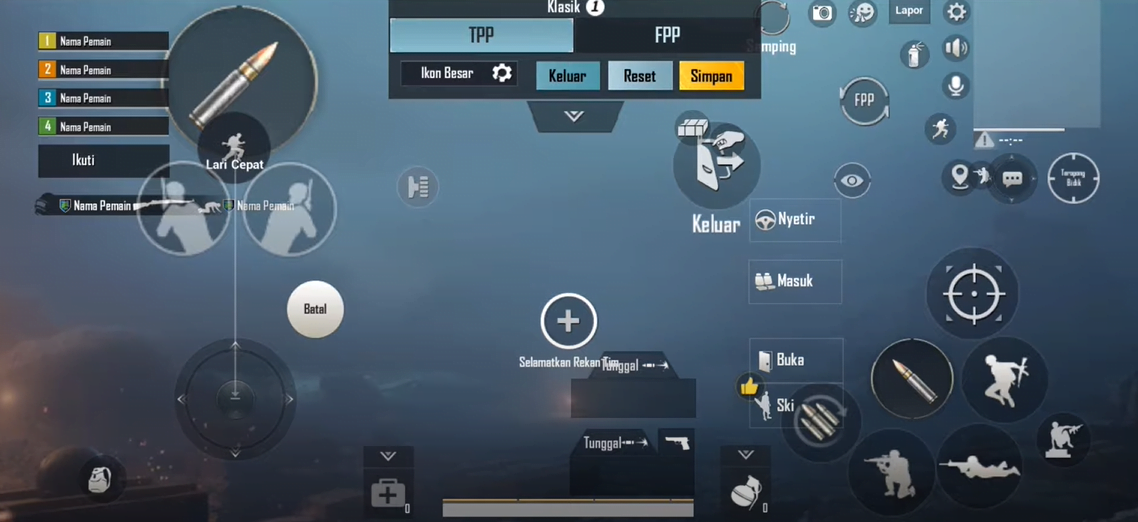
Your control layout is the single biggest factor separating a bot from a chicken dinner. One wrong button placement and you’re panic-jumping in a doorway while the enemy lands a clean headshot. We’ve tested dozens of PUBG control layout codes across devices and playstyles to bring you eight proven setups that actually work in 2025. Whether you’re a thumb-only newbie or a gyro-addicted pro, there’s a code here that’ll make your fingers dance. Each code is device-tested and update-proof — because nothing sucks more than a layout that breaks after a patch. Grab your favorite and paste it in the customization screen. Let’s get you that win.
2 Finger Classic — Reliable and Balanced
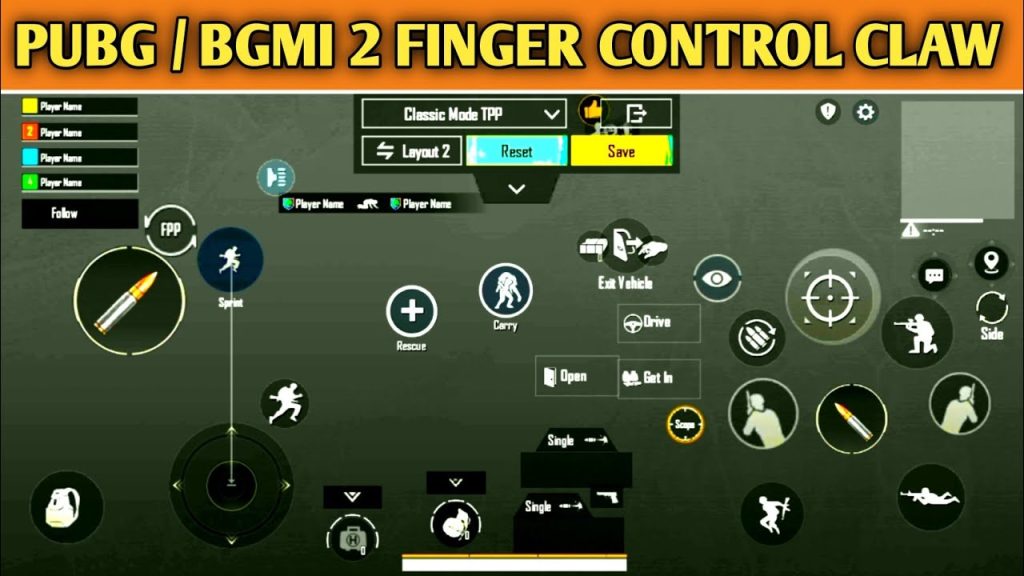
The two‑finger layout is the bread and butter of PUBG Mobile. It keeps everything simple: left thumb moves, right thumb aims and shoots. Our code places the fire button slightly lower than default to reduce accidental scope-to-fire misclicks and moves the joystick closer to the left edge for better movement control. The scope, crouch, and jump buttons are sized up and spread out to minimize overlaps. If you’re just starting or want a stress‑free setup that still holds up in Platinum, this is your go‑to. For an even more refined version, check out our best pubg control codes for iphone if you’re on iOS — the button spacing is fine‑tuned for smaller screens.
3 Finger Claw — Speed and Precision
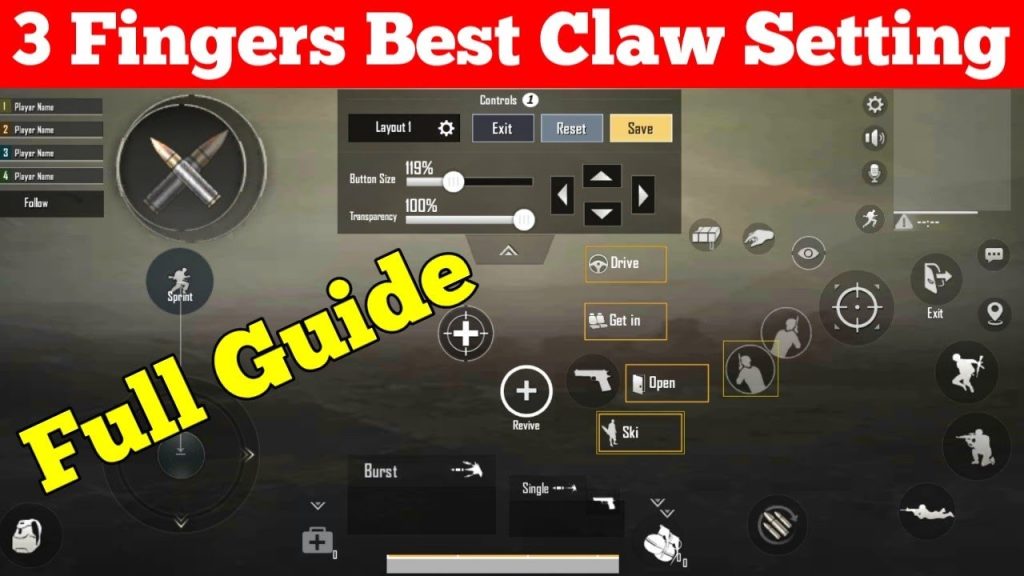
Adding a third finger opens up a world of possibilities. You can now shoot while moving and aiming simultaneously — a must for close‑range hip‑fire battles. Our 3 finger layout code places the fire button in the top‑left corner for your left index finger, while your thumbs handle movement and aim. We’ve also mapped the scope button right next to the fire button so you can quick‑scope without shifting grip. The peek buttons are tucked near your right thumb for instant lean shots. This layout is a favorite among players pushing for Ace; it gives you that extra split‑second advantage. If you want even more configurations, dive into our dedicated 3 finger layout code guide.
4 Finger Hybrid — Peak Control
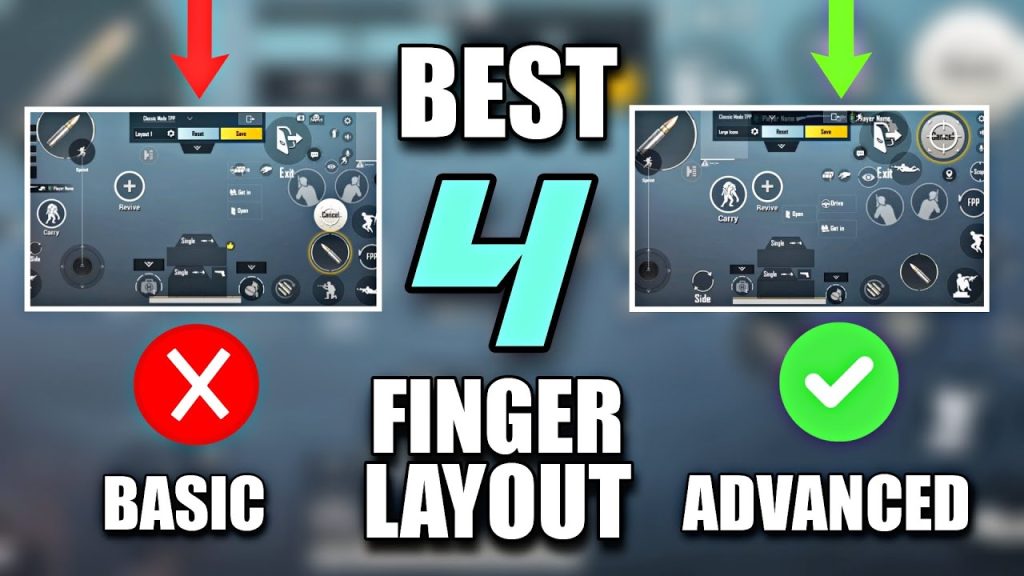
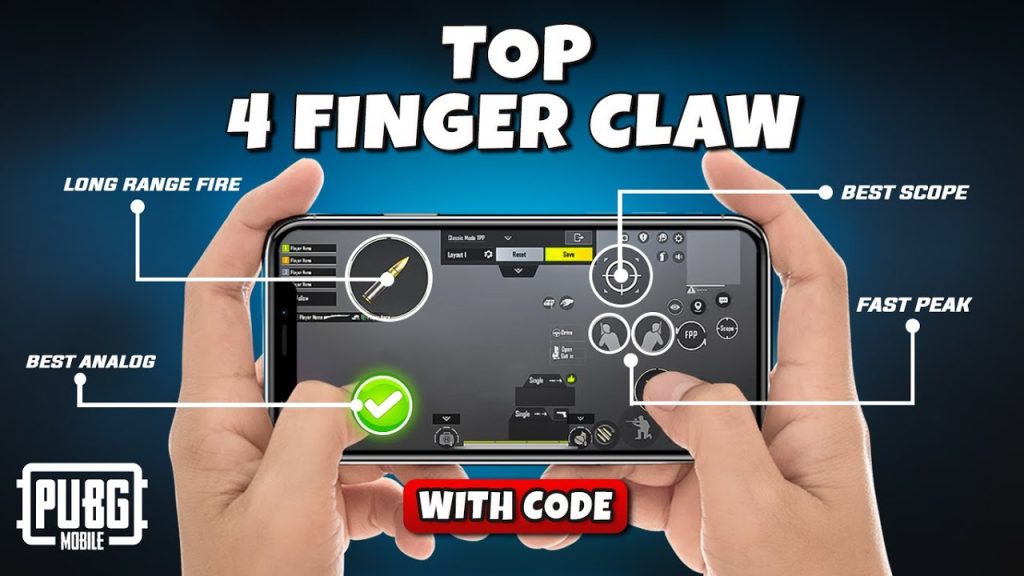
When you’re ready to go full tryhard, the four‑finger layout is where the pros live. You get dedicated fingers for shooting, scoping, moving, and peeking — no more awkward thumb yoga. Our hybrid code uses the top two corners for fire and scope (index fingers) and the bottom for movement and aim (thumbs). We’ve added extra buttons for gyro toggle and quick scope, all spaced so your fingers don’t cramp after a long session. This layout works best on devices with at least a 6‑inch screen. For smaller phones, adjust button size using our pubg mobile control codes device compatibility recommendations — they’ll help you scale without breaking the layout.
Gyro Assisted — Smooth as Butter
Gyro controls let you fine‑tune your aim by tilting the phone. It feels unnatural at first, but once it clicks, you’ll wonder how you ever played without it. Our gyro layout code keeps the same button positions as a standard claw setup but adds a dedicated gyro activation button (for when you want to disable tilt temporarily) and increases the scope sensitivity for gyro. We’ve also moved the mini‑map slightly inward so your tilting hand doesn’t accidentally open it. This is a top pick for long‑range snipers and close‑range spray‑and‑pray alike. Need more gyro‑focused options? Check out our pubg gyro layout code collection for different sensitivity variants.
Quick Peek — Lean and Shoot in One Move
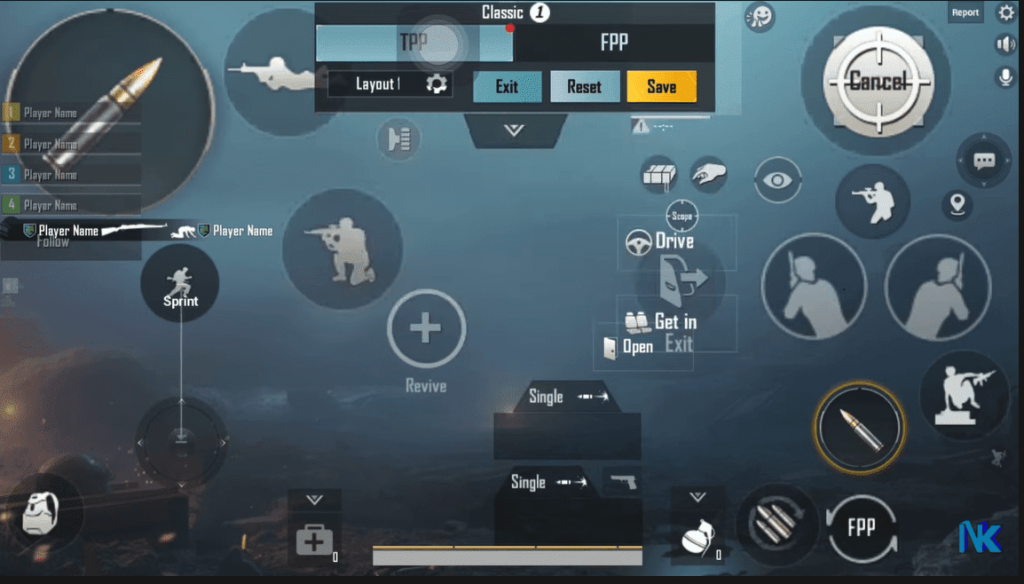
Peeking is essential for cover‑based combat, and this layout optimizes the lean buttons for instant activation. The left and right peek buttons are placed right above the fire button on the right side, so you can lean and shoot with a single thumb roll. We’ve also mapped a separate ‘look around’ button (for free‑look while running) near the top‑left corner. The trade‑off is a slightly smaller jump button, but you can adjust that if you’re a jump‑shot enthusiast. For a deeper dive into peeking mechanics, see our pubg control codes for quick heal — it also includes a peek‑heal combo that saves time in a pinch.
Quick Heal — Never Die While Bandaging
How many times have you died while fumbling through the backpack to find a med kit? This layout puts all healing items (bandage, first aid, med kit, energy drinks) as one‑tap icons around the edge of the screen, so you never have to open the inventory mid‑fight. We also moved the auto‑pickup radius to the top‑left and added a dedicated ‘use’ button for doors and loot. The layout is built for aggressive players who push every fight and need healing on the fly. Pair it with our pubg mobile control codes device compatibility guide to ensure the buttons don’t overlap on your specific screen size.
Android Optimized — Smooth on Every Droid
Android devices vary wildly in screen size and performance. This layout is built for the average 6.5‑inch display with a 20:9 aspect ratio — the most common in 2025. It keeps all critical buttons within the lower two‑thirds of the screen, so you don’t have to stretch. The fire button is slightly larger to accommodate different finger sizes, and the scope button has a longer press delay to avoid accidental activation. We’ve also included a dedicated ‘change fire mode’ button near the right thumb. For other Android models, try our latest pubg control codes for android — they’re tested on over 50 devices.
iPhone Optimized — Tailored for iOS Screens
iPhones have notch and dynamic island issues that can hide buttons. This layout shifts everything down and inward by 10% to avoid the top and bottom bezels. The joystick is moved slightly right to account for the smaller left margin, and the fire button sits just above the right thumb’s natural resting spot. We’ve also added a gyro toggle button that won’t interfere with the notch. If you’re on an iPad, you’ll want a different setup, but for iPhones this is king. For more iPhone‑specific codes, check out our best pubg control codes for iphone — they include variants for different iPhone generations.
There you have it — eight control layout codes that cover every major playstyle and device. The best part? You don’t have to stick to just one. Mix and match: use the gyro layout for sniping, then switch to the quick heal layout for hot drops. Your muscle memory will adapt faster than you think. Copy the code you like, paste it into the Layout Manager, and hit apply. If a button feels off, tweak the size or position — these layouts are a starting point, not a prison. Now go out there and turn those early deaths into chicken dinners. See you on the battleground!



