You’ve spent hours fine-tuning your PUBG Mobile control layout, imported a sick set of control codes, and then—poof—next time you log in, everything’s back to default. Infuriating, right? This glitch has been haunting players for years, and it’s not always your fault. We dug into the most common reasons why control codes settings fail to save and tested fixes for each one. These picks come straight from community forums, support threads, and our own testing. Whether you’re on Android, iOS, or an emulator, one of these solutions should get your precious layout to stick.
1. Cloud Save Sync Error
PUBG Mobile uses cloud saves to back up your settings across devices, but sometimes the sync gets corrupted or hangs. If you’re switching between devices or reinstalling the game, your local settings may conflict with the cloud version, causing a reset. The fix: manually trigger a cloud save by opening the in-game settings, tapping ‘Cloud Save,’ and choosing ‘Upload.’ If you’re having a persistent sync issue, try downloading your saved data from the cloud after a fresh install. This is closely related to the broader control codes reset problem that many players face.
2. App Cache Buildup
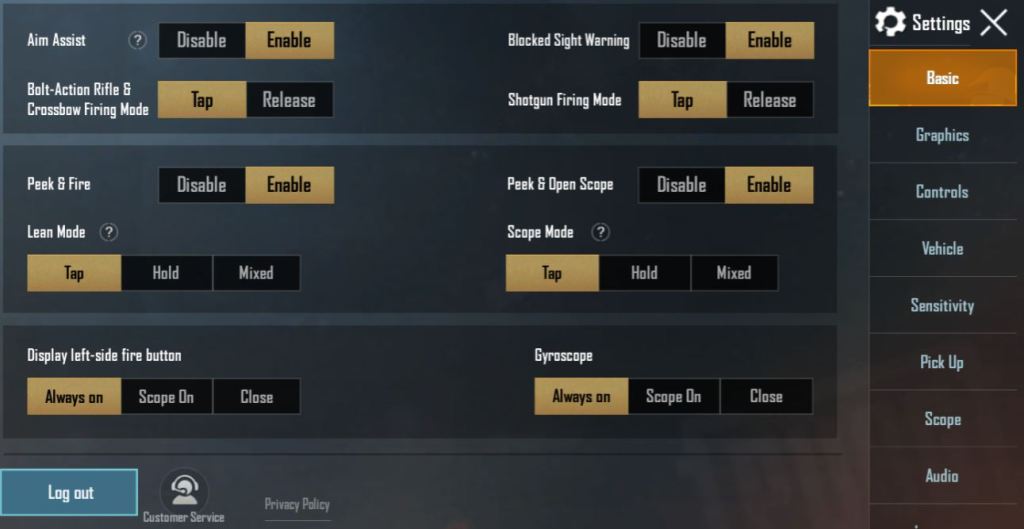
Your phone’s cache can store outdated data that interferes with saving new control codes. Over time, cached files from old updates can prevent the game from writing fresh settings. Clearing the app cache (not data) is a quick fix. On Android, go to Settings > Apps > PUBG Mobile > Storage > Clear Cache. On iOS, you’ll need to offload the app or reinstall. After clearing, launch the game and re-apply your codes. Your account data stays safe because only temporary files are removed.
3. Incorrect Permission Settings
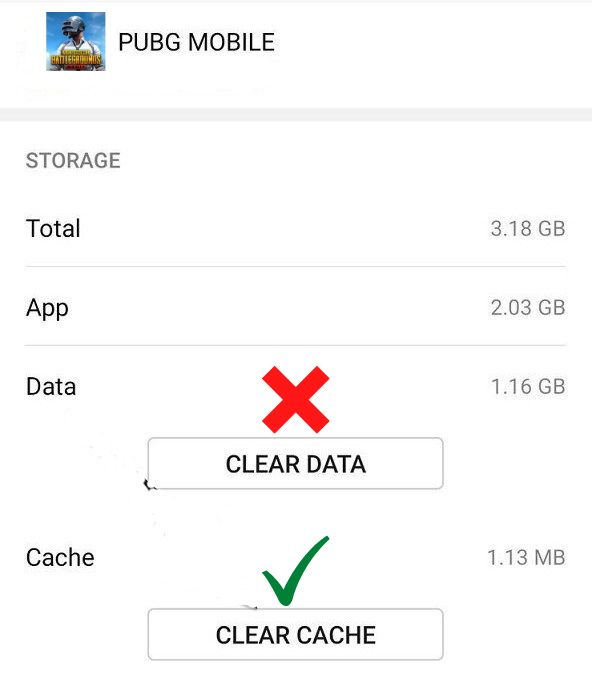
PUBG Mobile needs specific permissions to save files locally, like storage access. If you’ve denied storage permissions (or the game didn’t request them), it can’t write your control layout to the device. Check your app permissions: on Android, go to Settings > Apps > PUBG Mobile > Permissions and enable ‘Storage.’ On iOS, ensure ‘Photos’ and ‘Local Network’ are allowed. Restart the game and reimport your codes.
4. Server Side Glitch
Sometimes the issue isn’t on your end—the game servers experience hiccups that fail to save your profile data. This often happens during peak hours or after a major update. You’ll notice your settings are gone only once, then come back next session. Unfortunately, there’s no client-side fix; wait an hour and try again. If the problem persists, check PUBG Mobile’s official social media for server outage announcements.
5. Multiple Account Conflict
If you link multiple accounts (Facebook, Google, Twitter) to the same game, the cloud save can get confused about which profile to load. This often resets your layout to the one from the last synced account. Stick to a single login method. If you’ve already linked extras, unlink the unused ones from the PUBG Mobile website. Then upload your current settings to the cloud from your primary account.

6. Outdated Game Version
Running an older build of PUBG Mobile can cause compatibility issues with control code saving. Developers often patch such bugs in updates. Head to your app store and check for any pending updates. After updating, try importing your codes again. For a deep dive, check out our article about the best control codes list to see if there’s a version-specific code you should use with the latest patch.
7. Storage Space Warning
If your device is low on storage, PUBG Mobile can’t write new configuration files. You might not see an error, but the save silently fails. Free up at least 2GB of space (more for high-res texture packs). Delete unused apps, old screenshots, or clear the game’s cache. After freeing space, restart your phone and reapply the control codes.
8. Third Party Overlay Interference
Apps like Game Booster, VPNs, or screen recorders can modify the game’s process and prevent it from saving settings. Some overlays inject code that conflicts with the game’s file system. Disable any overlay apps while playing. On Android, turn off ‘Draw over other apps’ for third-party tools. On iOS, avoid using screen recording while importing codes. This is especially common for players using gyro setup codes alongside recording apps.
9. Corrupted Code Import
Not all control codes you find online are valid. A single typo or broken character can corrupt the import process, causing the game to reject or reset the layout. Always copy codes from trusted sources like our best layout codes page. After copying, paste into the import field without extra spaces. If the import fails, try a manual layout setup from scratch using our control codes and sensitivity guide.
10. Game Update Reset
Major updates sometimes reset all client-side settings to default as part of the patching process. This is by design—the game clears old configurations to avoid conflicts with new features. Always back up your control codes to the cloud before installing a major update. After the update, immediately download your saved layout from the cloud. For specialized setups like six-finger control codes, it’s wise to keep a screenshot of your layout as a fallback.
11. Device Specific Bug
Some phones have known incompatibilities with PUBG Mobile’s save system—especially older models or custom ROMs. For example, certain Xiaomi devices had a bug that reset settings after closing the app. Search your phone model + ‘PUBG Mobile control codes not saving’ on forums. A temporary workaround is to apply your codes before every session, but reporting the bug to the developer may fix it in a future patch.
We’ve covered the usual suspects, but if none of these work, the problem might be deeper. Remember to keep your game updated, use a single login, and always back up your layouts to the cloud. For more pre-built setups that work out of the box, browse our collection of best layout codes and gyro setup codes. Don’t let a save error ruin your grind—tweak these fixes one by one, and your control codes should finally stick.



