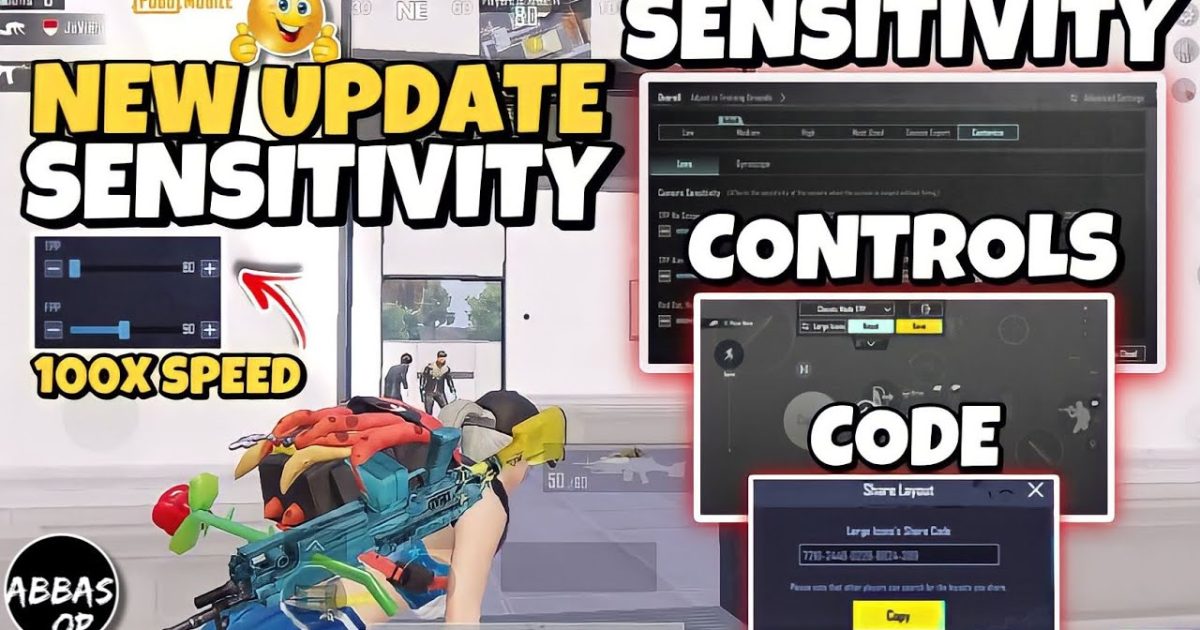
If you’ve been stuck in Gold rank wondering why your sprays feel like a garden hose, the answer is almost always your sensitivity and control codes. The right settings can turn your jittery aim into a laser beam. We’ve scoured pro layouts, Discord servers, and our own testing to bring you 10 non-negotiable PUBG control codes and sensitivity tweaks. These aren’t random numbers—they’re battle-tested by top-tier players. Ready to stop missing and start dominating? Let’s dive in.
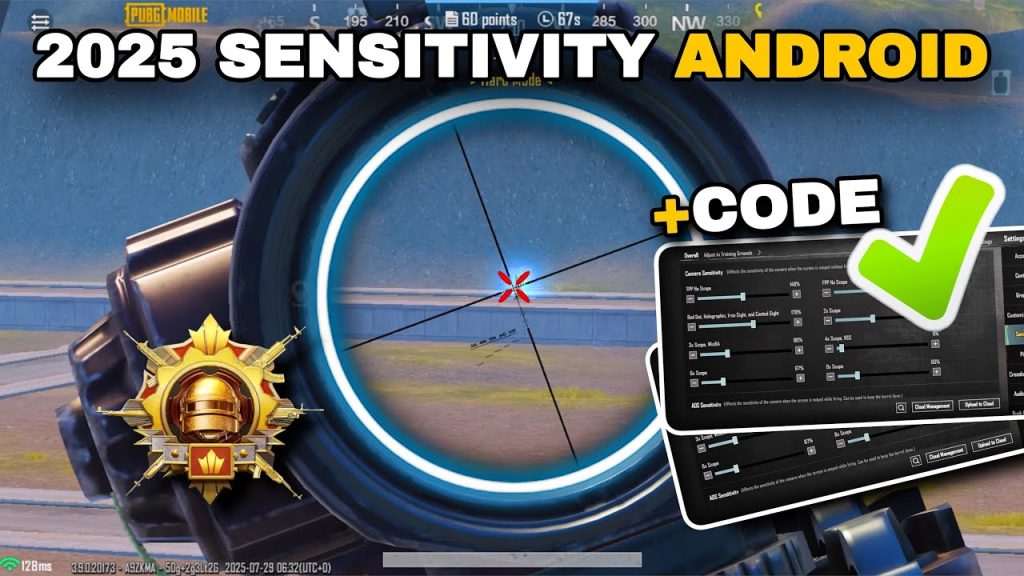
1. Master the Gyroscope Sensitivity for Sticky Aim
The gyroscope is your secret weapon for micro-adjustments. Most pros run gyro at 300% sensitivity for both third-person and ADS. That might sound insane, but with practice it lets you track enemies without even moving your thumbs. If you’re on an iPhone or iPad, you can find pre-tuned gyro setups in our dedicated guide on gyro sensitivity. Start with 300% and dial it down if you feel too twitchy. The key is to use gyro for fine-tuning while your thumbs handle the big swipes.
2. Camera Sensitivity: The Foundation of Smooth Movement
Camera sensitivity controls how fast your view moves when you’re not aiming down sights. For casual players, anything between 100% and 120% works. But for claw or 6-finger layouts, you might want 130%–150% to flick quickly. The trick is to keep it slightly higher than your ADS sensitivity so you can scout fast but still aim precisely. Your camera sensitivity is the base—mess this up and everything feels off.
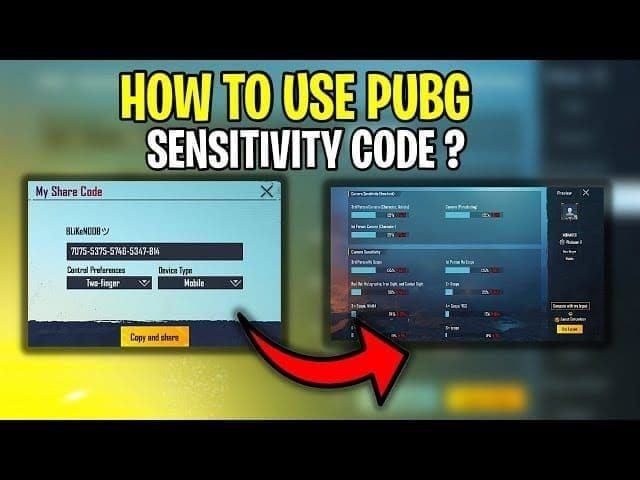
3. ADS Sensitivity: One Scope Does Not Fit All
ADS sensitivity should be customized per scope. A common mistake is using the same sensitivity for red dot and 8x. Here’s a proven starting point: Red dot/holo — 50%, 2x — 40%, 3x — 35%, 4x — 27%, 6x — 22%, 8x — 15%. Adjust by 5% increments until you can track a moving enemy without overcorrecting. If you use a 3-finger layout, you might want slightly higher values for faster target acquisition.
4. Control Codes for Claw and Multi-Finger Layouts
Claw players need distinct control codes because your fingers are doing double duty. For 4-finger claw, place your fire button on the upper left, scope on upper right, with crouch and jump near your thumb areas. For 6-finger layouts, check out our directory of 6-finger layouts that include pre-configured control codes. The general rule: keep your most-used actions (fire, scope, crouch) within easy reach of your index fingers.
5. Button Size Hacks That Reduce Misclicks
Button size matters more than you think. Oversized buttons cover your screen; undersized buttons cause misses. For phones, fire button at 60% opacity and 120% size, scope button at 50% opacity and 110% size. For iPads, reduce size by 10% because of the larger screen. You can find ready-to-use button size codes in our button size codes collection. Pro tip: make your crouch button 80% size and place it right next to your jump button for fluid movement.
6. DMR Sensitivity: Make Every Shot Count
DMRs like the Mini14 and SLR require a different sensitivity approach. You need lower ADS sensitivity (around 25% for 4x) because each shot resets your aim. A full guide on Mini14 sensitivity recommends 30% for 4x scope and 40% for 3x. The key is to use gyro for recoil control and tap-firing at max speed. Your DMR setup should prioritize stability over speed.
7. Per-Gun Sensitivity Codes for Lasers
Why use one sensitivity for all weapons? The M416, AKM, and SCAR all have different recoil patterns. For M416 with 6x (3x zoom), try 27% ADS. For AKM with red dot, 42% works well. For the UZI, go higher—55%. Create separate presets for different weapon categories. You can import full control codes list from pro players that include per-gun tweaks. This is the next level of customization.
8. Vehicle and Movement Sensitivity: Don’t Be a Sitting Duck
Vehicle sensitivity is often neglected. Set your camera sensitivity when driving at 120% to look around quickly. For bike stunts, you need gyro enabled to tilt your view. Also, adjust your sprint sensitivity (the joystick deadzone) to 10% so you can instantly stop and start. A well-tuned movement sensitivity lets you juke enemies and make sharp turns.
9. Editing the Sensitivity File for Fine-Grained Control
If the in-game sliders aren’t enough, you can edit the config file directly. For Android, go to Files > Android > data > com.tencent.ig > files > UE4Game > ShadowTrackerExtra > Saved > Config > Android > UserSettings.ini. Look for the [UserSettings] section and adjust values like GyroSensitivity, ADSGyroSensitivity, and CamSensitivity. This is where you can replicate BGMI sensitivity values or create custom presets that survive updates.
10. Control Codes Library: Copy-Paste Ready Setups
Why start from scratch? Use community-shared control codes that have been tested for specific play styles. Whether you’re a thumb player, claw fanatic, or gyro god, there’s a layout for you. For example, a popular 4-finger thumb + gyro setup uses code 1805-9057-2146-9470. You can import these by going to Settings > Controls > Layout > Import. Always preview the layout before applying—some codes may have button sizes that don’t fit your screen.
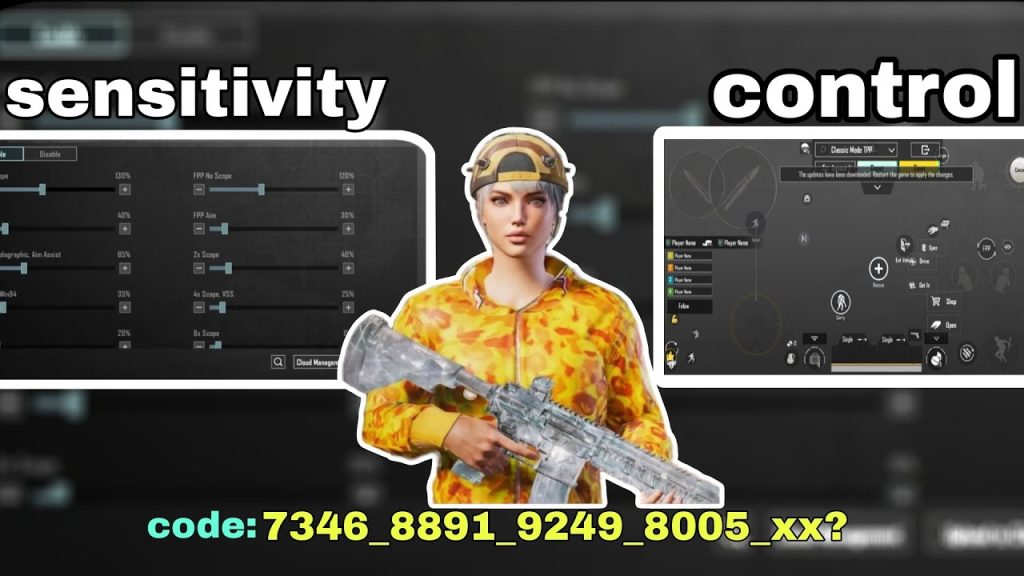
Final Tips for Sensitivity Perfection
Remember: sensitivity is personal. The numbers here are starting points—tweak them until they feel natural. Use the training ground to test every scope and gun combination. Record your gameplay and watch for over-aiming or under-aiming. And don’t forget to update your control codes whenever a new season drops. Good luck, and see you on the battleground.



