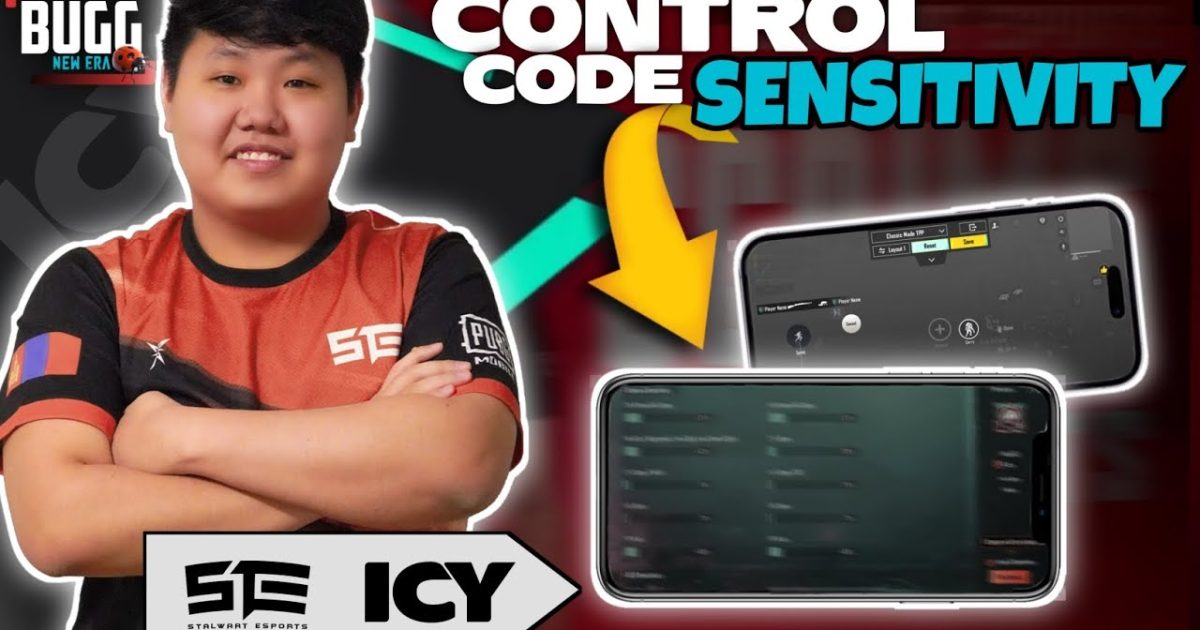
If you’re rocking PUBG Mobile with just your thumbs, you’re not alone. Tons of players skip the claw grip and gyro madness—they want a clean, intuitive control scheme that doesn’t require ninja-level finger gymnastics. Thumb control codes are your ticket to that simplicity. We sifted through hundreds of community codes and tested them on various devices to bring you 10 layouts that actually work. Each code here is optimized for thumb-only play, with minimal clutter and maximum efficiency.
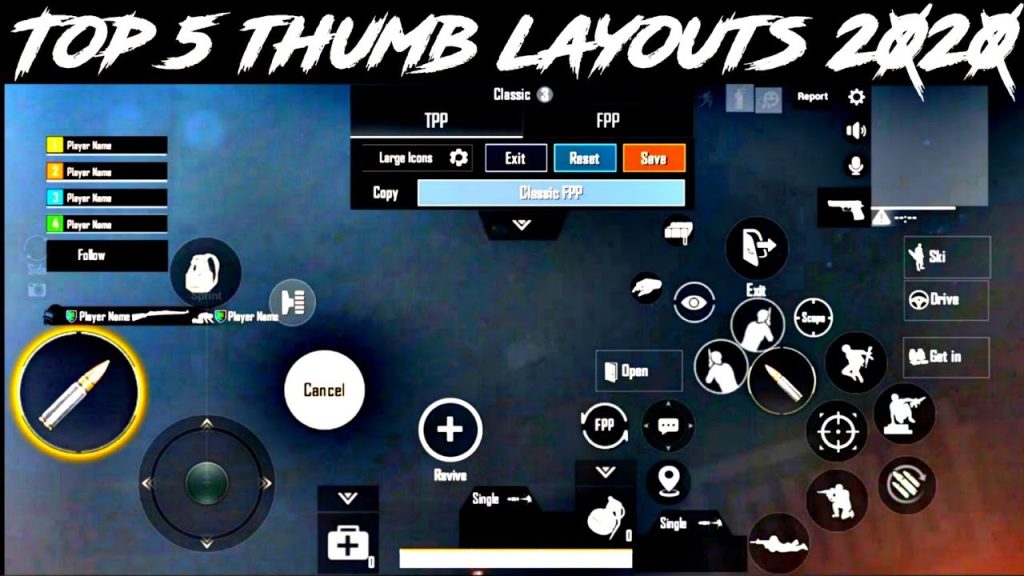
Why Thumb Layouts Still Dominate
Thumb layouts aren’t just for beginners—they’re the go-to for many veterans who prefer a relaxed grip without sacrificing reaction time. The key is smart button placement: everything you need for combat should be within a natural thumb arc. No stretching, no accidental presses. The codes we picked prioritize that principle, and they’re perfect for players who want a straightforward setup without gyro or extra fingers. If you’re coming from a no gyro setup, these will feel right at home.
Foundation: Button Size & Opacity
Before you dive into codes, understand that thumb layouts demand bigger buttons. A tiny fire button is a miss waiting to happen. All codes here use increased button sizes (100%–120%) and lower opacity (40%–60%) so you can see through them while aiming. This simple tweak makes a world of difference. Check out our guide on new meta layouts for more insights on button scaling.
Code #1: The All-Rounder
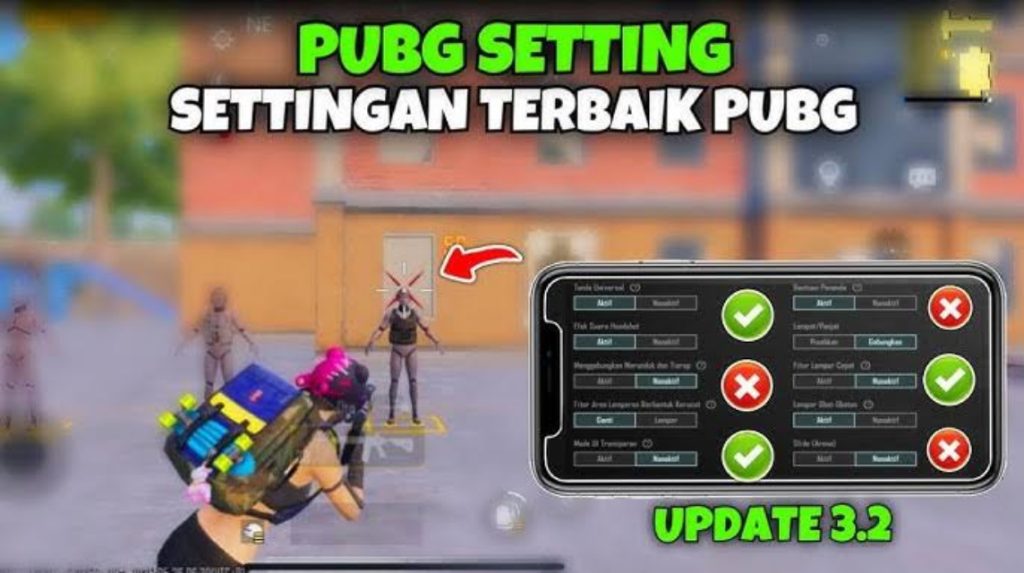
This code is your bread-and-butter thumb layout. It places the fire and scope buttons on the right side, with scope on the top-right and fire slightly below. The left side houses movement, lean buttons (peek left/right), and a crouch button at the bottom. All essential actions are one thumb-tap away. Use this if you want a balanced setup that works in any scenario—close, mid, or long range. It’s similar to many pro player layouts but tailored for thumbs.

Code #2: The Speed Tapper
Designed for aggressive rushers, this code puts fire on the left side (under your left thumb) and scope on the right. This allows you to fire while moving, a huge advantage in CQC. The right thumb handles aiming and scope toggling. It takes some practice, but once you get the rhythm, your close-range game will skyrocket. Pair this with headshot layouts for optimal accuracy.

Code #3: The Crouch Spammer
Crouch spamming is a deadly technique in PUBG Mobile, but it’s hard to do with thumbs. This code solves that by placing crouch on the right side, right next to the fire button. When you tap fire, your thumb naturally slides to crouch, creating a seamless crouch-spam motion. The left side remains standard. It’s a game-changer for dodging bullets and throwing off enemy aim. Make sure to save your layouts before testing this one.
Code #4: The Lean God
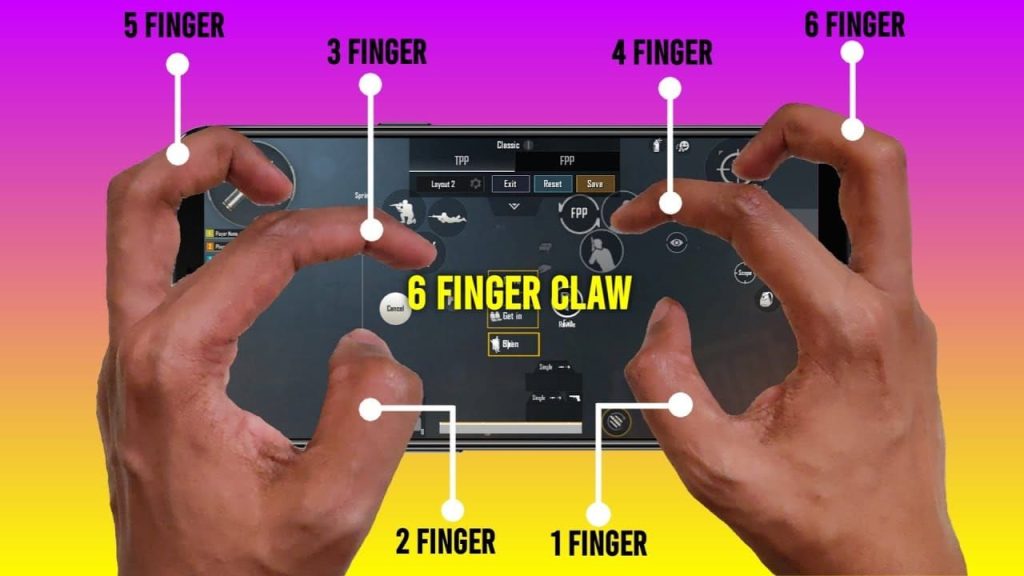
Lean-peeking is essential for cover-based combat. This code adds dedicated lean buttons on the left side (above the movement joystick) so you can peek without breaking your aim. The right side remains a standard fire+scope combo. You’ll find yourself winning more peek fights because you can lean and shoot almost simultaneously. It’s a must-try for players who love tactical gameplay.
Code #5: The Grenade Slinger
Throwing grenades quickly can save your skin, but fumbling for the grenade button gets you killed. This code places the throwable button on the left side, right next to the movement joystick. Just tap it to cycle through grenades, then tap to throw. The right side stays clean for aiming and firing. It’s a simple tweak that speeds up your tactical play.
Code #6: The Loot Master
Looting efficiently is half the battle. This layout moves the loot button (the ‘pick up’ button) to a more accessible spot near the bottom center, so your right thumb can quickly tap it after a kill. It also enlarges the inventory and map buttons. This code is ideal for players who want to minimize downtime between fights. Remember, you can always import codes from our collection if you need a fresh start.
Code #7: The Scope Quickie
Switching between scopes on the fly is crucial. This code places the scope selector button on the right side, above the fire button, with a larger hitbox. You can quickly tap to change magnification without taking your thumb off the fire area. It’s subtle but makes a big difference in mid-range engagements. Many players pair this with our new meta layouts for an edge.
How to Apply These Codes
Ready to try them out? Head to Settings → Controls → Customize Layout → Import Layout. Paste the code string you get from the source. If you run into trouble, our guide on import codes walks you through the process step-by-step. Also, don’t forget to adjust your sensitivity after applying a new layout—the default values might not mesh with thumb-heavy tapping. Fine-tune in the training ground. And of course, always save your layouts before experimenting so you can revert if something feels off.
- Go to Settings > Controls > Customize Layout.
- Tap the ‘Import’ button at the top.
- Paste the control code exactly as shared.
- Confirm and adjust positions if needed.
- Hit ‘Save’ and take it to the training ground.
A good thumb layout is like a second skin—you don’t think about it, you just react.
Pro Player Interview, PMGC
There you have it—10 thumb control codes that cover every playstyle. Whether you rush, camp, or play tactically, there’s a layout here for you. Try a couple, mix and match, and eventually you’ll find the one that clicks. Thumb play is all about comfort and consistency, so don’t be afraid to tweak these codes further. Happy tapping!



