Tired of spending hours in the settings menu only to still get outgunned? Control codes are the shortcut you’ve been missing. These pre-configured layouts are built by top players and let you import a proven setup in seconds. Whether you’re a thumb player looking to upgrade to claw or an emulator veteran searching for the perfect keybinds, this guide has your back. I’ve tested dozens of codes across different playstyles and devices, and what follows are the 12 that deliver real results. Each one is battle-tested and ready to copy.
1. 3-Finger Claw: The Gateway to Advanced Control
If you’re moving from thumbs to claw, a 3-finger layout is the perfect middle ground. It gives you two fingers on the left side for movement and looting, while your right thumb handles aim and index finger taps fire. The best codes for this layout keep the fire button near the top-left corner so you can peek and shoot without lifting your thumb. Pro tip: pair it with a high sensitivity for quick 180-degree turns. For a variation optimized for ranged fights, check out these long range control codes.
2. 4-Finger Claw: The All-Rounder
The 4-finger claw is the gold standard for competitive PUBG Mobile. It frees up both thumbs for aiming and movement while your index fingers handle fire, ADS, and crouch. The best codes balance button spacing for different device sizes—smaller phones need tighter layouts. Look for codes that place the scope button right next to your aim finger for instant magnification changes. This setup works wonders in close quarters and mid-range sprays.
3. 6-Finger Claw: Maximum Control on iPad
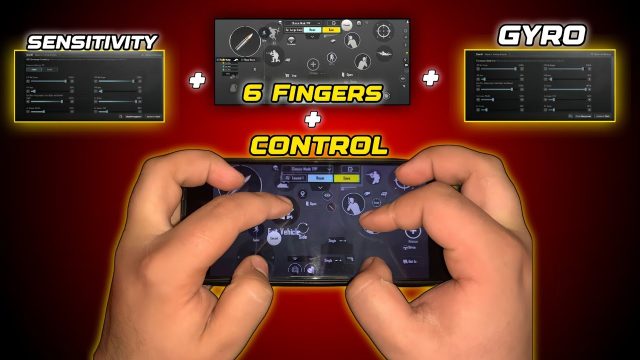
iPad players can take claw to the next level with a 6-finger layout. Three fingers per side let you move, shoot, scope, crouch, jump, and lean simultaneously. These six finger claw control codes are designed for the larger screen real estate and often include dedicated buttons for gyro scope and peek-fire. Be prepared for a steep learning curve, but the payoff in movement fluidity is unmatched. If you’re on an iPad, also check out these iPad control codes for more options.
4. Gyroscope-Based: Aim Without Thumb Fatigue
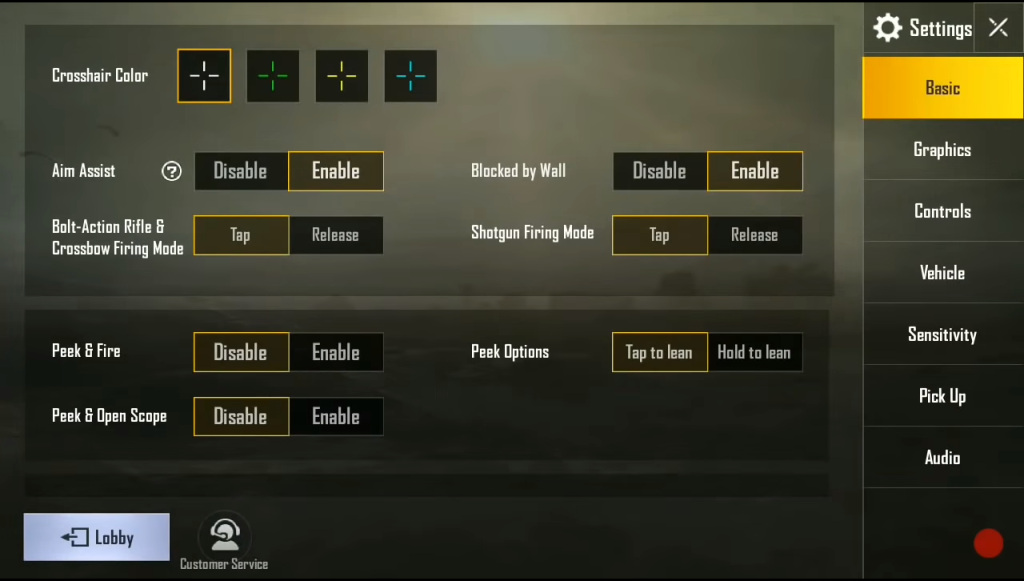
Gyro aiming uses your device’s tilt to fine-tune crosshair placement. Many pro players pair gyro with a low sensitivity for main movement and high gyro sensitivity for micro-adjustments. The best gyro control codes put the gyro calibration button in an easy‐to‐reach spot, and they often disable gyro on scopes above 4x to prevent shaky snipes. Start with a moderate gyro setting and work your way up—your thumb will thank you after long sessions.
5. Emulator Layouts (BlueStacks & PC)
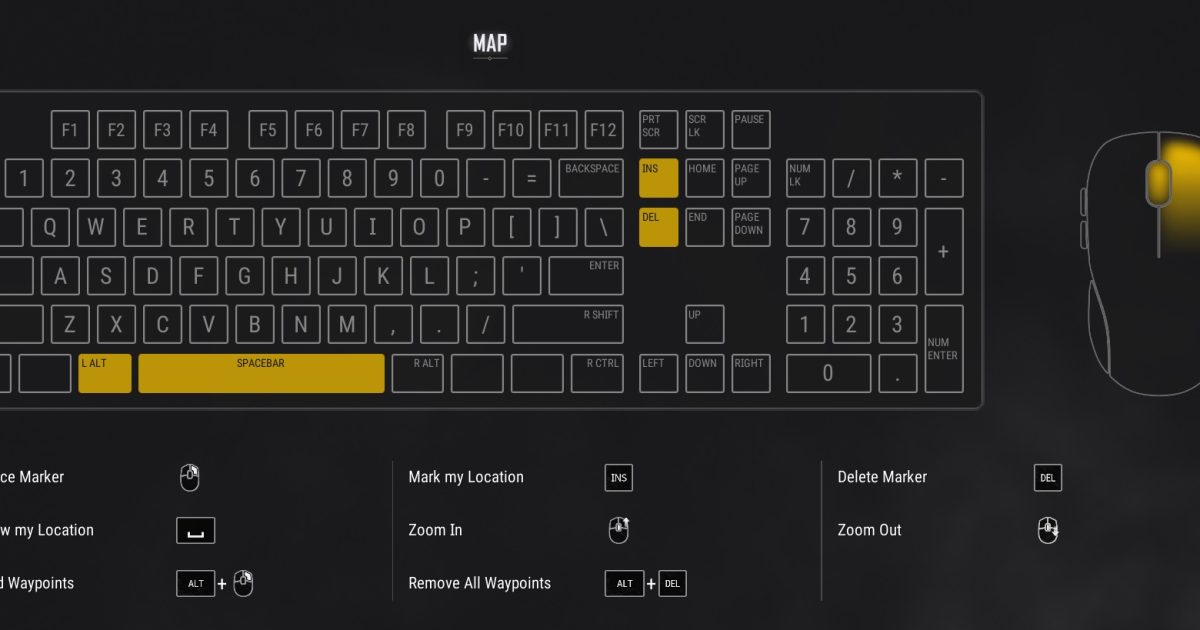
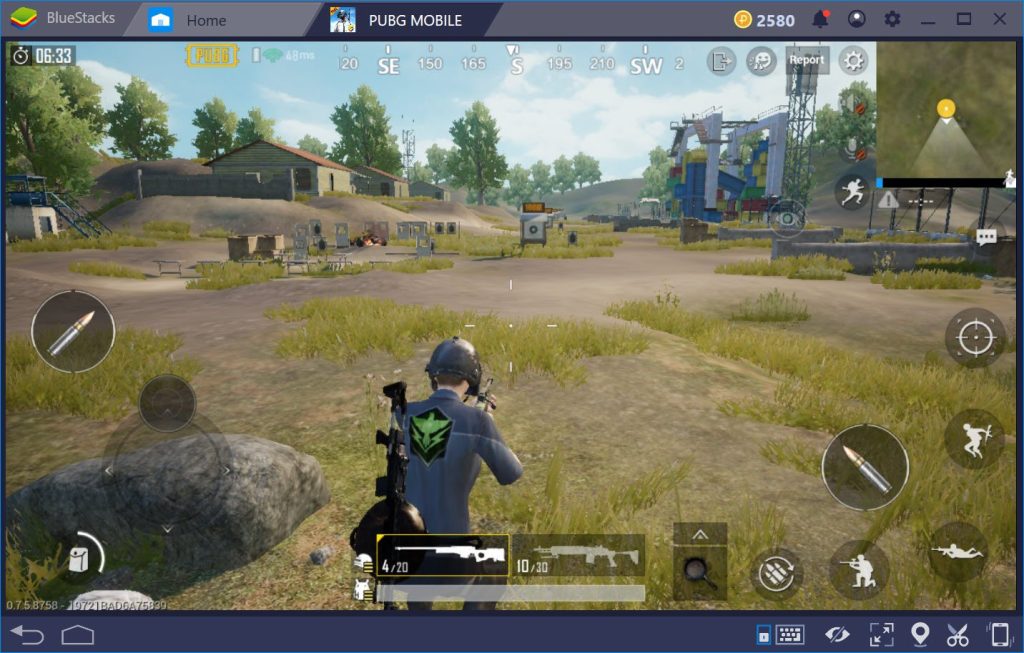
Playing on an emulator? You don’t need to fumble with default keybinds. The community has crafted emulator control codes that map movement to WASD, fire to left click, and ADS to right click, with lean on Q/E. Some codes even include macros for quick scope or auto-run. Import them via the keymapping tool—just make sure to adjust the sensitivity for your mouse DPI. For a full guide on importing, see how to import PUBG mobile control codes.
6. TDM Setup: Built for Team Deathmatch
TDM rewards fast reflexes and constant movement. Control codes for this mode prioritize quick weapon swapping, easy grenade throws, and a prominent med button. Many TDM layouts place the jump and crouch buttons on the same side so you can slide-jump without repositioning your fingers. They also tend to have larger fire and scope buttons for frantic hip-fire battles. Import one and hop into a TDM match to test your reaction time.
7. Sniper-Focused: One-Shot Precision
Snipers need a steady hand and quick scope adjustment. A dedicated sniper layout moves the scope button to your dominant index finger and often includes a separate button for peak scoping. Gyro integration is common—tilting to compensate for bullet drop feels natural. Some codes also remap the breath-hold function to a thumb action so you can steady your shot while tracking a moving target. These codes are niche but deadly.
8. AR Spray: Laser Beam Control
Controlling recoil on an AR like the M416 or SCAR-L is a matter of practice, but a good layout helps. AR spray codes lower the fire button slightly and enlarge it so your finger doesn’t drift during sustained fire. They also place the prone button nearby in case you need to go prone mid-spray. For best results, combine with the gyro-assisted aim. If your sensitivity got wiped, restore it quickly with these PUBG control codes after sensitivity reset.
9. Solo Match: Lone Wolf Efficiency
Solo players need to manage their own heals, ammo, and positioning without a squad. The best solo control codes cluster healing items and throwables near your movement fingers so you can pop a bandage without stopping. They also often include a quick map access button and a dedicated vehicle seat-swap command. With this layout, you’ll never fumble for a first aid kit in the final circle.
10. High Ping (Middle East Server): Lag-Compensated Settings
High ping players face delayed inputs and rubberbanding, so control codes for this scenario focus on pre-firing and movement smoothing. Buttons are placed lower on the screen to reduce touch delay, and gyro is often disabled because tilt input can worsen lag. Look for codes that enlarge the fire button to compensate for missed taps. They might not make your ping disappear, but they’ll help you land shots despite the delay.
11. After Sensitivity Reset: Quick Recovery
Nothing ruins your groove like a random reset of your sensitivity and control layout. That’s why the community created codes specifically designed to restore your settings fast. These codes come with pre-tested sensitivity values for each scope and a default button layout that you can then tweak. Keep one of these cached in your import history. They’re a lifesaver when an update wipes your configuration.
12. Smooth Aim: Jitter-Free Tracking
Smooth aim codes are for players who struggle with shaky crosshairs during long sprays or sniping. They reduce the size of the firing button to encourage lighter taps and often incorporate gyro smoothing filters. The goal is to eliminate micro-jitters that cause missed shots. These layouts are especially effective on tablets where the larger screen amplifies hand tremor. Pair with a lower sensitivity for the smoothest experience.
There you have it—12 PUBG control codes that cover everything from basic claw to high-ping adaptations. The best part? You can import any of them in under a minute. Start with the layout that matches your device and playstyle, then tweak from there. Remember, the perfect control scheme is the one you practice with. Now go drop hot, import a code, and start dominating.