Changing PUBG control codes is the fastest way to level up your gameplay without spending hours tweaking settings. Whether you want a 3-finger claw or a custom 5-finger layout, copying a pro’s control code saves you the guesswork. In this guide, I’ll walk you through every step—from finding the right code to testing it in the training ground. I’ve tested these methods on both Android and iOS, and they work for PUBG Mobile, BGMI, and even the KR version. Let’s dive in.
1. Know the Basics: What Are Control Codes?
Control codes are alphanumeric strings that store your entire HUD layout—button positions, sizes, opacity, and even peek settings. When you share or import a code, you instantly get someone else’s setup. This is why pros share their codes on Telegram and Discord. Before you start, understand that you need a code to import. If you don’t have one, check out our guide on how to find pubg control codes for reliable sources.
2. Find a Control Code That Suits Your Playstyle
Not every code is for every player. If you’re a claw user, look for 4-finger or 6-finger setups. If you play on iPad, search for tablet-specific layouts. The best places to grab codes are Telegram channels—I recommend joining the pubg mobile control codes telegram channels listed on our site. Also, search YouTube for “PUBG control codes 2025” and check the description. Always pick codes from trusted sources to avoid malware.
3. Open PUBG Mobile and Go to Settings
Launch the game and tap the gear icon on the main lobby screen. This opens the Settings menu. Navigate to the “Controls” tab—you’ll see options for “Basic Settings”, “Aim Settings”, and “Layout”. Tap on “Customize Layout” at the bottom. This screen shows your current HUD with all buttons.
4. Locate the Import/Export Function
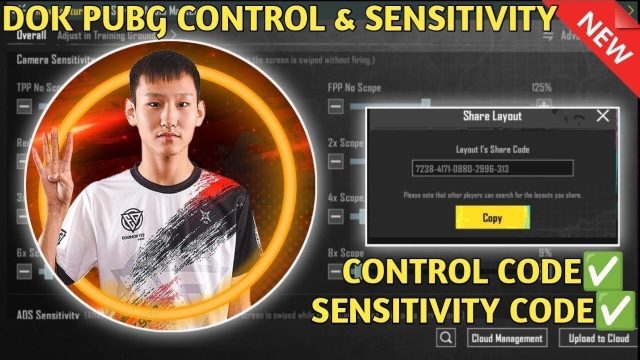
In the Customize Layout screen, look for a small button at the top or bottom that says “Import Layout” or “Export Layout”. On most devices, it’s a tiny icon with arrows. Tap “Import Layout” and a text box will appear. This is where you paste the control code.
5. Paste the Control Code Correctly
Copy the code from your source (make sure you copy the full string, including any brackets or dashes). Long-press in the text box and select “Paste”. Some codes are case-sensitive, so avoid extra spaces. After pasting, tap “OK” or “Confirm”. The game will automatically apply the layout. If you see an error, the code might be expired or invalid. Try another code from our list of tested pubg control codes.
6. Save and Name Your New Layout
Once imported, you can rename the layout to something memorable—like “Pro Claw 4F” or “My Ranked Setup”. Tap the “Save” button. PUBG allows multiple layouts, so you can switch between them later. This is useful when you want to compare different setups.
7. Adjust Sensitivity Settings for the New Layout
A new button layout often requires sensitivity tweaks. Go back to Settings > Sensitivity. If the pro code came with sensitivity recommendations, apply them. Otherwise, start with medium sensitivity and adjust in the training ground. Pay special attention to scope sensitivity and gyroscope if you use it. For ranked matches, many players rely on pubg control codes for ranked push that have optimized sensitivities.
8. Jump into the Training Ground to Test
Never go straight into a match with a new layout. Head to the training ground and practice moving, aiming, and switching weapons. Check if your thumbs accidentally hit the wrong buttons. If something feels off, you can adjust individual button positions by dragging them. Take at least 10 minutes to get comfortable.
9. Backup Your New Control Code
Once you’re happy with the layout, export the code and save it somewhere safe. Use the “Export Layout” button to copy the code to your clipboard. Paste it into a notes app or a text file. This way, if you ever reset your device or accidentally delete the layout, you can re-import it instantly. For a detailed walkthrough, see our pubg control codes backup guide.
10. Share Your Code with the Community
After mastering your setup, consider sharing it on Telegram or in PUBG forums. Many players are looking for new layouts, and your code might help someone else. Use the export function again to get the code string, then post it with a screenshot of your HUD. You’ll find active communities on the pubg mobile control codes telegram channels mentioned earlier.
Changing PUBG control codes is a straightforward process once you know the steps. Start by finding a reliable code from trusted sources, import it correctly, then adjust and test. Always backup your final layout so you never lose it. With these 10 steps, you’ll be able to copy any pro setup and improve your gameplay fast. Happy grinding!