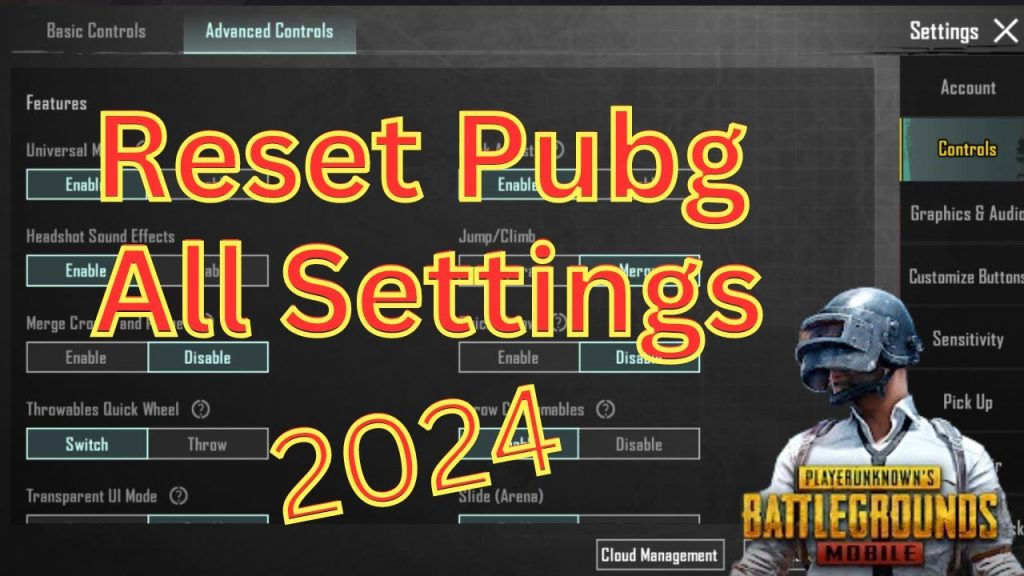
Sometimes your PUBG control codes get messed up after an update or a tinkering session. Maybe you accidentally imported a layout that felt weird, or you just want a fresh start. Whatever the reason, resetting your control codes is easier than you think. We’ve gathered 7 proven methods—from the simple in-game reset to more advanced options like importing a backup. Each method is explained step-by-step so you can get back to dominating the battlegrounds. For a comprehensive overview, check out our full control codes guide.
1. Reset to Default Settings from the In-Game Menu
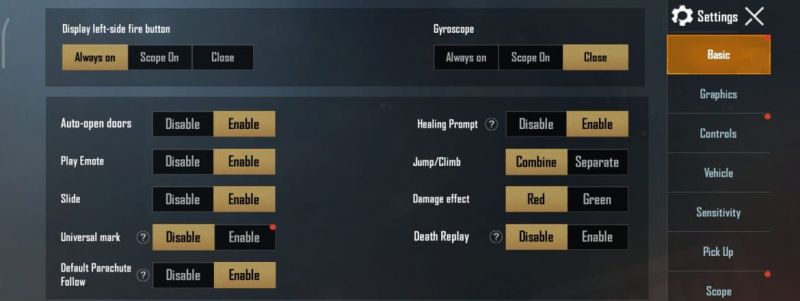
The quickest way to wipe your current control codes is through the game’s own settings. Open PUBG Mobile, head to Settings > Controls, and look for a “Reset” or “Restore Defaults” button. Tap it, and your entire control layout will revert to the original. This also resets any sensitivity changes you’ve made, so if you recently tweaked your aim, you’ll want to grab a new set of control codes after sensitivity reset from our other guide. The reset is instant and doesn’t require a restart.
2. Clear Only the Control Layout (Keep Sensitivity)
If you’re happy with your sensitivity but your button positions are a mess, you can clear just the control layout. In the same Controls menu, there’s often an option to “Clear Layout” or “Reset Layout.” This removes all custom button placements without touching your sensitivity sliders. After clearing, you’ll have a blank canvas to either set up fresh or import a new layout. If you run into issues, our article on control codes import failed can help troubleshoot.
3. Reinstall PUBG Mobile (The Nuclear Option)
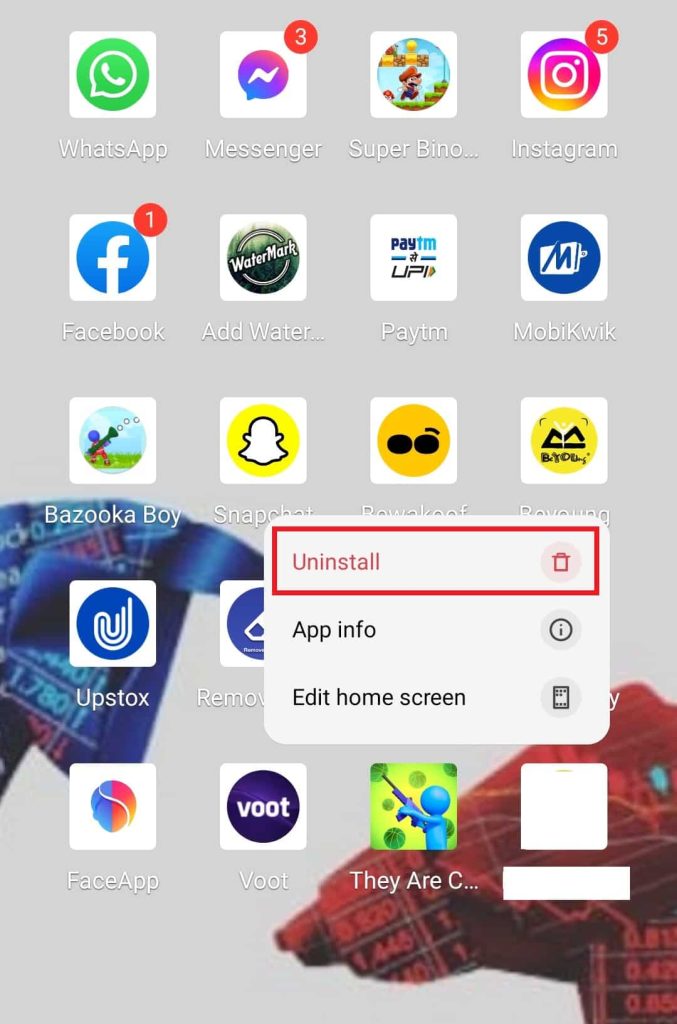
When nothing else works, a clean reinstall wipes everything—control codes, graphics settings, and all customizations. Just uninstall the game, restart your phone, and download the latest version from your app store. After logging back in, you’ll have factory-fresh controls. This method is drastic but guaranteed. Just make sure your account is linked to Facebook or Google so you don’t lose progress. Once you’re back, you can import a backup using our import control codes guide.
4. Restore from Account Sync (Cloud Backup)
If you’ve previously backed up your control codes to the cloud (via your PUBG account), you can restore them without a full reset. Go to Settings > Account > Cloud Sync and check if a previous layout is saved. If you find one, select and apply it. This is perfect if you just want to undo a recent change. For more detailed steps, check out our restore control codes article. Just note that this only works if you synced before the problem started.
5. Import a Backup Layout via Control Codes
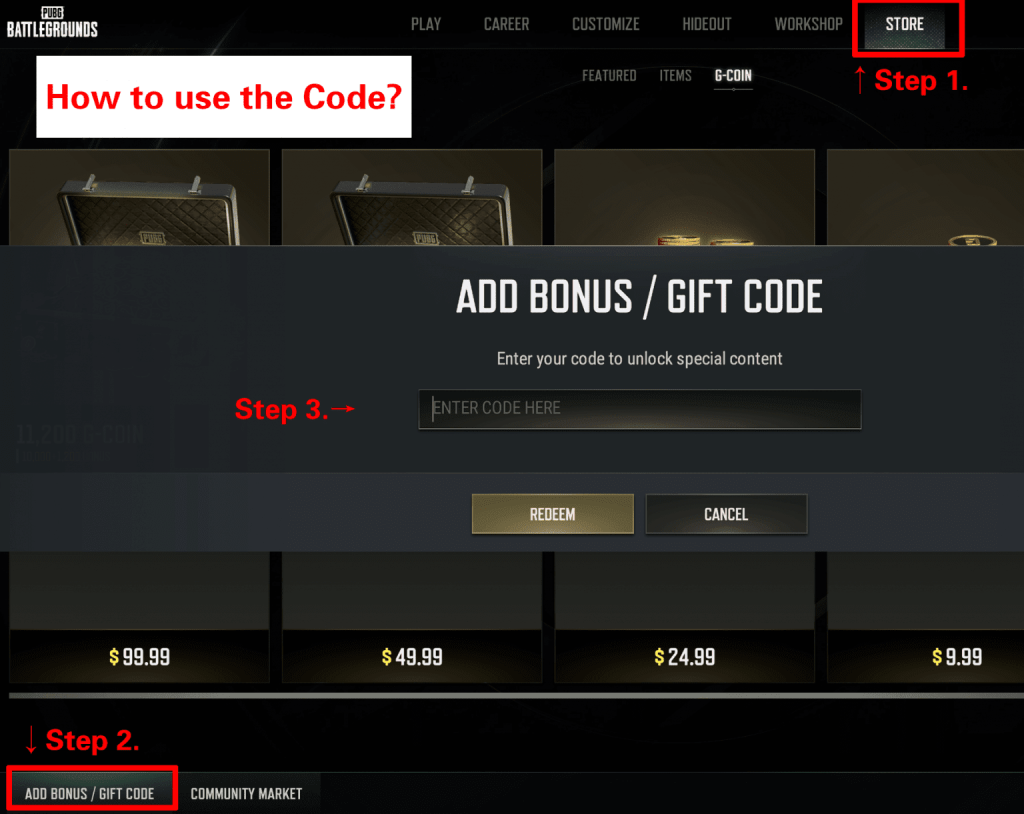
If you have a backup code saved somewhere (a friend’s layout or one you downloaded), importing it is a fast way to reset your controls to a known good state. Copy the code string, open Settings > Controls > Import, paste it in, and apply. This method effectively replaces your current setup. For a step-by-step walkthrough, see our how to import control codes page. And if the import fails, our control codes import failed guide has fixes.
6. Reset Gyroscope Settings Separately
Sometimes it’s not the buttons but the gyro that’s off. You can reset gyro settings without touching the rest of your controls. Go to Settings > Sensitivity > Gyroscope and look for a “Reset” button. If there isn’t one, manually set all gyro sliders to 0% or your preferred baseline. This is handy if you use gyro for fine aim but need to recalibrate. After resetting, you might want to check out our updated control codes list for layouts that work well with fresh gyro.
7. Factory Reset Your Device Settings (Last Resort)
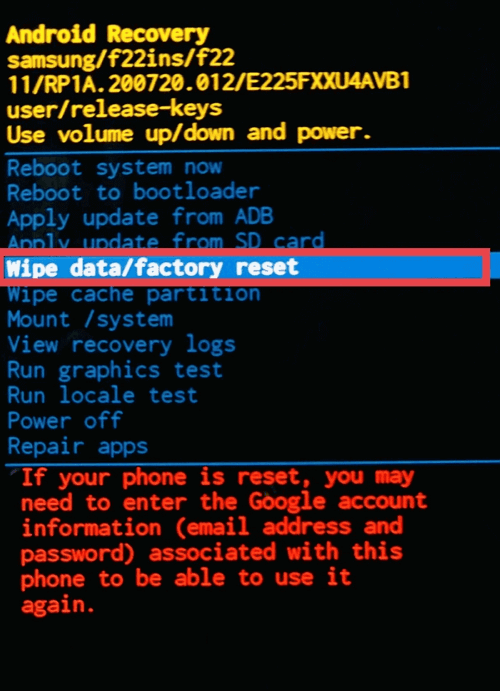
If absolutely nothing works—maybe a system-level setting is corrupt—you can factory reset your phone. This wipes everything, not just PUBG, so it’s truly the last resort. Back up all your data first. After the reset, reinstall PUBG Mobile and your controls will be fresh. Then use our restore control codes or import control codes methods to get a pro layout back. Only do this if you’re desperate, because it’s a huge hassle.
And there you have it—7 ways to reset your PUBG control codes, from the quick in-game reset to the scorched-earth factory reset. Start with the first method and work your way down only if needed. Most players find the in-game reset or an import does the trick. For more pro layouts, check out our updated control codes list to find a setup that fits your style.



