You’ve found the perfect control layout online, copied the code, opened PUBG Mobile, hit import — and then… nothing. Or worse, an error popup. Don’t worry, you’re not alone. PUBG Mobile control codes import failures happen all the time, and the fix is usually something simple. We’ve rounded up the top 10 reasons why your import might have failed, based on community reports and our own testing. Each reason comes with a quick fix, and we’ll link to deeper resources along the way.
1. Corrupted Control Code File or Wrong Format
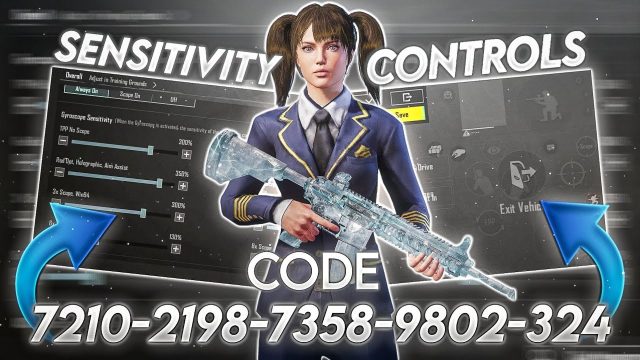
The most common culprit is a corrupted file or a code pasted in the wrong format. PUBG Mobile expects the control code to be a plain text string generated by the game itself — not a screenshot, a PDF, or a slightly altered version. If you copy a code from a social media post, sometimes invisible characters sneak in. To avoid this, always copy codes from a trusted source like a dedicated pubg mobile control codes website. If your import fails, check the file or clipboard for extra spaces or line breaks. Re-copy the code and paste it into a text editor first to see if it looks clean. If it’s still broken, the original code may be corrupted — try a different one.
2. Game Version Mismatch
PUBG Mobile updates regularly, and control codes are tied to specific game versions. A code created for version 3.0 might not work in version 3.1 if the UI or controls changed. Always ensure the code matches your current game version. You can check your version in the settings menu. If the code is older, search for an updated one. Our pubg control codes guide includes codes that are verified for recent updates, so you don’t have to guess. If you got the code from a friend who’s on an older version, ask them to re-export after updating.
3. Incorrect Import Method
Yes, there’s a right and a wrong way to import. Many players try to paste a code directly into the game’s chat or use a third-party tool — that doesn’t work. PUBG Mobile requires you to use the built-in import feature inside the control layout menu. The exact steps: go to Settings > Controls > Customize Layout, then tap the “Import” button (usually a folder icon). Paste your code there. If you’re still stuck, check out our detailed guide on how to import pubg mobile control codes. Following the steps in order is crucial — one skipped tap and the import won’t trigger.
4. Server or Region Lock
PUBG Mobile separates servers: NA, EU, Asia, etc. Control codes are sometimes server-specific, especially if they include region-specific sensitivity presets. If you’re playing on a different server than where the code was created, the import might fail or import the wrong settings. This is rare but possible. To fix it, switch to the same server as the code provider, or use a global code that works across all servers. Many codes on trusted sites are flagged as “global” — look for that tag. Also, some codes are restricted to certain countries due to local regulations; for example, codes for the Middle East server might only work there. If you’re in that region, check the pubg control codes for middle east server article for compatible layouts.
5. File Name or Size Issues
When you export a control code from PUBG Mobile, it saves as a .xml file with a specific name format. If you rename it or change the extension, the import may not recognize it. Additionally, the file size matters — an extremely large code (e.g., from a complex six-finger claw layout) might exceed the game’s import limit. Stick to codes that are under 50 KB. If you download a code from the web, make sure the file name ends with “.xml” and doesn’t contain weird characters. You can open the file in Notepad to verify it’s readable XML. If not, delete and download again.
6. App Cache or Data Interference
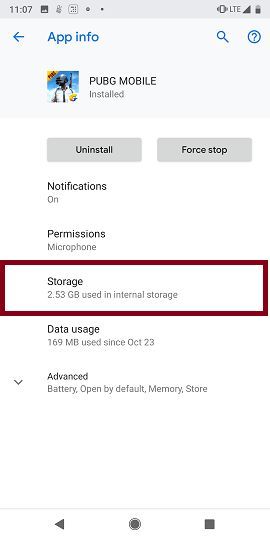
Your phone’s cache can cause all kinds of import oddities. PUBG Mobile stores temporary data, and if that data becomes corrupted, the import function might glitch. Clearing the app cache (not data) often solves it. Go to your phone’s Settings > Apps > PUBG Mobile > Storage > Clear Cache. Don’t clear data — that would wipe your login details. After clearing cache, restart the game and try importing again. If the issue persists, a full reinstall might be needed, but only as a last resort. After a fresh install, you might need a pubg control codes restore guide to get your old layouts back.
7. Special Characters in the Code
Control codes are alphanumeric strings with occasional symbols like “&”, “”. If you paste a code that contains non-standard Unicode characters (emojis, curly quotes, etc.), the game’s parser might choke. This happens when you copy from forums or messaging apps that auto-replace quotes. To fix, paste the code into a plain text editor (like Notepad) and manually replace any fancy characters with their plain equivalents. Alternatively, download the code from a site that provides raw .xml files, as those are less likely to have formatting issues.
8. Outdated PUBG Mobile Version
If you haven’t updated PUBG Mobile in a while, your game version may lack the import feature entirely, or the feature may have a bug. Older versions sometimes had a different import UI. Always keep your game up to date. Check the App Store or Google Play for updates. After updating, your old control codes might still work, but you should verify by re-importing them. If you recently updated and lost your sensitivity settings, read our piece on pubg control codes after sensitivity reset to find optimized layouts for the latest patch.
9. Third-Party App Overlay Conflicts
Apps like Game Booster, overlay recorders, or keyboard/mouse emulators (e.g., BlueStacks) can interfere with PUBG Mobile’s import function. Some overlays modify touch input or file access, causing the import to fail. Try disabling any overlay apps temporarily. For BlueStacks users, the import process is different — you need to use the Android file system. Check our specific guides if you’re using an emulator; we have detailed instructions for BlueStacks. If you’re on an iPad, overlay is less common, but certain accessibility settings can also block imports. For iPad-specific tips, see the pubg control codes ipad article.
10. User Setup Errors (Not Overwriting Existing Layout)
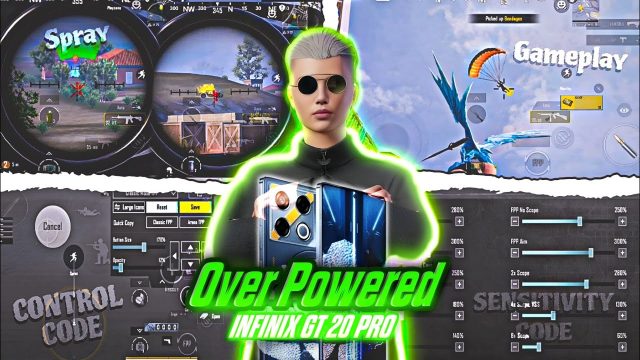
Sometimes the import “succeeds” but you don’t see changes because you forgot to apply it to a specific slot. PUBG Mobile lets you save multiple layouts (e.g., Layout 1, 2, 3). If you import to a slot that’s already empty and you don’t select it, nothing changes. Also, ensure you tap “Apply” or “Save” after importing. Another common mistake: importing a code while in a match — the import only works from the main menu or lobby. Exit any game session before trying. Finally, make sure you have enough free layout slots (you can have up to 10). If all slots are full, delete an old one first. For device-specific issues, like on Infinix phones where the file path can be tricky, refer to the pubg control codes for infinix phones guide.
We hope this list helps you troubleshoot your import issues. The good news is that most problems have a simple fix — whether it’s re-copying the code, clearing cache, or updating the game. If you’re still stuck after trying everything, double-check that you’re using a valid code from a reputable source. Remember, the game’s import feature is straightforward once you know the common pitfalls. For more control codes and guides, keep exploring our site — we’ve got layouts for every playstyle, from sniper players to six-finger claw pros.