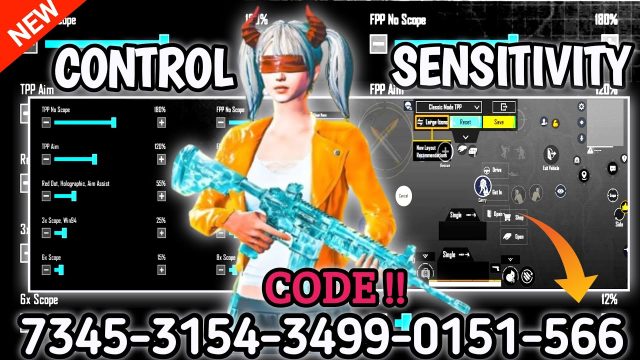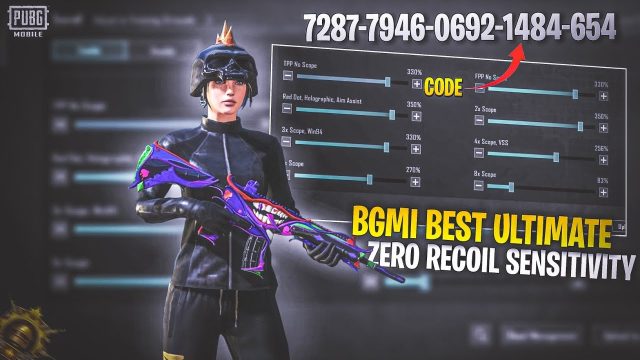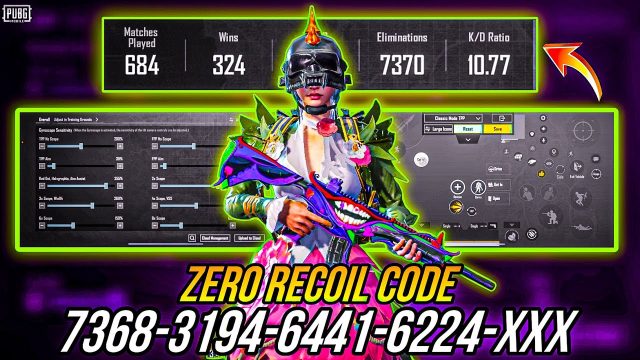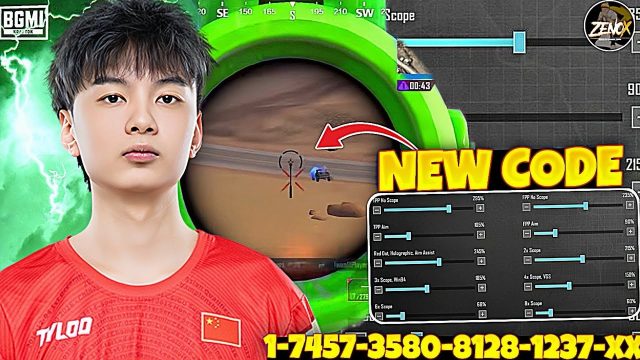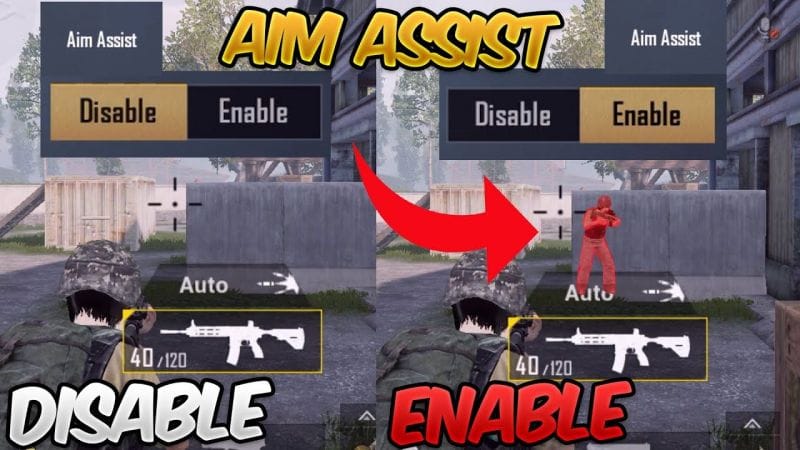
Let’s face it – no matter how good your game sense is, if you can’t land your shots, you’re just a moving loot box. Aim assist in PUBG Mobile can be a lifesaver, but it works best when your control codes are dialed in. These aren’t magical cheat codes; they’re carefully tweaked sensitivity and layout settings that make the game’s built-in aim assist feel like it’s glued to enemies. I’ve tested dozens of codes to bring you 10 that genuinely improve your accuracy. Whether you’re on a budget phone, an emulator, or a high-end iPad, there’s a code here for you.
1. Six-Finger Claw for Maximum Control
If you want aim assist to work its magic, you need to keep your crosshair steady and your fingers off the screen. A six-finger claw layout spreads the workload: thumbs for movement and aiming, index fingers for peeking and firing, middle fingers for scope and gyro reset. This setup lets you strafe, lean, and fire without losing your aim. Try codes designed for six-finger claw – they position the fire button on the left side so your right thumb can focus on fine adjustments. Your aim assist will lock on smoother because you’re not jerking the screen.
2. Gyroscope Sensitivity That Actually Works
Gyro aiming is a game-changer for aim assist. When you tilt your phone, the crosshair moves precisely, and the aim assist kicks in to track targets. But the default gyro sensitivity is often too low or too high. The best control codes for aim assist use gyro values around 300% for ADS and 50% for third-person. This combination lets you make micro-adjustments while the game handles large corrections. Pair it with a 4-finger layout and you’ll wonder how you ever played without gyro.
3. ADS Sensitivity Fine-Tuned for Snap Aim
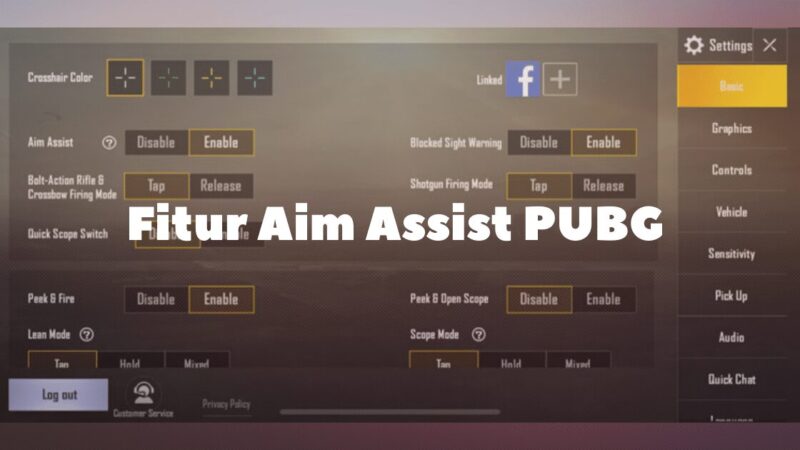
Aim assist is most noticeable when you scope in. But if your ADS sensitivity is off, you’ll overcorrect or undercorrect. Aim assist codes often set ADS sensitivity between 80 and 100 for each scope. I recommend starting at 90 for red dot and 85 for 4x. This keeps the aim assist magnet strong without making your view spin out of control. Test these values in training mode – you should feel the crosshair “stick” to enemies as you strafe.
4. Reduced Aim Acceleration for Smooth Tracking
Aim acceleration can ruin your aim assist by creating a lag between your input and the on-screen movement. Many pro control codes turn off aim acceleration entirely. In the settings, set “Aim Acceleration” to 0. This makes your aim linear – the same flick speed no matter how fast you swipe – so aim assist predicts your movement better. You’ll notice your crosshair sticks to moving targets more naturally.
5. Peek and Fire Layout for Corner Peeking
Aim assist works wonders when you’re peeking around corners. The game’s auto-aim will snap to enemies as you lean out. The trick is to use a layout that separates peek buttons from fire. Place your left peek button near your movement joystick and right peek near the fire button. This way you can lean, shoot, and lean back without aim assist fighting you. Check out our weapon switching codes for layouts that integrate peek-to-shoot sequences.
6. Recoil Control Codes for Laser Beams
Even with aim assist, recoil can pull your crosshair off target. Control codes that tweak vertical and horizontal sensitivity reduce the need for manual compensation. Set vertical sensitivity to 130% and horizontal to 100%. This makes your aim assist keep the reticle on the enemy’s center mass while you spray. The game’s aim assist will fight the recoil only if your sensitivity is balanced – these values are a sweet spot.
7. Scope-In Aim Assist Settings for Snipers
Sniping with aim assist is tricky because the assist can actually pull your crosshair off the head. To counter this, use codes that reduce aim assist strength on scopes above 6x. For AWM lovers, I’ve seen amazing results with AWM control codes that set scope sensitivity to 60% and disable aim assist for that scope entirely. Wait, that sounds counterintuitive, but it lets you manually micro-flick to the head without the game dragging your aim to the chest. Trust me – try it.
8. Hip Fire Sensitivity for Close Encounters
When you’re up close, aim assist is strongest in hip fire mode. To capitalize, set your hip fire sensitivity between 120 and 140. This lets you spin quickly to track targets while aim assist does the fine-tuning. Many top-tier players use this trick in combination with a 5-finger claw. Need a layout? Our low end phones article includes a hip-fire optimized code that works on almost any device.
9. Quick Scope and Hold Breath Timing
Quick scoping requires split-second aim assist activation. Control codes that bind hold breath to a separate button (not the ADS button) let you steady your aim before the scope fully opens. This triggers aim assist earlier in the animation. Set your hold breath as a left-side button and ADS as right – you can queue the actions. Practice the rhythm: hold breath, tap ADS, fire. The aim assist will lock onto the head more consistently.
10. Movement and Aim Combos for Strafe Shooting
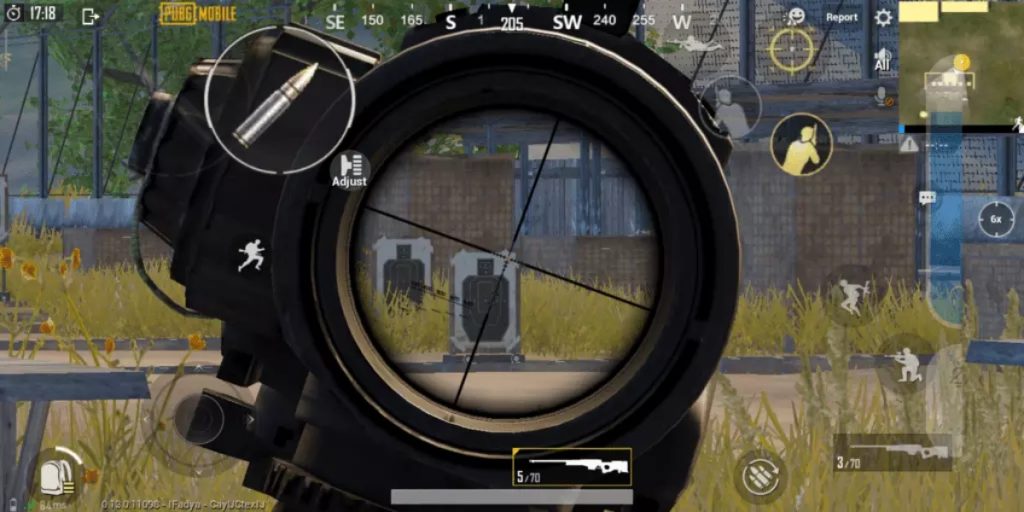
Strafe shooting – moving side to side while firing – is where aim assist shines. The game auto-adjusts your crosshair as you move, but only if your control code has a balanced movement joystick size and fire button placement. Use a layout with a 120% joystick area and the fire button slightly offset. This lets you strafe and fire without your thumb slipping. For emulator players, check out emulator control codes that map movement keys to fine analog input for even better aim assist tracking.
How to Apply These Codes
You don’t have to build these from scratch. Most of these settings are available as pre-made control codes that you can import with a few taps. In PUBG Mobile, go to Settings → Controls → Control Layout → Import. Paste the code string (a long alphanumeric code) and save. Need a step-by-step? Check our guide on importing codes. Remember, codes are device-specific – a code for an iPad might not work on a phone. Always test in the training ground before jumping into a match.
Final Tip: Tweak for Your Playstyle
No code is perfect for everyone. Use these as starting points. If you feel aim assist is too sticky (dragging your aim away), lower the ADS sensitivity by 5 points. If it’s too loose, bump it up. The goal is a balance where aim assist feels like a partner, not a puppet master. For a deeper dive into every setting, I highly recommend our control codes guide – it breaks down every value and why it matters.