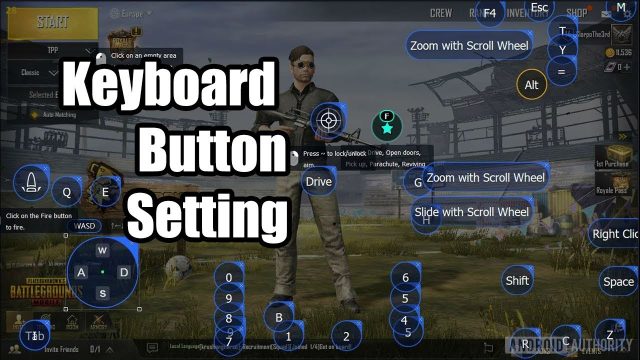
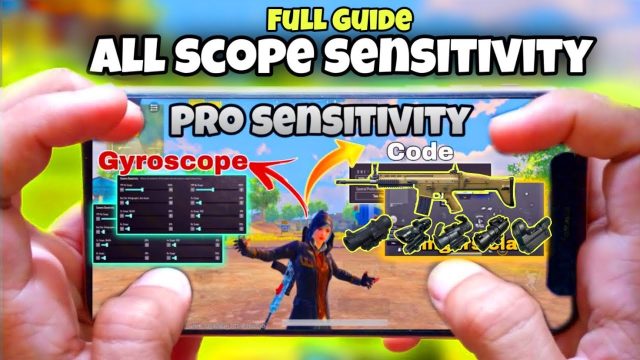
Getting your PUBG Mobile control codes right can be the difference between a chicken dinner and an early exit. With hundreds of layouts floating around, it’s easy to feel overwhelmed. That’s why I’ve put together this guide – to walk you through everything from importing codes to fine-tuning sensitivity and avoiding common pitfalls. Whether you’re a claw veteran or just starting with gyro, these steps will help you build the perfect setup for your device and playstyle.
1. Understand What Control Codes Actually Do
Control codes are essentially a snapshot of your HUD layout, button positions, size, opacity, and even scope settings. When you share or import a code, you’re copying another player’s complete button configuration. This saves hours of manual tweaking. But not all codes are created equal – some are optimized for specific screen sizes, finger counts, or even devices like iPads or phones with 90fps support. Before you dive in, know your device’s aspect ratio and your preferred number of fingers.
2. Master the Import Process
Importing a code is straightforward, but many players mess it up. Head to your settings, then ‘Controls’ and tap the ‘Import Layout’ button. Paste the code string exactly as given – watch out for extra spaces or missing characters. Once imported, the layout will overwrite your current setup, so it’s smart to backup your old layout first. If you need a step-by-step walkthrough, check out this detailed control codes import guide that covers each screen and common errors.
3. Choose the Right Layout for Your Finger Count
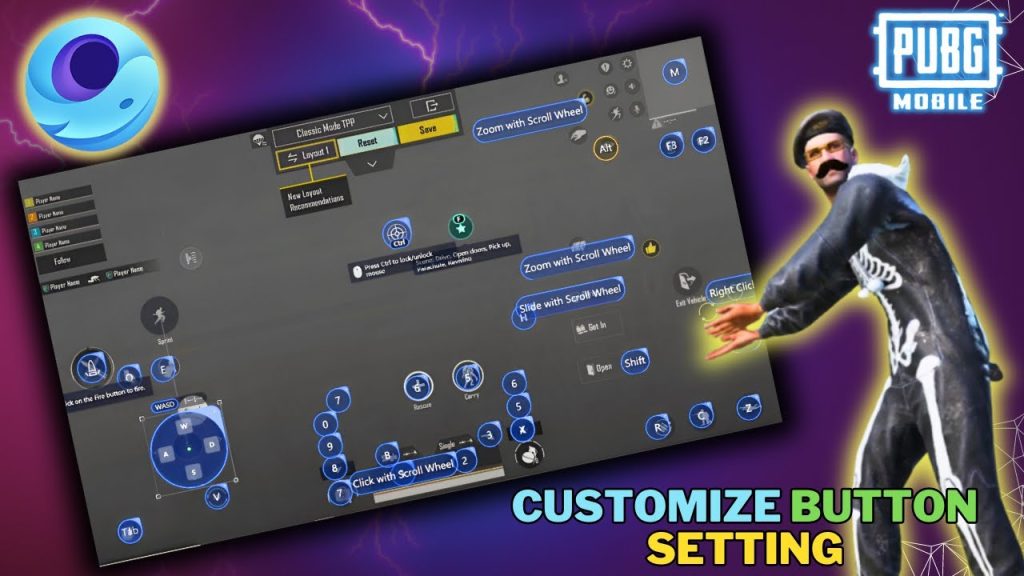
Your number of fingers directly impacts how you move, aim, and shoot. Two-finger is fine for casual play, but to really elevate your game, consider three, four, or even five fingers. Claw layouts let you tap multiple buttons simultaneously – for example, using your left index finger to fire while your thumb moves. A 5 finger setup is extreme but offers insane control. Try starting with a 4-finger layout and adjust from there. Many pro players share their codes, so you can test different configurations without starting from scratch.
4. Integrate Gyroscope for Precision Aim
Gyroscope (gyro) uses your phone’s motion sensors to control aim by tilting the device. When paired with manual thumb aiming, it gives you lightning-fast micro-adjustments for headshots. Many control codes already include gyro activation and sensitivity settings. You can find specialized gyro control codes that fine-tune aim while scoped. Start with gyro always on, then lower sensitivity for scopes. Pro tip: Use gyro only when ads-ing (aiming down sights) to avoid accidental movement while running.
5. Pair Codes with the Right Scope Settings
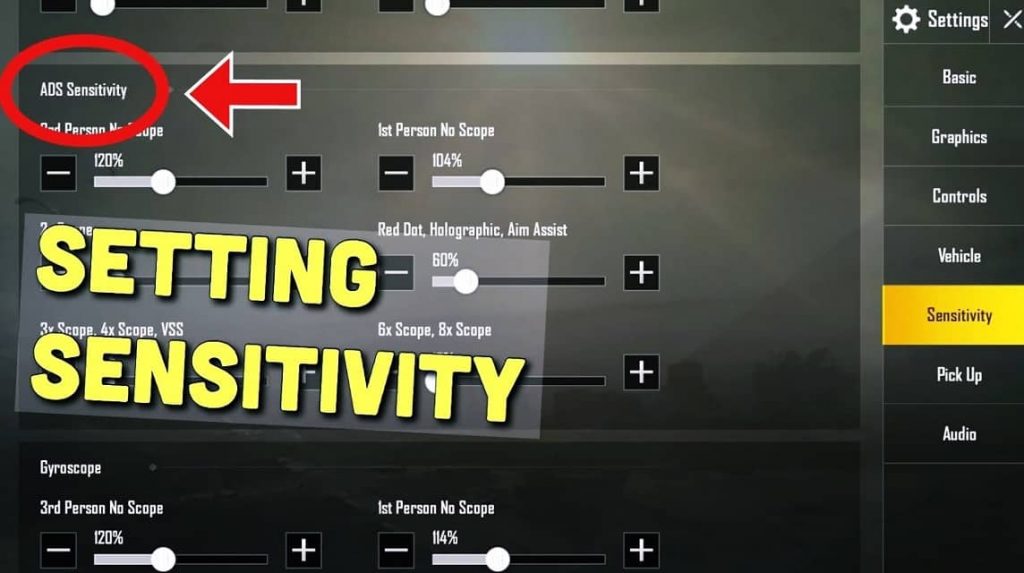
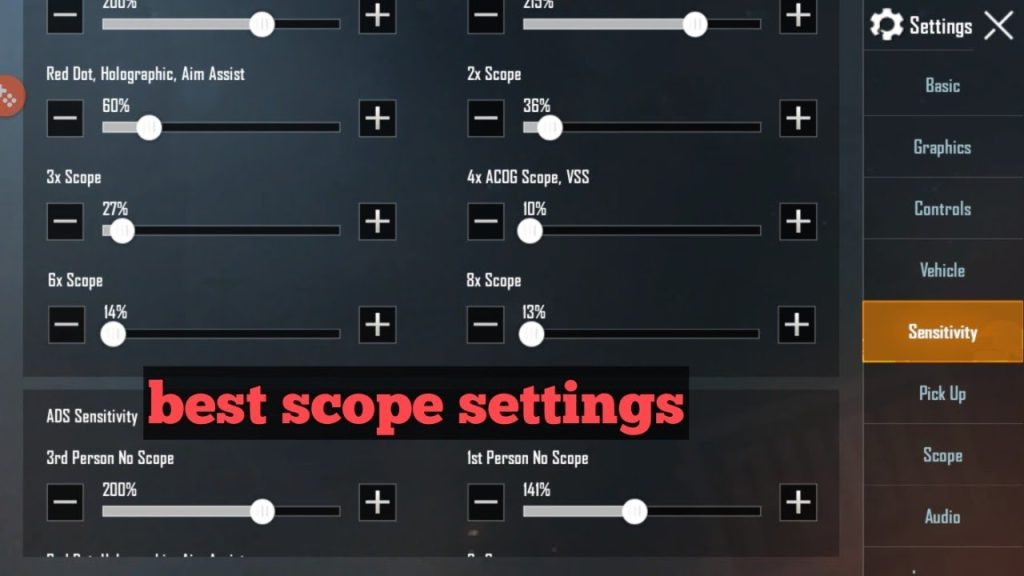
A great layout is useless if your scope sensitivity is off. Control codes often include pre-adjusted scope settings for different magnifications (2x, 4x, 6x, 8x). But you may need to tweak them for your device’s screen size and DPI. For instance, a higher sensitivity on a large iPad screen might be too twitchy. Look for codes that explicitly mention scope settings – they usually have a consistent ratio between hip fire and scoped aim. You can also manually adjust each scope’s sensitivity after importing the layout.
6. Customize Button Size and Opacity
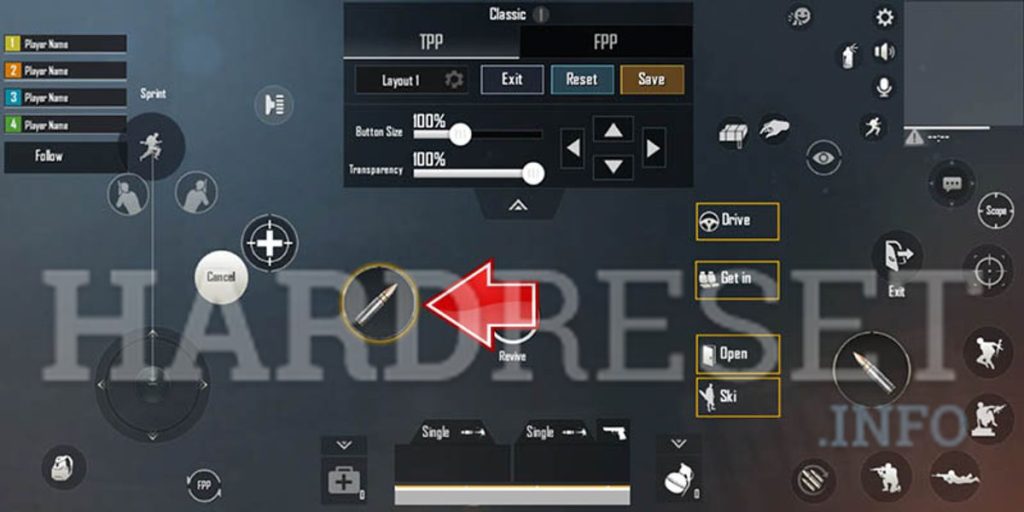
Even after importing a code, you’ll likely need to tweak button sizes and transparency. Buttons that are too big block your view; too small and you’ll miss taps. Go to ‘Customize’ in controls and adjust each button’s scale. Keep the fire button large and prominent, while map and health buttons can be smaller and semi-transparent. Also, move buttons to avoid accidental presses – especially the prone and jump buttons. This step is crucial for competitive play.
7. Test Your Layout in Training Mode
Never jump straight into a match with a new layout. Spend 10-15 minutes in training mode. Practice movement, aiming, looting, and switching weapons. Check that you can comfortably reach all essential buttons without stretching your thumbs. If something feels off, go back and adjust. Testing helps you avoid the panic of fumbling for a button in the middle of a firefight. Record short clips to analyze your finger movements later.
8. Avoid Common Layout Mistakes
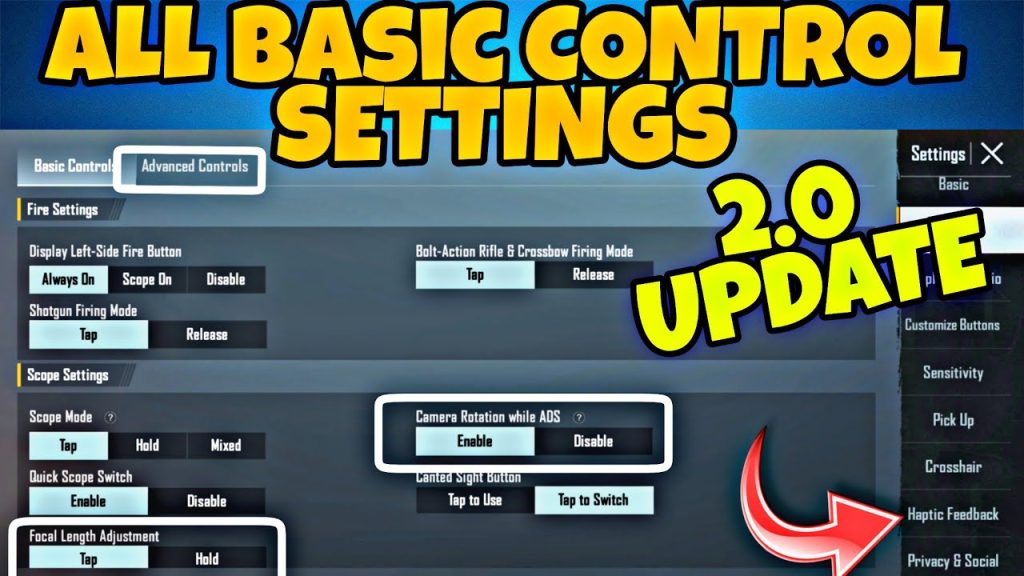
Many players ruin their experience by ignoring simple rules. Don’t place the fire button too high on the screen – it should be in your thumb’s natural arc. Avoid overlapping buttons, which can lead to unresponsive taps. Also, don’t cram all buttons on one side; distribute them for both hands. If you notice your layout is missing after an update, check out this layout missing fix to restore it quickly. Another mistake is using codes meant for different aspect ratios (e.g., 16:9 vs 18:9) – always check compatibility.
9. Borrow from the Community (Reddit, Discord, and More)
The PUBG Mobile community is generous with layouts. Reddit is a goldmine – head to r/PUBGMobile and search for control codes. Many players share their exact codes along with device info and sensitivity settings. The PUBG control codes Reddit community regularly updates with fresh layouts for new seasons. Similarly, Discord servers dedicated to PUBG often have channels where pros drop their codes. Just be sure to read the comments for feedback before importing.
10. Keep Your Layout Updated with Each Season
PUBG Mobile updates often tweak the control system, adding new buttons or changing existing ones. A layout from two seasons ago might have missing or misaligned elements. After every major update, check if your imported layout still feels right. You may need to re-import an updated version or adjust some settings manually. Bookmark reliable sources that update their codes seasonally, and always back up your customized layout before patching.
Setting up PUBG Mobile control codes doesn’t have to be a headache. Start by understanding what codes offer, import wisely, and always tailor the layout to your own hands and device. Whether you go with a simple two-finger setup or an advanced gyro claw, the key is practice and incremental tweaks. Use the community resources, test everything thoroughly, and don’t be afraid to experiment. Now get out there and own that chicken dinner!