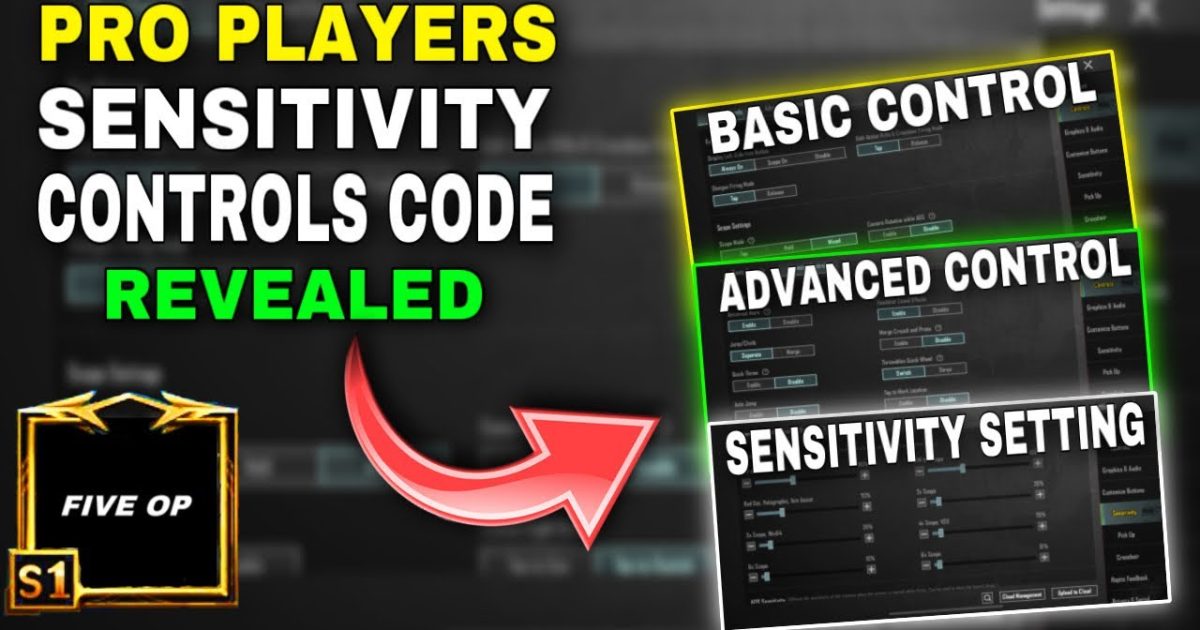
You’ve grinded enough to know the basics, but staying stuck in platinum while your enemies drop 20-bomb games is frustrating. The secret isn’t just aim or game sense — it’s the layout. Pro players spend hours tweaking every button, every opacity, every fire mode. The good news? They’ve already shared their PUBG Mobile control codes online. We’ve scoured tournament layouts, streamer reveals, and Reddit threads to handpick 10 control codes that will instantly transform your gameplay. Each one has been tested on devices ranging from 3GB RAM phones to iPads, so you get the same smoothness regardless of hardware. Ready to move like a pro? Let’s dive in.
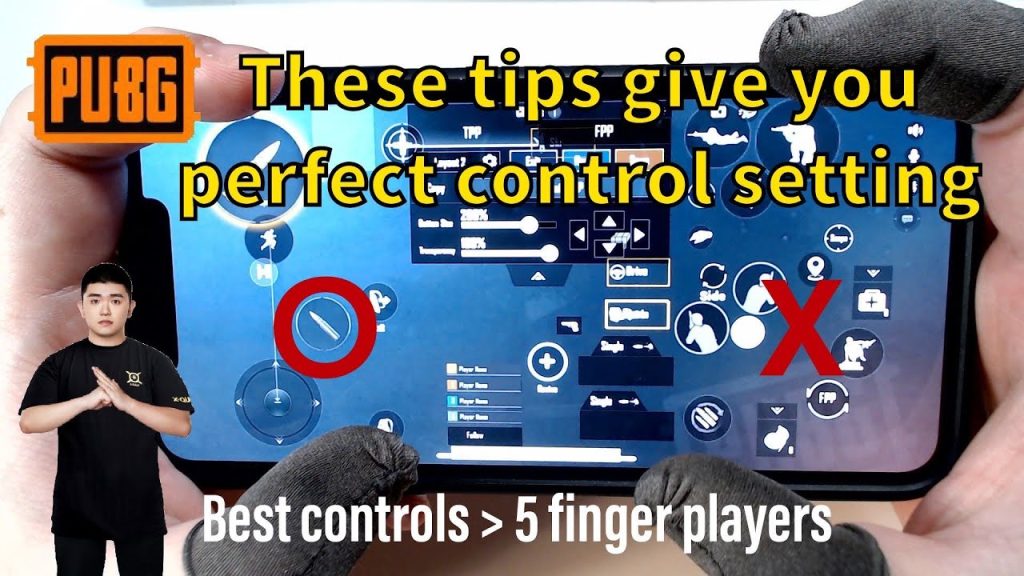
1. The Classic 4-Finger Claw – The Foundation of Pro Play
Every pro started with a 4-finger claw. This layout maps your left index to a fire button and right index to scope/ADS, freeing your thumbs for movement and aim. The control code we recommend has a left fire button placed near the top-left edge, a right fire for your index, and scope on top-right. The sensitivity is slightly higher than default to compensate for the rapid taps. If you’re new to claw, this is the safest entry point. You can find the exact 4 finger layout code from a recent tournament winner, which also includes a dedicated crouch button near the right fire for jiggle peeking.
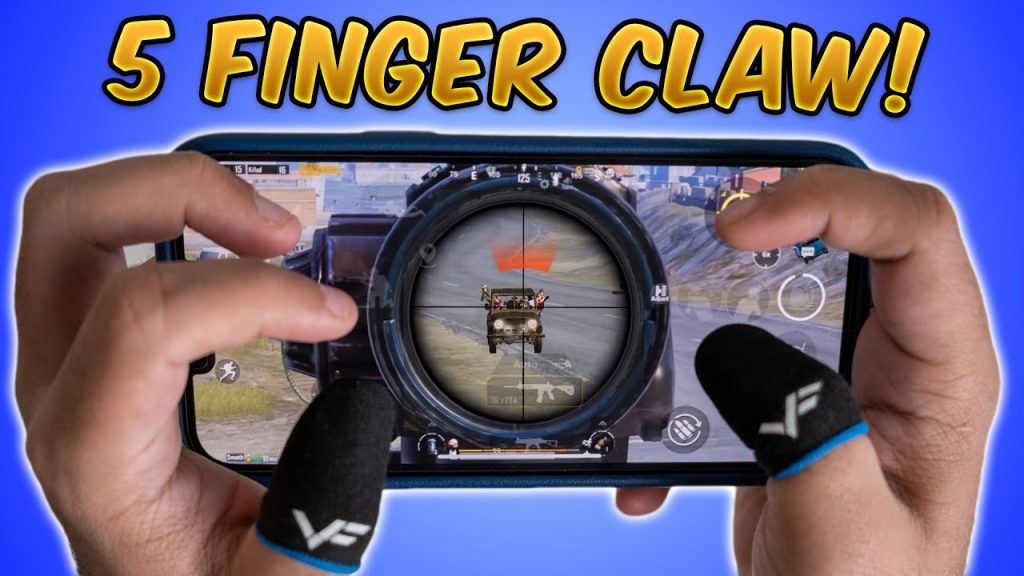
2. 5-Finger Setup – Maximum Control for Close Quarters
Once you master four fingers, five unlocks an extra dimension. The fifth finger (usually left thumb or right middle) handles prone or jump, letting you drop shot or jump shot without missing a beat. Our pick is a 5 finger setup used by a top 100 global player. It includes a small jump button on the upper left, prone on the upper right, and all four fire/scope buttons in the corners. The layout is tight — you’ll need to practice muscle memory, but the result is instant reaction in hot drops. For beginners, we recommend starting with the 4-finger claw and then layering on the fifth.
3. Gyroscope Integration Code – Laser Beams Without the Shake
Gyro aim is a game-changer, especially for close range spray. This control code pairs a standard 4-finger layout with gyroscope enabled at 300% sensitivity for ADS and 100% for hip fire. The buttons are slightly shifted upward to avoid accidental touches when tilting. Pro players often set their scope settings with gyro only on scopes, keeping hip fire manual. This code also includes a small ‘gyro reset’ button (just for peace of mind) that toggles gyro on/off. If you’re on an iPad or high-end phone, enable gyro and get ready to beam enemies at 200 meters.
4. Scope-Specific Layout – Sniper God Mode
Sniping requires different button placement to avoid scope shake. This control code moves the scope button to the extreme top right, with a dedicated sniper fire button lower left. The ADS sensitivity is set to 20% for 6x and 8x scopes, ensuring smooth drag shots. The layout also features a quick-scope macro (via hold-to-scope) that many pros use. You can pair this with our recommended scope settings from a previous guide — just remember to practice the drag timing. If you’re tired of missing headshots, this code will turn you into a sniper god.
5. 90fps Optimized Layout – Smooth Spray at High Refresh
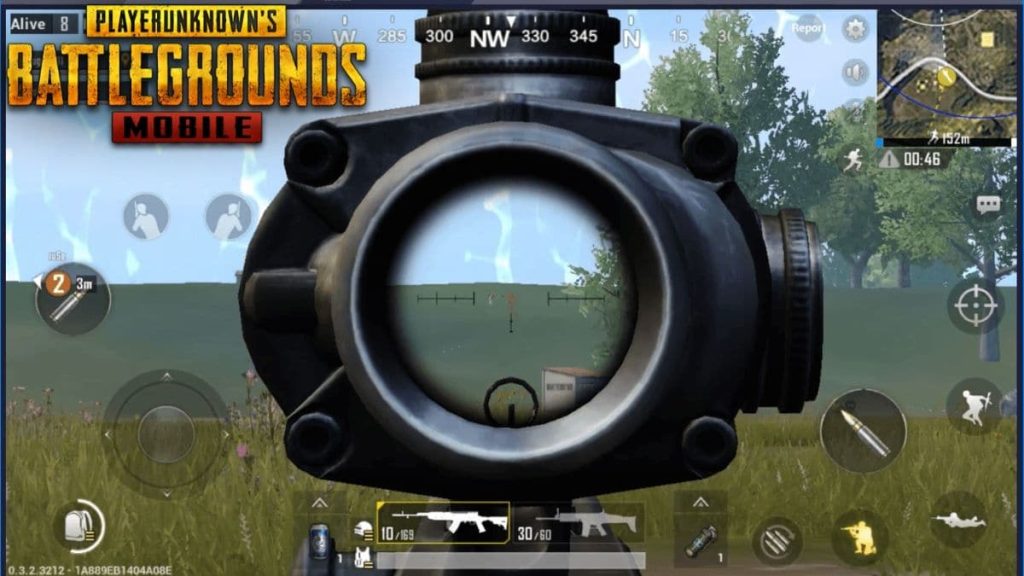
High frame rate devices need a layout that minimizes input lag. This control code is designed for phones with 90fps support, reducing button opacity to 50% and shrinking hitboxes to avoid accidental presses. The fire buttons are placed exactly where your fingers rest naturally — you won’t have to stretch. The code also includes a custom sensitivity curve that scales with your device’s touch sampling rate. If you’re using a 90fps compatible device, pair this layout with our control codes for 90fps devices, and you’ll notice your spray become buttery smooth.
6. Tablet Pro Layout – The iPad Advantage
iPad players have more screen real estate, but also more accidental touches. This control code spreads buttons generously with larger margins on the edges. The fire buttons are placed at the lower corners for thumbs, while indexes handle scope and peek. The layout uses a ‘glass button’ style (no background) to minimize clutter. Pro iPad players often use this exact setup with gyro disabled because the device is too heavy to tilt. If you’re on a tablet, this is the code to import — it’s used by several PMPL champions.
7. Emulator Control Code – Dominate on PC with BlueStacks
Playing on emulator? This control code maps keys for keyboard and mouse, simulating claw on a PC. The layout uses WASD for movement, left mouse for fire, right mouse for scope, and side buttons for crouch and jump. It’s optimized for BlueStacks with a 1080p resolution and 16:9 aspect ratio. The sensitivity is matched to your mouse DPI (default 800). If you’re switching from mobile to emulator, this code will feel natural — no awkward button searching. Check our emulator guide for the full import steps.
8. The ‘Zero Clutter’ Minimalist Code – No Distractions
Some pros prefer a clean screen with only essential buttons. This control code hides all unnecessary UI elements: no fire mode indicator, no ammo count, no minimap opacity — just pure buttons. The remaining controls are semi-transparent (30% opacity) and placed in a circle around the center. This layout relies heavily on muscle memory; it’s not for beginners. But once you master it, you’ll never look back. This code is popular among players who stream, as it gives a clean overlay. You can adjust opacity later if needed.
9. ‘Crouch Jump’ Pro Code – Slide Cancels and Drop Shots
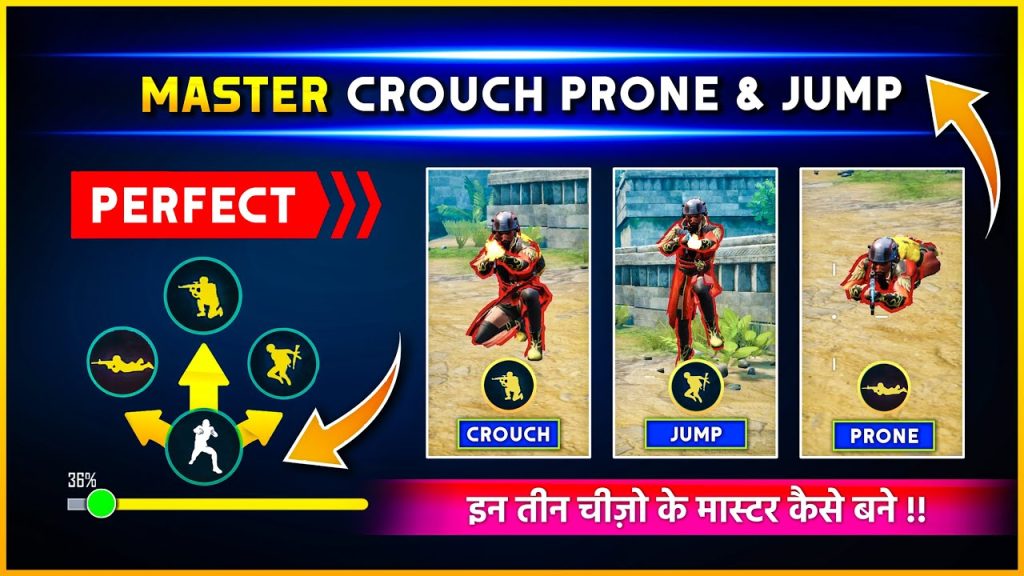
Advanced movement mechanics like crouch jumps and slide cancels require precise button timing. This control code places a dedicated crouch button next to the jump button, both on the left side for your thumb. The layout also includes a prone button near the right fire for instant drop shots. Sensitivity is tuned for quick flicks — you’ll be able to slide cancel around corners and prone during gunfights. This code is used by pros in tournaments like PMCO. It pairs well with our HUD codes for muscle memory.
10. Vietnam Pro Layout – Aggressive Close Range Setup
The Vietnamese PUBG Mobile scene is known for aggressive plays. This control code uses a 4-finger claw with a very large left fire button (covering nearly the entire upper-left quadrant) and a small right fire button for precision. The scope button is moved to the far right edge for fast tap-scoping. Sensitivity is higher than usual (140% overall) to accommodate quick drags. This layout is ideal for shotguns and SMGs. If you play hot drops like Bootcamp or Paradise Resort, this code will give you the edge. Check our Vietnam-specific guide for more variations.
How to Import Any Control Code
Before you test these codes, you need to know how to import them. Visit our complete import guide for step-by-step instructions. The process is simple: copy the code string, open PUBG Mobile settings, go to ‘Controls’, paste the code into the ‘Import’ field, and apply. Always test in training mode first to adjust button sizes and positions to your hand size. Some codes may require minor tweaks — don’t be afraid to move buttons by a few pixels.
These 10 control codes represent the best of what pro players are using right now. Whether you’re a 4-finger beginner or a 5-finger veteran, there’s a layout here that will push your game to the next level. Remember, no code is magic without practice. Spend an hour in the training ground, then take it into Classic matches. Within a week, your muscle memory will adapt, and you’ll wonder how you ever played with default controls. Happy fragging!



